Time Difference Calculator
Compare two date-times with fixed UTC offsets, automatic overnight handling, exact unit conversions, and optional business-hour overlap.
⏱Presets
📅Date-Time Inputs
Forward mode is useful when only times differ and the end time is after midnight.
🧮Quick Unit Grid
🔀Comparison Grid
📊Time Conversion Table
| Interval | Milliseconds | Seconds | Minutes | Hours |
|---|---|---|---|---|
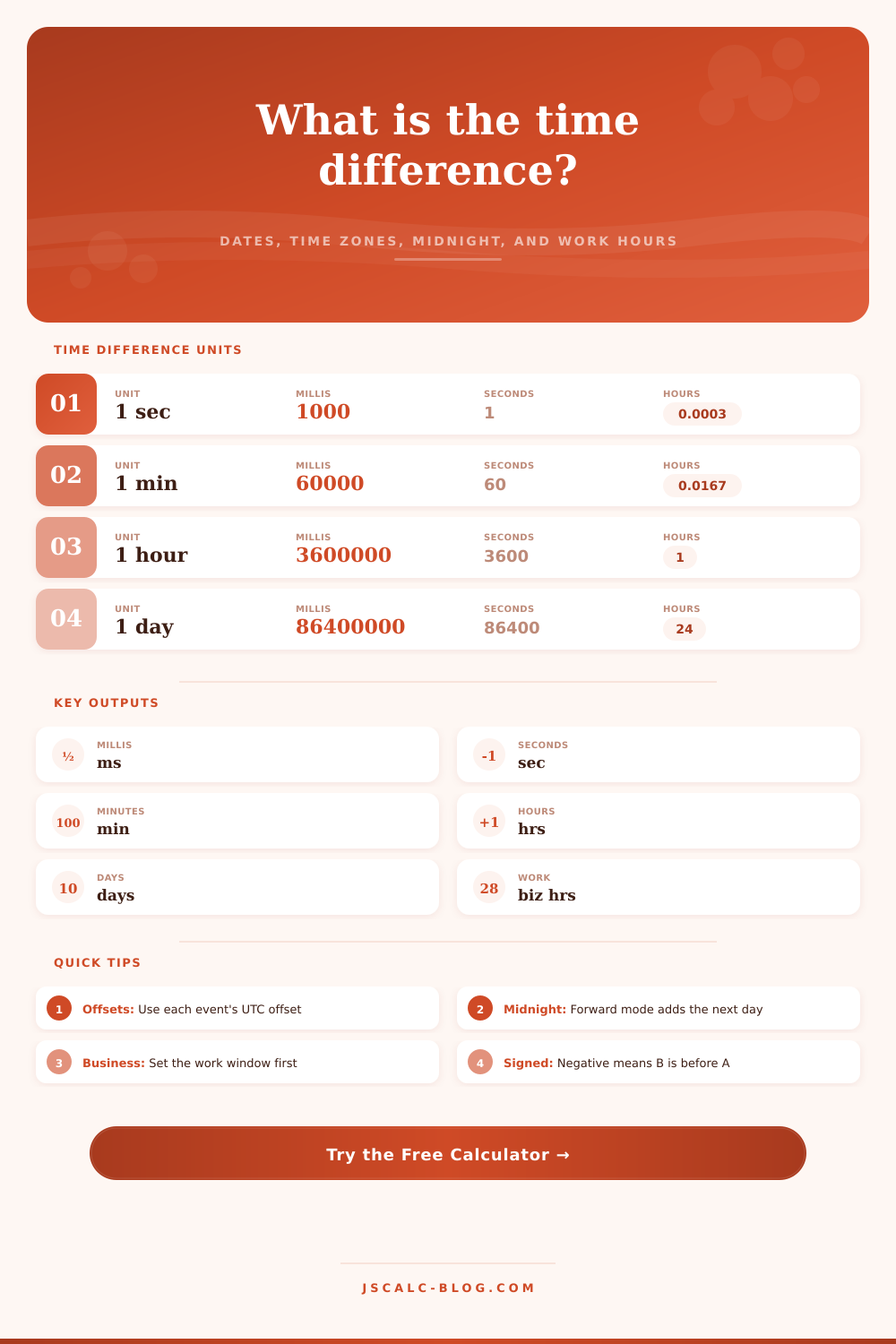
| 1 second | 1,000 | 1 | 0.0167 | 0.000278 |
| 1 minute | 60,000 | 60 | 1 | 0.0167 |
| 15 minutes | 900,000 | 900 | 15 | 0.25 |
| 1 hour | 3,600,000 | 3,600 | 60 | 1 |
| 8 hours | 28,800,000 | 28,800 | 480 | 8 |
| 1 day | 86,400,000 | 86,400 | 1,440 | 24 |
🌐Fixed Offset Examples
| Place or Label | Common Offset | Offset Minutes | UTC Conversion | Use Case |
|---|---|---|---|---|
| UTC | UTC+00:00 | 0 | same time | release logs |
| New York standard | UTC-05:00 | -300 | add 5 hours | winter audits |
| New York daylight | UTC-04:00 | -240 | add 4 hours | summer calls |
| London summer | UTC+01:00 | 60 | subtract 1 hour | UK handoff |
| India | UTC+05:30 | 330 | subtract 5.5 hours | half-hour zone |
| Singapore | UTC+08:00 | 480 | subtract 8 hours | Asia support |
| Tokyo | UTC+09:00 | 540 | subtract 9 hours | Japan schedule |
🏢Business-Hours Table
| Schedule | Daily Window | Workdays | Hours Per Day | Best For |
|---|---|---|---|---|
| Office day | 09:00-17:00 | Mon-Fri | 8 | standard teams |
| Support queue | 08:00-18:00 | Mon-Sat | 10 | ticket aging |
| Operations | 06:00-22:00 | All days | 16 | extended shifts |
| Night window | 22:00-06:00 | All days | 8 | overnight shifts |
| Core hours | 10:00-15:00 | Mon-Fri | 5 | collaboration |
⚙Formula Method Table
| Step | Formula | Output | Why It Matters |
|---|---|---|---|
| Local parse | date + time | local milliseconds | builds each timestamp |
| Offset adjust | local - offset | UTC milliseconds | compares unlike zones |
| Difference | B UTC - A UTC | milliseconds | base result |
| Seconds | ms / 1,000 | seconds | fine-grain duration |
| Minutes | seconds / 60 | minutes | shift and meeting math |
| Hours | minutes / 60 | hours | primary elapsed result |
| Days | hours / 24 | days | calendar scale |
💡Practical Tips
For example, if you’re in New York but need to schedule call with a colleague in Tokyo, by the time it’s Tuesday morning for them, it’s Monday night for you. The brain struggle to hold multiple time zone simultaneously. Daylight saving time makes it simple to get confused about whether you have a deadline today or tomorrow. After all, how do you calculate?
Plug in your offsets and dates into calculator above, and let it do the math. No need to convert hours manualy.
How the Time Calculator Works
Why is it so difficult? Because most folks think all you need to do is take time on each clock and subtract. Wrong! Because geography messes with time, time isn’t linear. You must first change all those moment to some common point (typically Coordinated Universal Time) and only THEN can you meaningfully compare times.
The tool take your two values and transforms them into milliseconds. Then it account for the unchanging offset in UTC that you chose. And finally, it tell you how long in minutes, hours, days, or even seconds until they end. You will have no more local clock confusion, just the clear difference between two points in time.
Or imagine managing a remote team or the logistics around it. Maybe they work from 22:00, 06:00. Just take away the hours and…well, you’ve got a negative number. It is not really helpful. What’s helpful is what the calculator calls its forward mode, which advance the end time by one day when it occurs before start time. It works for overnight spans. It doesn’t require you to do any manual date adding. The tool know that midnight isn’t an error; it’s a boundary.
Things get more complicated when we attempt to measure actual work performed. Productive time is not the same as elapsed time. If your server goes down for 30 hours, but your support team work between nine and five during week days, then the practical impact will be much lower. The calculator supports a “business-hours overlap” option which measure only the hours within the workday (and on the days) you select. That’s a material difference in performance reviews and service level agreements. It’s not just about how long the sun shines; it’s about what work was actualy accomplished.
Mistakes usually stem from daylight saving time. Clocks shifting means that fixed offsets don’t account for it. In the example above, if something occurred at 1pm in New York during daylight saving time, you need to use UTC-04:00 rather than default of UTC-05:00. Because the calculator doesn’t guess, it depend on you knowing those details and entering them accordingly. That’s why getting the offset right matters. An hour off there will affect all other calculations. What was a morning event becomes an afternoon event. For more popular zones, page has a reference table to help you double-check which offset to pick for where you are.
How precise do you really want to be? Most of our scheduling jobs don’t require anything beyond the nearest minute. Scientific data and server logs may cares about milliseconds. The app lets you switch between rounding modes. It provides granular control over how much detail your result should contains. Want it in neat round hours? Done. Need the millisecond-level accuracy? Got it. This flexibility let you use the same engine for anything from checking a system crash to planning a dinner party.
The time zone is the difference between confusion on your team and meeting a deadline. It is the difference between knowing what’s going on and not knowing. Between seeing things clearly and leaving them ambiguous. You might be catching up with your best friend from college or planning a worldwide product launch. In either case, you’re both aiming to meet at same moment. That’s where the calculator comes in.