Milliseconds to Time Converter
Convert milliseconds into seconds, stopwatch time, days, hours, minutes, leftover milliseconds, FPS frames, latency bands, and rounded precision outputs.
⏱Quick presets
⚙Converter inputs
Use milliseconds, seconds, frame count, or a stopwatch time depending on the selected input mode.
Negative values are useful for offsets, drift, and early/late comparisons. Duration breakdowns use the selected sign handling.
📊Live breakdown
🧮Milliseconds quick lookup
| Milliseconds | Seconds | Stopwatch | Typical use |
|---|---|---|---|
| 1 ms | 0.001 s | 00:00.001 | Timer resolution, fast instrumentation |
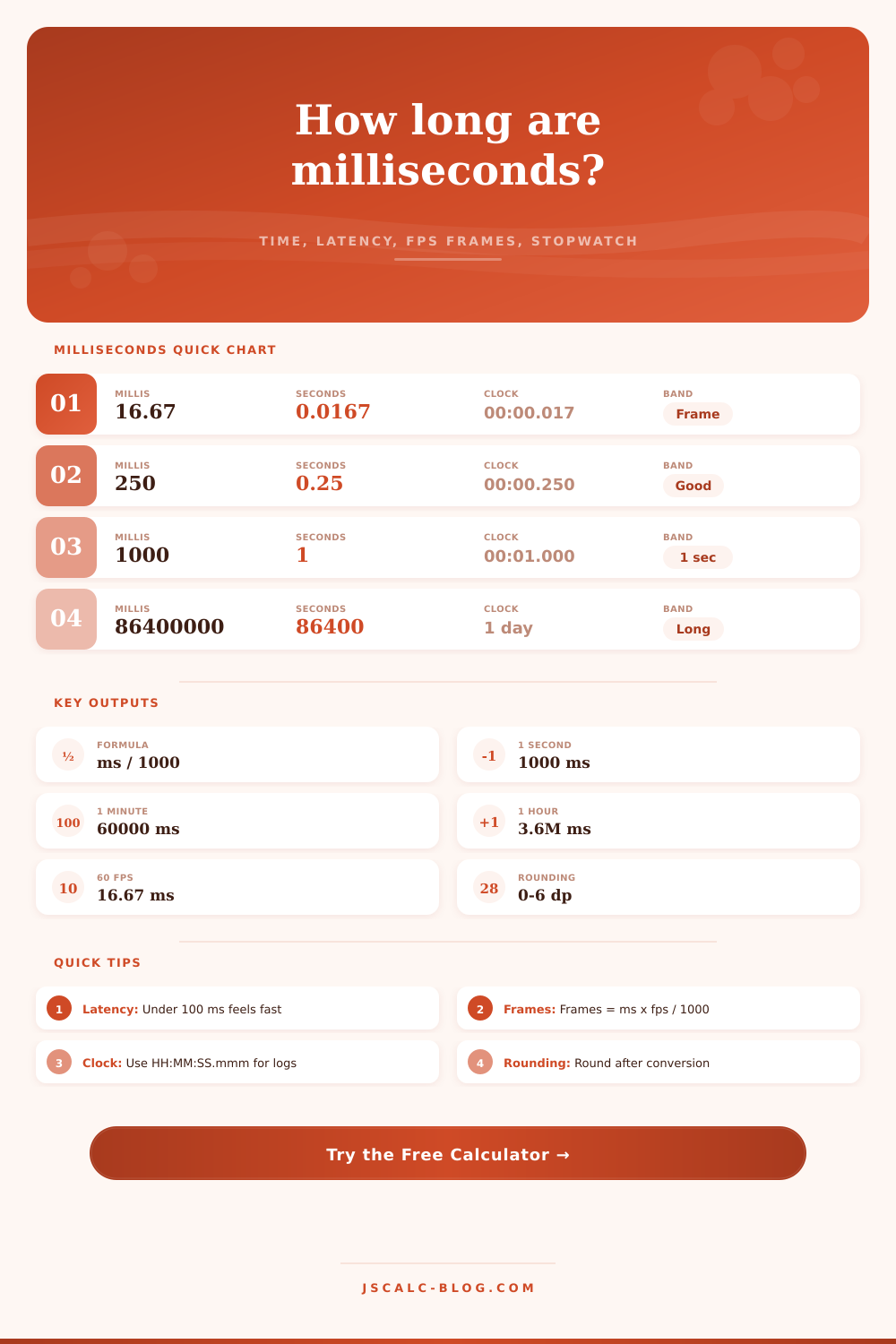
| 16.667 ms | 0.016667 s | 00:00.017 | One frame at 60 FPS |
| 33.333 ms | 0.033333 s | 00:00.033 | One frame at 30 FPS |
| 100 ms | 0.1 s | 00:00.100 | Fast interaction threshold |
| 250 ms | 0.25 s | 00:00.250 | Noticeable UI wait or debounce |
| 1000 ms | 1 s | 00:01.000 | One second |
| 60000 ms | 60 s | 01:00.000 | One minute |
| 3600000 ms | 3600 s | 01:00:00.000 | One hour |
| 86400000 ms | 86400 s | 1d 00:00:00.000 | One day |
🎬FPS frame comparison grid
| Frame rate | One frame | 250 ms | 1000 ms | Best use |
|---|---|---|---|---|
| 24 FPS | 41.667 ms | 6 frames | 24 frames | Cinema timeline checks |
| 25 FPS | 40 ms | 6.25 frames | 25 frames | PAL broadcast edits |
| 30 FPS | 33.333 ms | 7.5 frames | 30 frames | Screen capture and standard video |
| 50 FPS | 20 ms | 12.5 frames | 50 frames | High-motion regional video |
| 60 FPS | 16.667 ms | 15 frames | 60 frames | Games, UI animation, streaming |
| 120 FPS | 8.333 ms | 30 frames | 120 frames | High refresh motion review |
| 144 FPS | 6.944 ms | 36 frames | 144 frames | Competitive gaming displays |
⚡Latency band reference
| Profile | Excellent | Good | Watch | Slow |
|---|---|---|---|---|
| Web interaction | 0-100 ms | 100-300 ms | 300-1000 ms | Over 1000 ms |
| API response | 0-100 ms | 100-500 ms | 500-2000 ms | Over 2000 ms |
| Gaming input | 0-30 ms | 30-70 ms | 70-150 ms | Over 150 ms |
| Video/audio sync | 0-20 ms | 20-45 ms | 45-100 ms | Over 100 ms |
| Human reaction | 0-150 ms | 150-250 ms | 250-400 ms | Over 400 ms |
| Batch processing | 0-1000 ms | 1000-5000 ms | 5000-60000 ms | Over 60000 ms |
📐Rounding and formula table
| Need | Formula | Example | Output note |
|---|---|---|---|
| Milliseconds to seconds | seconds = ms / 1000 | 250 / 1000 | 0.25 seconds |
| Frames from milliseconds | frames = ms x fps / 1000 | 250 x 60 / 1000 | 15 frames |
| Milliseconds from frames | ms = frames / fps x 1000 | 15 / 60 x 1000 | 250 ms |
| Round to increment | rounded = round(ms / inc) x inc | 248 to 10 ms | 250 ms |
| Stopwatch split | divide by day, hour, minute, second | 90061005 ms | 1d 01:01:01.005 |
| Repeated intervals | total = value x repeats + gap x (repeats - 1) | 250 x 8 + 50 x 7 | 2350 ms |
When you’re looking at a log file and see that a request took 250 milliseconds, that’s a blink of an eye to a casual observer. To a server, though, that’s an eon. Digital performance doesn’t play well with the units by which we cook or commute. A second is far too long. For most debugging purposes, a microsecond is far too short. And then there are milliseconds, which is caught somewhere between these two extremes.
Convert them into something your brain understands. You put in your raw values… And the calculator do the math for you. No need to do fractions in your head. And it converts those abstract numbers into latency bands, frame counts, and even stopwatch formats. You input a number and it’ll tell you whether it’s good enough or it’s going to make your users mad. It’s not about the arithmetic. It’s about context.
Making Time Numbers Easy to Understand
16.67 milliseconds is equal to one frame at 60 frames per second, fine. But 16.67ms is the threshold where motion starts to look smooth, now we’re getting somewhere. Most people gets stuck on the conversion itself. Most people stop there when they divide by sixty to get minutes and divide by a thousand to get seconds. It doesn’t take into account what that actualy means in terms of time for the user. That’s where the latency profiles help.
Latency of 50 milliseconds may be fine for a game. Latency of 50 milliseconds is problematic for syncing audio and video in a broadcast environment. You can see that in reference table. In the reference table, it tells you that the good timing for a web interaction is slower than gaming. Why does that matter? Our brains process different types of media different.
Frames are a tricky one; your intuition doesn’t always carry over. For example: “Well if I double my framerate, then it’ll be twice as good!” Nope! Each frame take half the time to render. If we look at the frame comparison grid, 30 frames @ 120FPS take up only 250 milliseconds. Meanwhile, 6 frames @ 24FPS takes up the exact same amount of time. That impacts what optimizations you’re willing to make. Having more time per frame mean having more wiggle-room to mess around (and higher-refresh scenarios imply higher user expectations). The calculator allows you to switch between these framerates and experience the same length in two very different ways.
Timing analysis gets hidden errors from rounding. Too few decimals, you lose precision. Too many decimals. You get noise. Use the tool’s rounding increment and decimal places setting. That’s useful for loggers. If you’re waiting on a batch job to finish, you don’t really care about the nanosecond it crosses the minute mark; you just want to know that it crossed the minute mark. Record the exact millisecond value so you can work with it. Only round once you show it to human eyes. If you round first, it will shift your frame count around and trip latency thresholds. It is a small detail but one that makes a difference.
There’s also the matter of scale. A millisecond is small. Eight million milliseconds is a day. Simple division isn’t enough to bridge that gap. That takes time… Specifically days, hours, minutes, or whatever milliseconds are left. The stopwatch formatting options addresses this. By forcing it to display (or not display) hours, it makes the logs readable. Thousands of entries go by and the format needs to fit the size of what happened.
Until you actualy want to use it, negative time is a bit strange. You might use early or late arrival in some sort of drift analysis or calculation where you’re using offsets. Use negative numbers for that. The sign provides direction. The magnitude provides duration. Don’t take the absolute value. This helps you avoid bugs in your timing code caused by not knowing whether you needed a negative number.
Until there is a context, milliseconds are simply numbers. Whether you are debugging a slow API or timing a sprint split, the goal is the same. You want to feel the passage of time. And the tool gives you the words for that. It transforms raw data into a clear story. You begin with a number. You conclude with a decision. This is what time conversion accomplishes.
Time isn’t just about counting ticks. Rather, it’s about controlling perception. And perception is all that matters.