Meeting Time Across Time Zones Calculator
Convert a host's local meeting time to UTC and participant local times, including manual daylight saving adjustments, date rollover, and working-hour overlap checks.
🌐Preset meetings
📅Host time and meeting rules
Effective offset equals base offset plus this adjustment.
👥Participant offsets
Meeting Time Results
🧭Meeting conversion grid
👥Participant local time table
| Attendee | Effective Offset | Local Start | Local End | Date Rollover | Work-Hour Fit |
|---|---|---|---|---|---|
| Calculate to load participant times. | |||||
🔄Alternative host time comparison
Shift comparison
Shift comparison
Shift comparison
Shift comparison
| Host Time Option | UTC Start | Fit Score | Fully Inside | Rollovers | Best Use |
|---|---|---|---|---|---|
| Calculate to compare nearby times. | |||||
📊Offset and DST reference tables
| Zone Label | Common Standard Offset | Daylight Example | Manual DST Entry | Meeting Note |
|---|---|---|---|---|
| US Eastern | UTC-05:00 | UTC-04:00 | Add 1 hour | New York calls |
| US Pacific | UTC-08:00 | UTC-07:00 | Add 1 hour | West Coast hosts |
| United Kingdom | UTC+00:00 | UTC+01:00 | Add 1 hour | London overlap |
| Central Europe | UTC+01:00 | UTC+02:00 | Add 1 hour | Berlin and Paris |
| India | UTC+05:30 | Usually none | No adjustment | Half-hour offset |
| Singapore | UTC+08:00 | Usually none | No adjustment | APAC anchor |
| Japan | UTC+09:00 | Usually none | No adjustment | Late US calls |
| Sydney | UTC+10:00 | UTC+11:00 | Add 1 hour | Season flips |
| Fit Band | Score Range | What It Means | Typical Action |
|---|---|---|---|
| Excellent | 85% to 100% | Most attendees are inside working hours | Send invite |
| Usable | 70% to 84% | One attendee may be near an edge | Check courtesy |
| Tight | 55% to 69% | Several local times are awkward | Try alternatives |
| Poor | Under 55% | Many attendees are outside work windows | Move or rotate |
| Formula Step | Calculation | Output | Purpose |
|---|---|---|---|
| Host timestamp | date + time | host local ms | starts from invite time |
| DST offset | base + DST | effective offset | manual season control |
| UTC conversion | host local - offset | UTC ms | shared baseline |
| Participant time | UTC + offset | local ms | attendee display |
| Date rollover | local date - host date | prior/same/next | calendar warning |
| Work overlap | meeting vs work window | fit minutes | quality score |
💡Practical tips
At some point, you’ve probably had that video call where you check the clock and discover your coworkers is either getting up or going home for dinner. Or maybe you’re mid-presentation while another person yawns at their screen. If you have worked across borders, this has happened to you.
Your phone’s calendar app may tell you there’s a big green block of availability. But that doesn’t consider the human toll of a 10 p.m. End or a 7 a.m. Beginning. And people make this mistake all the time because they think time zones are simply a matter of math. Nope. They’re a question of respect, energy and subtle lowering of team morale.
Why Time Zones Matter for Your Team
You don’t need to try to figure out the coefficient yourself or how to convert between offsets (the calculator will do the math for you, after you enter the times of day and places involved). Instead, what this really does is help you understand what it means. Most other calculators just spit out “it’s 6am in Sydney” or “it’s 3pm in London.” What they don’t do is apply the human intervention of changing the clock when daylight savings starts and ends. That’s important because not everywhere shifts its clocks around on the same date. More frequently, there are a few weeks each year when North American and European countries adjust different. This leaves a window where the regular offset doesn’t work anymore, but the daylight one hasn’t kicked in yet. Without that toggle, then you could set up a meeting an hour too soon or late depending on which week it falls in. With it you have to know what the actual offset should be instead of relying on an out-of-date database stored on a server.
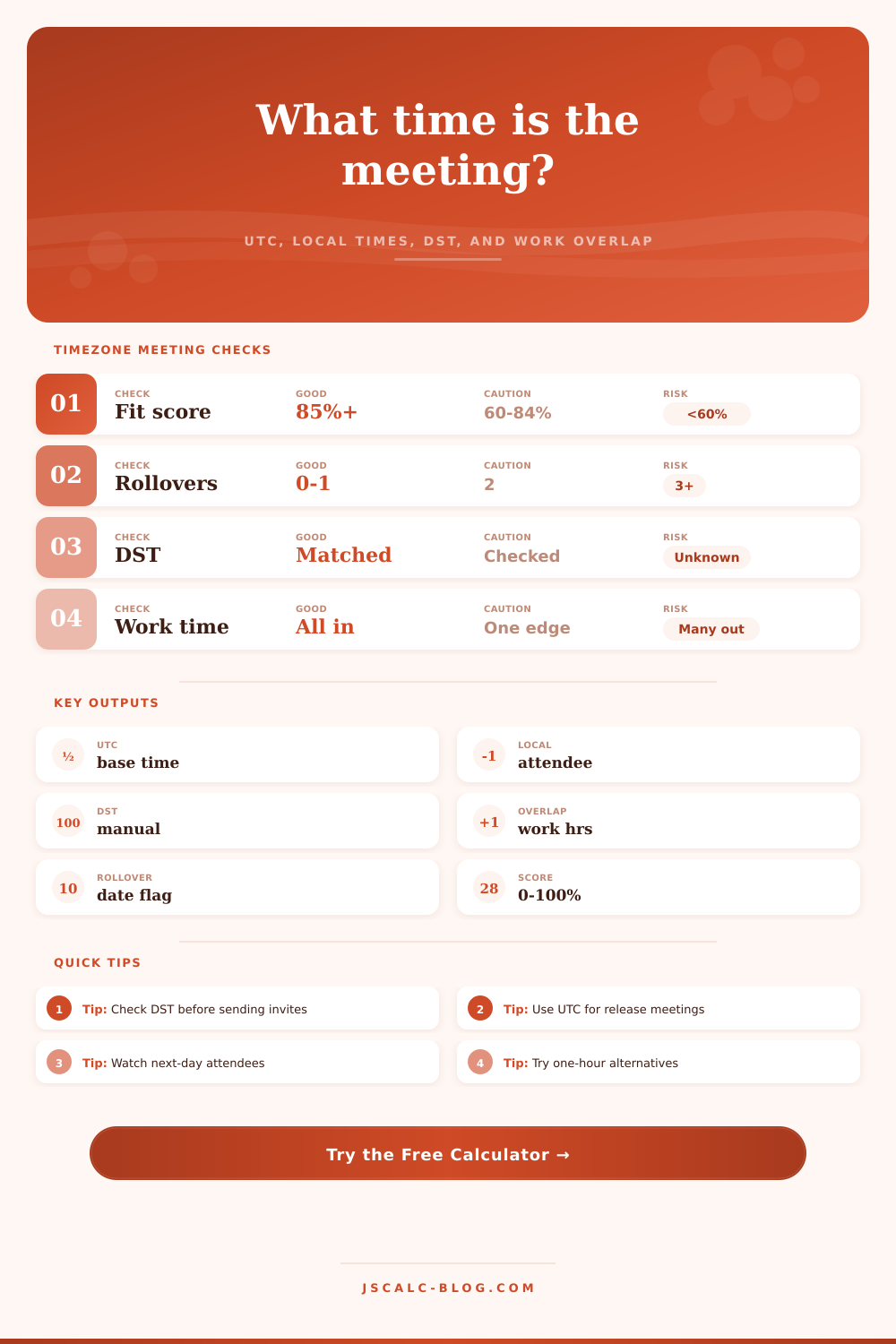
Take the fit score for example. This is basically a percentage of how many people will be in range of their assigned working hours. Ideally, you want it to be 85 percent or higher. In other words, nearly all of them will be engaged during regular business hours. Anything under 60 percent is a red flag. What that tells you is that several participants will be invited to join either before they’ve had their first cup of coffee or long after they’ve signed out. Not only is that uncomfortable, it’s untenable. Over time, these low scores lead to fatigue and resentment, even if no one complains outright. The tool raises a flag on this so you can change the start time before you send the invite.
Another silent killer are date rollovers. If the host is in Tokyo and the attendee is in New York, the meeting could actualy be Wednesday morning for the attendee and Tuesday morning for the host. Or the other way around. In a quick chat message, it’s easy to miss that. The calculator will flag that explicitly if one of the participants has a different local date than the host. You may believe you’re syncing up on Friday; meanwhile, your colleague in Auckland sees it as Saturday. That makes all the difference as to whether or not they’re even working. Always double-check that date column as carefully as time column.
Having working-hour overlap isn’t just nice… It’s efficient. You don’t want to span a twelve-hour period from when your first attendee gets on the call, for example at 8 a.m. Their time) to when your last person gets off (maybe 6 p.m.). That simply won’t work. To accommodate some wiggle room, you can enter a tolerance in minutes, like maybe fifteen. Maybe someone doesn’t mind starting at 8:30 a.m., or maybe they really need a 10 a.m. Start. Changing this tolerance will help you figure out where you’re most likely to land somewhere reasonable. You’ll also be able to tell if bumping the start time up or down an hour might get your meetings more aligned with your attendees availability. In fact, sometimes switching a 9 a.m. To 10 a.m. Host time can move your overlap from unusable to usable. Small change, big impact.
Here’s how that works: On the page there is a reference table that illustrates daylight examples and common offsets. That table lets you check your inputs. Is Sydney on daylight time? Check the table to see if Sydney is on daylight time. You have some sort of starting point from which to double-check your manual adjustments.
Just keep in mind that while the tool is a guide, it’s never a mandate. Some people love having an early call. Others like having a late one. The tool gives you the data so you can make the most informed choice possible. And it takes away the confusion so you can just focus on the conversation.
Ultimately, scheduling isn’t about geography; it’s about empathy. It is about acknowledging that another person’s evening is your morning. By highlighting the date shifts and fit scores in a tool, you respect their time as much as yours. This might seem like a small thing, but it matters.
So the next time you draft an invite, spend an additional minute running the numbers. You’ll see your colleagues notice. And so will their energy levels.