Days Left in the Month Calculator
Count the remaining calendar days to the selected month end, switch inclusive counting on or off, and audit business days, weekends, holidays, hours, and percent of month elapsed.
This table counts each weekday between the selected date and the last day of the selected month after your boundary setting is applied.
| Weekday | Remaining dates | Business pattern | Holiday hits | Net business days |
|---|---|---|---|---|
| Monday | 0 | Yes | 0 | 0 |
| Mode | Start counted? | Formula | Calendar days | Best use |
|---|---|---|---|---|
| Inclusive | Yes | monthEnd - date + 1 | 0 | Billing periods |
| Holiday date | Weekday | In remaining window | Business day? | Impact |
|---|---|---|---|---|
| No holidays entered | - | No | No | Business days unchanged |
| Selected month | Selected date used | Month end | Calendar left | Business left | Elapsed |
|---|---|---|---|---|---|
| July 2026 | 2026-07-28 | 2026-07-31 | 4 | 4 | 90.3% |
Some months feel longer then others. There are so many days left on calendar and it doesn’t look promising. How many more day do you realy have to get your thing done?
That’s why we like counting in days. It sounds so easy, but it isn’t. If you just count every single day you’re not considering weekends, sick days, or when your billing period start. This math changes over time. The calculator will take care of all that for you, freeing up your mind from tracking changing variables.
Why Counting Days is Hard
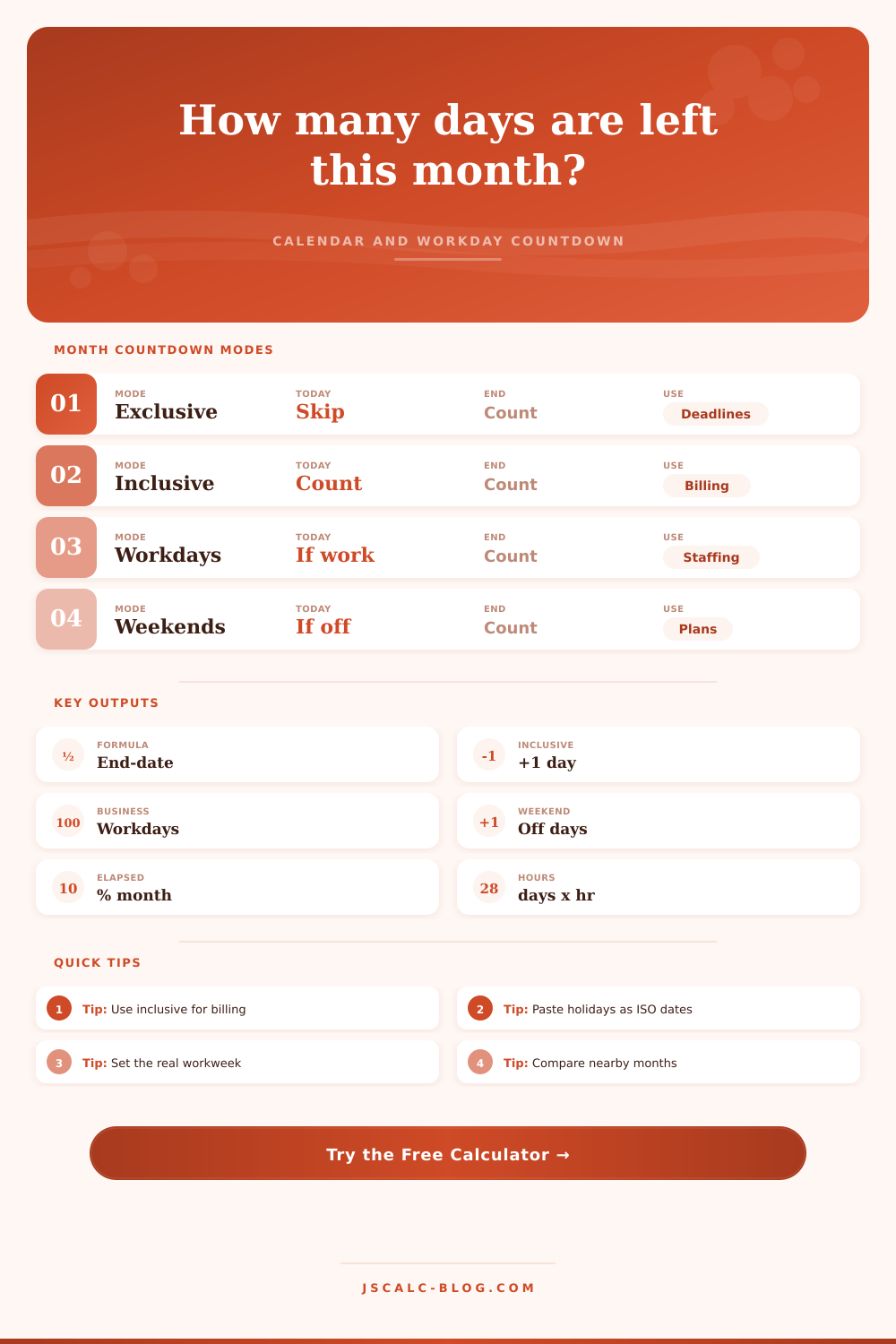
Do you want to count your days inclusive or exclusive? There is an answer to this. Do you have a client who bill you from today? It is inclusive. That means you’ll add in the first day as it is included in services provided. Do you have a deal that starts today? Inclusive is preferable. Exclusivity is better.
It is only one day, and sometimes it is less than that. But it can mean the difference between paying a late fee and fulfilling your end of contract. It is small stuff but it is important stuff.
Then you do business days. A lot of folks think that’s five. But it’s not. Government offices can closes at noon on Fridays. Your support teams could work on weekends. Retail shops gets slammed on Saturdays. The type of work week makes a huge difference in the result. If your team doesn’t follow a Monday-through-Friday model, they’re actualy Tuesday through Saturday, then you’ve estimated incorrectly. You might think there is still time left when you have already used up all your working hours.
And then there are the holidays. These complicate things even more. If a holiday falls on a Tuesday it’s a lost workday, but if it falls on a weekend it doesn’t impact the number of business days in the month. This should of been entered correctly. Looking at the reference table you can see that every holiday affects the total in some way. That’s why they call them holidays, right? They challenge the idea that every day is the same.
Some days are bottlenecks and other days are empty. Planning around busy times makes difference. But it’s nice to know how we’re doing too. The percentage of the month that has gone by is a good indicator. Are you 80% through the month, yet you’ve sold just 40%? That tells you something’s wrong. It forces you to consider ratio between the amount of time that has elapsed and how much you’ve accomplished. Sometimes, this ratio; not the total number of days remaining, will be more informative.
With the comparison feature, you can check whether this month is an outlier. You can compare July to August and June. You’ll notice that some months is longer than others because of the days of the week. That’s important context for setting expectations. Now that you know that, you might be able to shift some of your workload to a different time because next month has fewer business days. It’s not reacting after the fact; it’s planning in advance.
The key with planning isn’t about counting down days. It’s about understanding how valuabel they are. Not every day is equal. Counting rules. Holidays. Schedule. Adjusting accordingly will give you a realistic picture of what you can do. You’re not guessing anymore. You’re managing. The tool calculates for you. Focus on getting job done.