Virtual Memory Size Calculator
Size the Windows pagefile and total virtual memory from your installed RAM, operating system, workload profile, hibernation setting, and crash dump type. Get a recommended pagefile, a safe minimum and maximum, and the total commit limit in seconds.
💾Real Machine Presets
🖥System and Pagefile Inputs
Physical memory fitted to the machine.
Applies to the RAM value above.
Server leans toward a larger managed pagefile.
Heavier commit needs scale the pagefile up.
Sets the floor the pagefile must reach.
Hiberfil is separate from the pagefile.
Keep the pagefile on the fastest drive.
Fine tune the recommended size, 1 keeps default.
🔢Sizing Snapshot
📐RAM to Pagefile Quick Chart
| Installed RAM | Recommended Pagefile | Minimum Pagefile | Reads As |
|---|---|---|---|
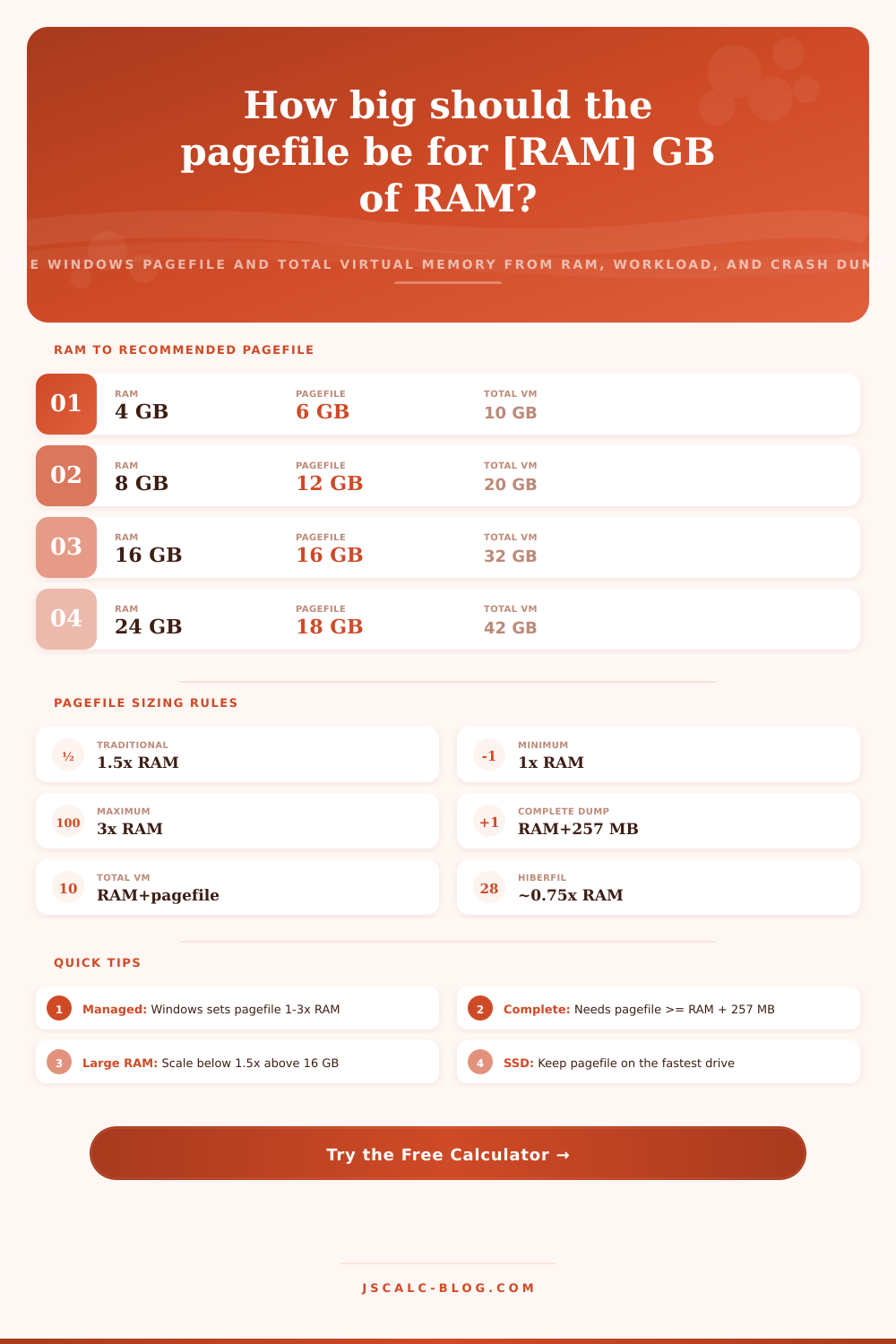
| 4 GB | 6 GB | 4 GB | 1.5x rule |
| 8 GB | 12 GB | 8 GB | 1.5x rule |
| 16 GB | 16 GB | 16 GB | 1.0x scaled |
| 24 GB | 18 GB | 18 GB | 0.75x scaled |
| 32 GB | 20 GB | 16 GB | Scaled down |
| 48 GB | 24 GB | 16 GB | Scaled down |
| 64 GB | 24 GB | 16 GB | Capped low |
| 128 GB | 32 GB | 16 GB | Capped low |
💥Crash Dump Pagefile Requirements
| Dump Type | What It Captures | Pagefile Floor | Typical Use |
|---|---|---|---|
| None | No dump written | No floor | Kiosks, appliances |
| Small minidump | 256 KB summary | About 1 MB | Quick triage |
| Kernel dump | Kernel memory only | Varies with load | Default desktops |
| Complete dump | All physical RAM | RAM + 257 MB | Deep debugging |
| Automatic | Kernel, managed size | Windows decides | Windows 10 and 11 |
| Active dump | Active memory subset | Below complete | Servers with big RAM |
📁Hidden System Files on Disk
| File | Purpose | Typical Size | Location |
|---|---|---|---|
| pagefile.sys | Virtual memory overflow | 1 to 3x RAM | Root of C drive |
| hiberfil.sys | Hibernation image | About 0.75x RAM | Root of C drive |
| swapfile.sys | Modern app suspension | 16 to 256 MB | Root of C drive |
| MEMORY.DMP | Saved crash dump | Up to full RAM | Windows folder |
| Minidumps | Small crash records | About 256 KB | Minidump folder |
| Commit limit | RAM plus pagefiles | Sum of both | Managed by kernel |
🗄RAM Size Comparison Grid
| Installed RAM | Recommended Pagefile | Maximum Pagefile | Total Commit Limit | Hiberfil (if on) | Note |
|---|---|---|---|---|---|
| 4 GB | 6 GB | 12 GB | 10 GB | 3 GB | Keep 1.5x on low RAM |
| 8 GB | 12 GB | 24 GB | 20 GB | 6 GB | Comfortable headroom |
| 16 GB | 16 GB | 48 GB | 32 GB | 12 GB | Scale toward 1.0x |
| 32 GB | 20 GB | 96 GB | 52 GB | 24 GB | Below 1.5x is fine |
| 64 GB | 24 GB | 192 GB | 88 GB | 48 GB | Small pagefile suffices |
| 128 GB | 32 GB | 384 GB | 160 GB | 96 GB | Skip complete dump |
⚙Formula Breakdown
💡Pagefile Tuning Tips
Windows has a hidden setting called the pagefile. While most people leave this set to the default; which is System Managed, some attempt to reduce its size to free up space on their disks. Unfortunately, both of these options can have issues if they don’t align with your computer usage. For example, do you enable Crash Dumps? What are your RAM specs? How heavily do you use your computer? This tool lets you figure out the right pagefile size for your computer by telling it what’s important to you. You enter your workload, the amount of RAM on your PC and whether or not you want to use Crash Dumps. It will then tell you what page file size to aim for (as well as give you maxes/mins).
Virtual memory actualy includes using disk space as part of your commit limit. Windows uses it to manage the address space for running your programs. As physical RAM becomes full, the operating system move inactive data to a file named pagefile.sys on your system drive. Physical RAM plus the pagefile equals total memory available to applications. The sum of these two totals is referred to as the commit limit. Apps that need to grab more than this limit will be refused or could cause Windows to crash. Getting the size right ensures that the ceiling stays above your maximum demand without wasting disk space (a file you’ll never access).
How to Set the Right Pagefile Size
In years past, there was an old formula saying that the pagefile should of been set to one and a half times your amount of physical RAM. On a machine with four or eight gigabytes of RAM, that’s fine because it will give you some headroom in case something goes nuts. But if you applied that formula to a machine with sixty-four gigabytes of RAM, then the pagefile would take up close to a hundred gigabytes of disk space. On that kind of machine, the pagefile might hardly budge at all. Newer systems adjust this based on how much memory you’ve got. The more physical memory you have, the smaller the pagefile needs to be (relative to the amount of RAM). The calculator does that calculation for you. That way, high-end workstations don’t get saddled with a bloated pagefile, but budget laptops still get enough protection.
The next thing many people miss is the crash dump policy. When your system encounters a fatal error, it’ll attempt to snap a picture of its memory and write it out to disk before rebooting; and it does that by writing a memory snapshot to the pagefile. That takes up some additional disk space. A complete memory dump demands that the pagefile be big enough for a complete copy of your physical memory, plus a small amount more. That’s going to require a pagefile of around 32.25GB on a 32GB RAM machine. That’s just so it can take a picture of the crash. Shrinking your pagefile can save some space, but if you turn it off completely. And if you do, and then encounter a blue screen, well, goodbye, diagnostic info. This happens because you have turned off the feature. When you choose a full memory dump type, the tool will increase its recommendation to keep the option available.
Pagefile size depends on workload type. A database server has big working sets. It aggressively commits memory. It changes less frequentely. It generally needs a bigger pagefile as it maintains constant pressure. A casual web browser, on the other hand, uses memory more dynamically. It’s better off with a smaller paging file because most of its data lives in RAM or gets thrown out soon after. To handle these variations, the calculator adds workload multipliers. For example, it tips the recommendation up for server roles and down for lighter office workloads. If you know your applications behaves unusually regarding memory, you can tweak this yourself.
Another sneaky space consumer is hibernation. Many people confuse it with paging. If you have hibernate enabled in Windows, it creates an extra file on your hard drive named hiberfil.sys. This file stores the contents of your RAM so the computer can shut down fully and be turned back on later. On average, it use roughly three-quarters of your available RAM. The hibernation file exists alongside the pagefile on the system drive, but it doesn’t count toward the commit limit. Knowing this allows you to properly account for your overall disk usage. You must have sufficient room on your drive for both the pagefile and hibernation file. This becomes even more important when dealing with a smaller solid state drive.
Where it goes is also important. To reduce performance penalties, you should keep the pagefile on the fastest drive you have. Usually this will be an SSD (NVMe or SATA), but ideally it should be anything faster than your other drives. This reduces the cost of swapping data out of RAM when Windows needs to do so. If you’re running a slow mechanical hard drive and your paging gets heavy enough, your system may become sluggish due to the physical seek time on each read operation. Adding more physical RAM is typically a better solution than depending on a large pagefile if you’re on slower storage. That’s where the tool comes in. It’ll help establish the right baseline to guide your decision making regarding software configuration vs hardware upgrade.