VM Memory Allocation Calculator
Plan how a physical hypervisor host divides its RAM across virtual machines. Subtract the host OS reserve and hypervisor overhead, add per-VM virtualization overhead, apply a memory overcommit ratio, and see how many VMs fit physically and with oversubscription before you risk swapping.
🎯Real Host Sizing Presets
🖥Host and VM Inputs
Physical memory fitted in the hypervisor server.
Converted to GB for every calculation.
Sets a default hypervisor kernel and agent reserve.
Extra RAM held back for the console, agents, and services.
How many guest machines you intend to run.
Configured guest memory, before overhead is added.
Page tables and per-VM structures, typically 4 to 10 percent.
1.0 is no oversubscription; 1.2 to 1.5 for idle guests.
🔢Formula Snapshot
📋Host RAM Split Reference
| Host RAM | Host + Reserve | Available for VMs | 4 GB VMs Fit | 8 GB VMs Fit |
|---|---|---|---|---|
| 16 GB | 4 GB | 12 GB | 2 | 1 |
| 32 GB | 6 GB | 26 GB | 6 | 3 |
| 64 GB | 8 GB | 56 GB | 13 | 6 |
| 96 GB | 10 GB | 86 GB | 20 | 10 |
| 128 GB | 12 GB | 116 GB | 27 | 13 |
| 192 GB | 16 GB | 176 GB | 41 | 20 |
| 256 GB | 20 GB | 236 GB | 55 | 27 |
| 512 GB | 28 GB | 484 GB | 114 | 57 |
🗃Hypervisor Comparison Grid
| Hypervisor | Host Reserve | Per-VM Overhead | Overcommit Support | Reclaim Tech | Notes |
|---|---|---|---|---|---|
| VMware ESXi | ~4 GB | 5-10% | Yes, aggressive | Balloon, TPS, swap | Mature memory sharing |
| Proxmox / KVM | ~2 GB | 3-6% | Yes, KSM | Balloon, KSM | Low kernel footprint |
| Hyper-V | ~3 GB | 4-8% | Dynamic Memory | Dynamic, Smart Paging | Min/max per guest |
| Xen | ~2.5 GB | 4-7% | Yes, tmem | Balloon, tmem | Dom0 sizing matters |
| Nutanix AHV | ~4 GB (CVM more) | 5-9% | Limited | Balloon | CVM reserves extra |
| oVirt / RHV | ~2 GB | 3-6% | Yes, KSM | Balloon, KSM | KVM based engine |
| XCP-ng | ~2.5 GB | 4-7% | Yes, DMC | Dynamic Memory Control | Xen fork, Dom0 tune |
📊Overcommit Ratio Effect
| Overcommit | Effective / 100 GB | 4.2 GB VMs Fit | Risk Level | Best For |
|---|---|---|---|---|
| 1.0x | 100 GB | 23 | None | Production, latency-sensitive |
| 1.1x | 110 GB | 26 | Low | Mixed general servers |
| 1.2x | 120 GB | 28 | Low to moderate | Web and app tiers |
| 1.3x | 130 GB | 30 | Moderate | Idle-heavy VDI |
| 1.4x | 140 GB | 33 | Moderate to high | Bursty dev/test |
| 1.5x | 150 GB | 35 | High | Lab, non-critical only |
📏Memory Unit Conversions
| Unit | Equals | In GB | Note |
|---|---|---|---|
| 1 TB | 1024 GB | 1024 GB | Binary terabyte |
| 1 GB | 1024 MB | 1 GB | Base planning unit |
| 1 MB | 0.000977 GB | 0.000977 GB | Megabyte |
| 512 MB | 0.5 GB | 0.5 GB | Tiny guest floor |
| 2 GB | 2048 MB | 2 GB | Small VM baseline |
| 0.5 TB | 512 GB | 512 GB | Dense host tier |
⚙Formula Breakdown
💡Allocation Best Practices
Imagine yourself inside a server room, standing next to a rack full of servers. Your challenge is to figure out how many virtual machines you can fits. This is a little like trying to cram delicate things into an already tight space. Add some testing desktops, database servers, and web servers. Flip the switch. Will it work? Can that host handles all that memory?
The VM Memory Allocation Calculator eliminates your guesswork. Before deploying anything, you’ll know precisely how physical RAM is divided between overhead, reservation, and guest use. Get numbers for demand, capacity, and risk.
How to Calculate VM Memory Limits
The single biggest sizing mistake people make is treating installed RAM as guest RAM. It assume that memory added by them will go to virtual machines. No. The host operating system will take some RAM. Management agents will take some RAM. Service console takes some RAM. The hypervisor itself has to takes some RAM to operate. There’s also a desire to have additional headroom/buffer in case the host need an extra spike.
This calculator splits out two kinds of deductions: One is called “host OS reserve“, which is under your own control (headroom and/or agents). The other is hypervisor overhead, which are set at the platform level. For example, VMware ESXi eats roughly 4 gigs; Proxmox roughly 2 gigs; Microsoft Hyper-V roughly 3 gigs; Xen roughly 2.5 gigs. To calculate how much RAM is left over for guest use, you’d then subtract each of these. Most folks don’t do that.
Each virtual machine consume a little more of the host memory than what’s configured for the VM. For example, a 4 gigabyte VM will consume roughly 4.24 gigabytes of host memory because the hypervisor maintains page tables and device buffers for each VM. So, as the guest size increases so does this overhead. Your overhead percentage is applied by the tool to the average VM size. What that means is that the demand figure reflect actual consumption rather than just the configuration number. You can expect an overhead of 4. 10 percent for most workloads. Overhead for larger VMs are higher. It’s a small difference but it matters if you want every gigabyte.
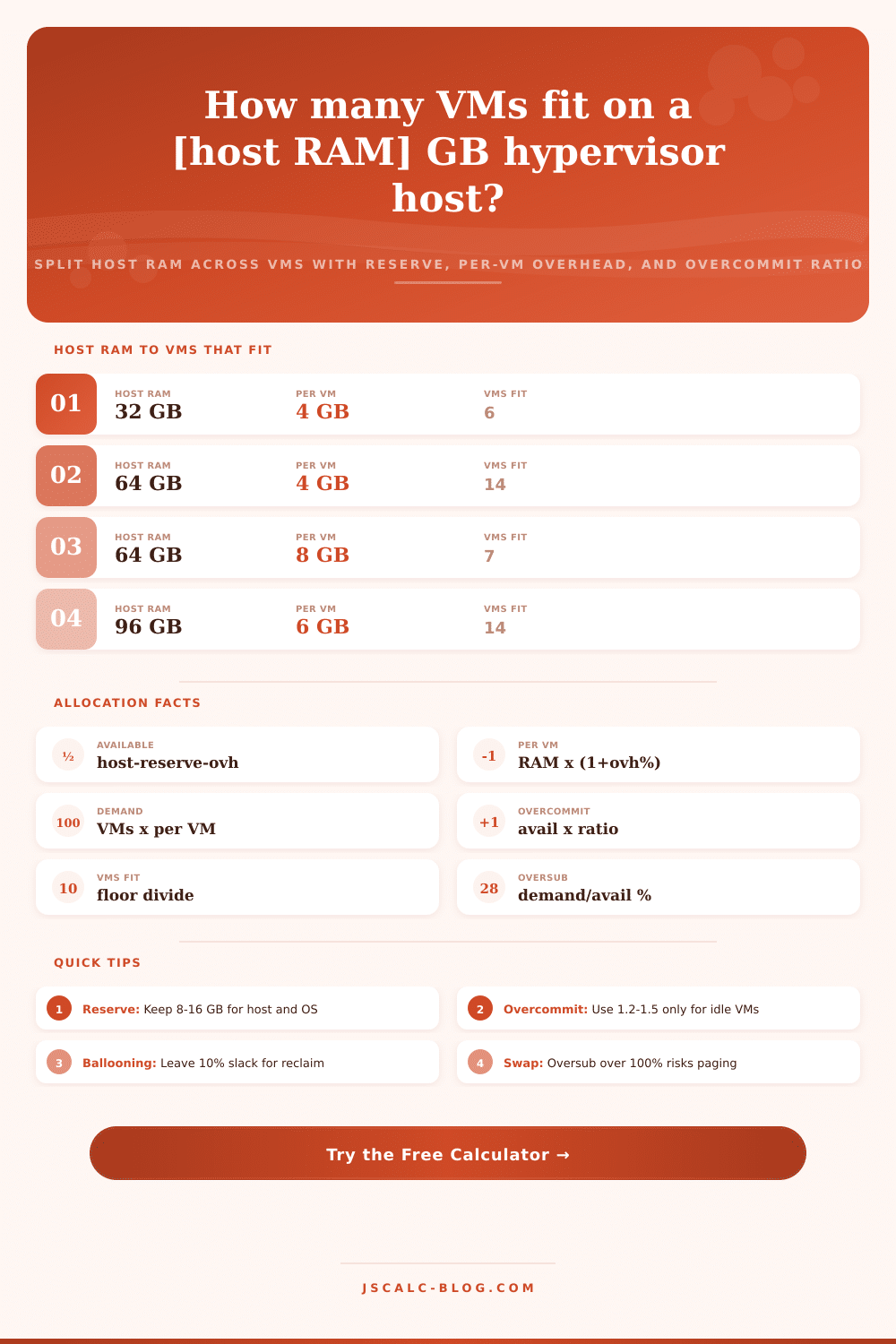
That’s the math that powers this tool. Available memory is host RAM minus hypervisor overhead and OS reserve. The per-VM footprint is the average VM RAM multiplied by (1 + %hypervisor overhead). The number of VMs times the per-VM footprint equals the raw demand. The number of machines that fit are the available memory divided by the per-VM footprint, rounded down. You don’t get to run half a VM.
What do the result cards show? Each card shows four key numbers. Which values is listed? All of them, for checking your math and for explaining it in a meeting.
The “virtual” in virtualization means you can promise more memory than actualy exists. Why? Because a guest doesn’t use all its RAM all the time. That’s an overcommit ratio. An overcommit ratio of 1.0 represents no overcommitment: Each gigabyte promised has actual RAM behind it. A ratio of 1.3 means that you commit 130 percent of memory, trusting reclaim technologies to close the gap. Effective capacity equals the ratio times your amount of available memory. The calculator shows how many VMs can fit physically and then again under this looser limit. Having both numbers on screen help keep the plan realistic.
To see whether your host is fragile or not, look for oversubscription percentage. That’s a ratio of raw VM demand vs. Physically available RAM. If that number is less than 100 percent, all guests will be covered with real memory, including them all peaking simultaneously. Anything higher then 100 percent means the host has to resort to some combination of swapping to disk (slow), compression, page sharing and ballooning. When swap begins, every VM on that host may slows down. Any setup with more than 100 percent oversubscription is flagged by the tool. Also, if the tool sees physical headroom dropping below 10 percent, routine spikes start eating away at your safety margin.
Overcommit isn’t a free upgrade; it’s a tool. Use Overcommit for lightly used servers, development sandboxes, and other virtual desktop pools where guest idleness is frequent. For those workloads, you can increase density by 1.2 to 1.5 with minimal risk.
Don’t use Overcommit for memory hungry or latency sensitive workloads. Keep production database systems, in-memory caches, and real time systems pegged to 1.0. Timeouts or missed transactions are the result if one of those systems swaps out any memory.
Hypervisor memory reclamation varies by hypervisor: VMware has both ballooning and transparent page sharing. KVM platforms has kernel same-page merging. Hyper-V has Dynamic Memory. In the dropdown, select your hypervisor and let the host reserve adjust accordingly.
Pick a preset; something similar to what you want, for example an 8-VM 64-gigabyte host, with each VM at 4 gigs. Each preset will fill in all fields and recalculate immediately. Now you have a baseline to tweak.
Next, adjust your ratio, overhead, number of VMs, and average VM size to match your own setup. Tune these by watching the oversubscription reading and the VMs-that-fit card. You want a plan where your hosts is used well without demanding more than what you’ve got. The host doesn’t grunt when loaded and your virtual machines gets the RAM they deserve. And you’ll know just how much stuff will fit on this thing.