Video Storage Duration Calculator
Find out how many hours of footage fit on any card or drive. Enter your storage capacity, pick a resolution and codec, set the frame rate and bitrate, then get recording time, GB used per hour, minutes per gigabyte, and how many cards a target shoot will need.
🎥Real Camera and Drive Presets
📝Storage and Video Settings
Card or drive size, paired with the unit at right.
Uses decimal bytes as printed on the label.
Sets a baseline video bitrate before codec and frame rate.
Newer codecs shrink files; ProRes and DNxHD grow them.
Higher frame rates raise the data rate.
Set above 0 to ignore the presets and use this exact rate.
Added to video; 128-320 kbps is typical.
Free space to keep for the file system and safety.
Used to work out how many cards or drives you need.
Controls rounding on the result cards.
🔢Formula Snapshot
🎬Resolution and Codec Comparison Grid
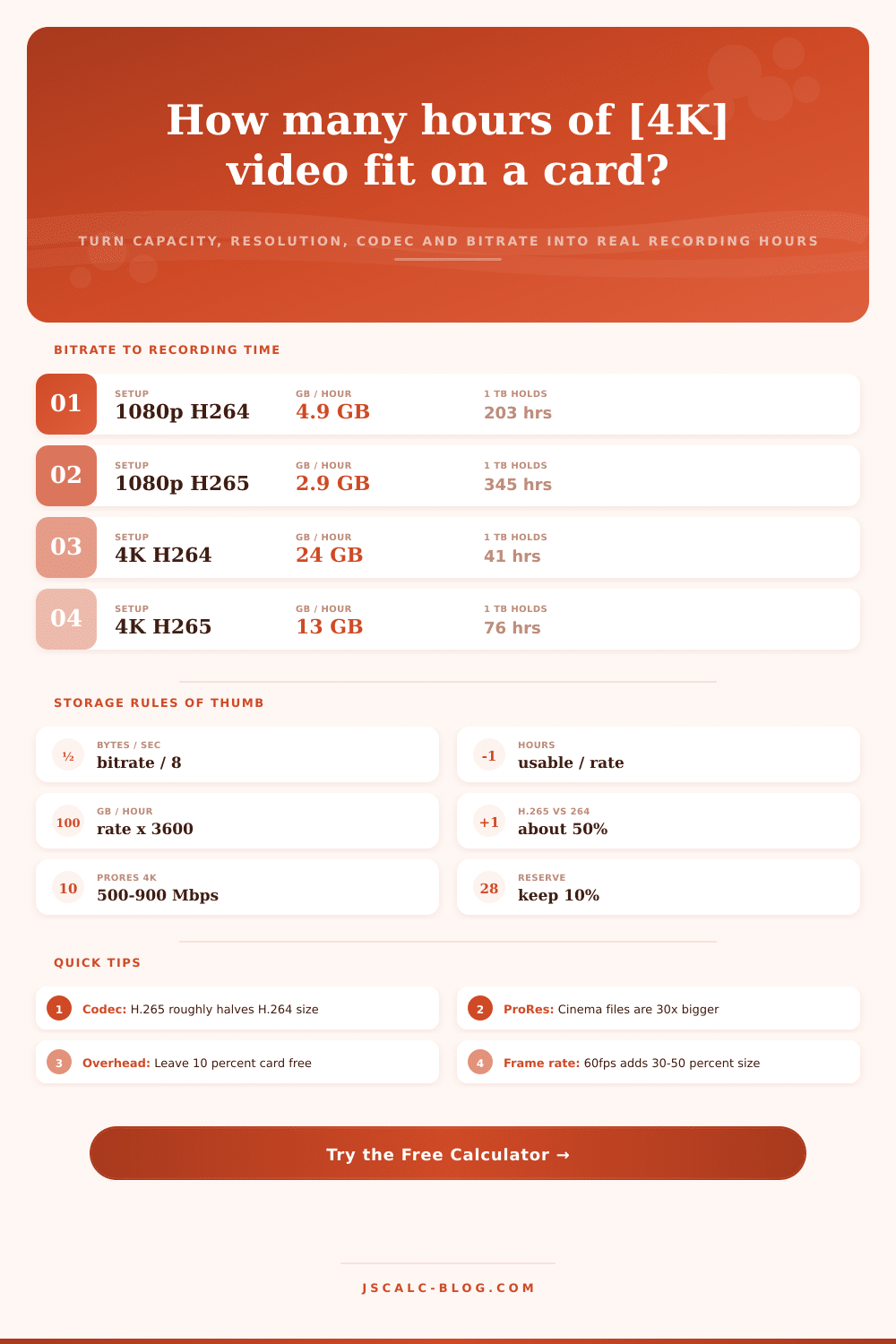
| Resolution | Codec | Video Mbps | GB per Hour | Hours per 1 TB | Notes |
|---|---|---|---|---|---|
| 720p HD | H.264 | 5 | 2.3 | 444 | Web and phone clips |
| 1080p FHD | H.264 | 10 | 4.5 | 222 | Standard vlog capture |
| 1080p FHD | H.265 | 5 | 2.3 | 444 | Half the size, same look |
| 1080p FHD | AV1 | 4 | 1.8 | 556 | Best for long archives |
| 1440p QHD | H.265 | 10 | 4.5 | 222 | Sharp gaming capture |
| 4K UHD | H.264 | 50 | 22.5 | 44 | Heavy on cards |
| 4K UHD | H.265 | 25 | 11.3 | 89 | Common mirrorless mode |
| 4K UHD | ProRes 422 | 450 | 202.5 | 4.9 | Editing master files |
| 8K UHD | H.265 | 50 | 22.5 | 44 | High-end cameras |
| 8K UHD | H.264 | 100 | 45 | 22 | Fills drives fast |
📷Recording Time by Card Size at 1080p H.264
| Card Size | Usable at 10% | Hours at 10 Mbps | Good For |
|---|---|---|---|
| 32 GB | 28.8 GB | 5.9 h | Short interviews |
| 64 GB | 57.6 GB | 11.9 h | Event day part |
| 128 GB | 115.2 GB | 23.8 h | Full-day vlog |
| 256 GB | 230.4 GB | 47.6 h | Weekend trip |
| 512 GB | 460.8 GB | 95.2 h | Long documentary |
| 1 TB | 900 GB | 185.9 h | Weeks of footage |
| 2 TB | 1800 GB | 371.9 h | Archive backup |
🗜Codec Size Comparison for the Same Footage
| Codec | Relative Size | 4K GB per Hour | Best Use |
|---|---|---|---|
| H.264 / AVC | 1.0x baseline | 22.5 GB | Wide device support |
| H.265 / HEVC | 0.5x | 11.3 GB | Long recording |
| AV1 | 0.4x | 9.0 GB | Streaming and archive |
| DNxHD / DNxHR | 5.0x | 112.5 GB | Broadcast editing |
| ProRes 422 | 9.0x | 202.5 GB | Cinema color grading |
| ProRes 4444 | 13x | 292.5 GB | VFX and alpha channels |
⚙Formula Breakdown
💡Storage Saving Tips
The worst time for panic is always the moment when you least expect it: during a golden hour window as it closes rapidly or a guest speaker as they reach their peak. And then you look at your card. That little red light is blinking, and you’re out of storage. Every shooter go through that rite of passage of underestimating just how much video takes up in storage once you start rolling.
With the Video Storage Duration Calculator, you can turn gigabytes into actual hours. You can plan with certainty instead of hope. This helps you eliminate that anxiety.
How to Plan Your Video Storage
This brings us back around to common misconception that file size is all about resolution. 4K must just be bigger than 1080p right? So the math should be simple. Well no, that’s not true. It doesn’t take into account what actualy drives file size: the bitrate. The amount of resolution and frames per second you are recording will impact the amount of data you need to capture, but the codec will determine how efficient compression is. A highly compressed version could be smaller than a lightly compressed version even though its pixel count is higher. Knowing the difference between these two is first step to using your drive space efficiently.
Bitrate is like the size of the pipe that’s spewing data into your card. That stream keep coming until you turn it off, so if you’re recording at 50 megabits per second, it doesn’t stop. Enter your settings and capacity into the calculator above and let it do the math for you. No guessing, no more converting everything by hand. It’ll include some audio overhead (real, though tiny), then add a safety reserve to cover any oddities with how your filesystem formats the card. You get hours of actual recordable time, not just theoretical maxes that dissapears as soon as the camera attempts to write out the last frame.
Codec choice is where most storage battles are won or lost. The basic default will always be H.264 since it’s compatible anywhere. But emerging codecs like AV1 and H.265 saves a lot of space while still looking just as good. At equal levels of visual quality, H.265 can reduce your file size roughly in half compared to H.264. In other words, get twice as much recording time for the same card.
The only caveat is that not everyone has support for newer codecs. Compatibility matters. You’ll probably want to stick with H.264 if you frequently have to share footage with clients or need to work on older editing equipment. You’re paying slightly more for storage, but you avoid workflow headaches.
At the other end of the spectrum are codecs that is used in editing. These tend to be gigantic; up to ten times bigger than their compressed counterparts; but retain all information necessary for visual effects and color grading. Because the size penalty is so high, you’d never stream or archive from these formats, but they’re critical to high-end post production. Seeing just how much 4K ProRes fits on a card vs. Standard H.265 really drives home the extreme gap between recording something for consumption vs. Recording something for creation.
There’s an additional factor here too (frame rate). If you’re shooting at 60 fps rather than 24, that means you’ve got almost three times as many images to encode each second, which naturaly results in a lot more data. Fortunately, this is accounted for automatically by the calculator so if you switch into slow motion and expect something different, you don’t need to make any manual adjustments on your end. Over time, however, those additional frames can equate to hours of wasted storage if you don’t consider it early on.
That’s what you can use these figures to plan by: so there aren’t any meltdowns halfway through the shoot. Need an extra card? Buy it. Better that than blow the final shot because you didn’t have room. You should of checked this earlier. That’s also why having some quick benchmarks like the ones in the reference tables at the bottom of the page will help check your figures before a shoot plan or even equipment purchases. How long does a terabyte last at various compressions? And so on.
One of the only things that doesn’t has an “undo” button in video production is running out of space in the middle of an event. Once the buffer gets full, the recorder cuts off the rest of the footage and there’s nothing you can do but kick yourself. If you spend a couple of seconds crunching the numbers beforehand, then you remove this factor from the equation entirely. You’re rolling with confidence now; not thinking about the card failing, just trying to get the story. Feed the math honest numbers and it won’t lie.