Video Resolution Bandwidth Calculator
Estimate the streaming bitrate in Mbps, data used per hour in GB, total session data, and the upload speed needed for any resolution, frame rate, and codec such as H.264, H.265, VP9, or AV1.
🎬Real Streaming Presets
📝Stream Settings
Enter 0 to use the recommended bitrate. Any value above 0 overrides it.
🔢Formula Snapshot
📺Recommended Bitrate by Resolution
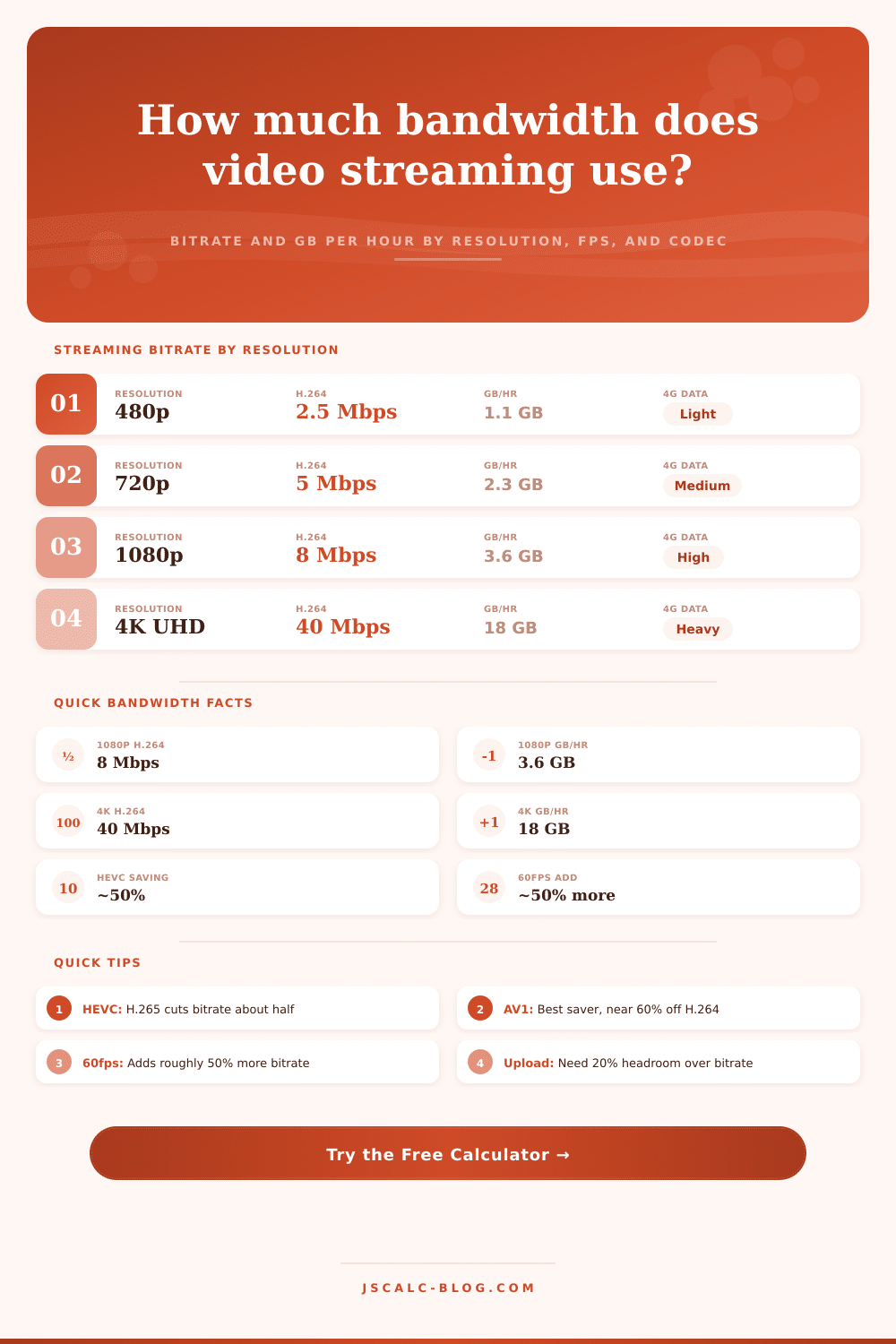
| Resolution | Pixels | H.264 at 30fps | H.264 at 60fps | Typical Use |
|---|---|---|---|---|
| 480p SD | 854 × 480 | 2.5 Mbps | 4 Mbps | Mobile, data saver |
| 720p HD | 1280 × 720 | 5 Mbps | 7.5 Mbps | Twitch, video calls |
| 1080p Full HD | 1920 × 1080 | 8 Mbps | 12 Mbps | Netflix, YouTube HD |
| 1440p QHD | 2560 × 1440 | 16 Mbps | 24 Mbps | YouTube, PC gaming |
| 4K UHD | 3840 × 2160 | 40 Mbps | 60 Mbps | UHD streaming, HDR |
| 8K UHD | 7680 × 4320 | 100 Mbps | 150 Mbps | Premium 8K content |
🗜Codec Efficiency vs H.264
| Codec | Also Known As | Bitrate Factor | Data Saved | Notes |
|---|---|---|---|---|
| H.264 | AVC | 1.0× (baseline) | 0% | Widest device support |
| H.265 | HEVC | 0.5× | ~50% | 4K standard, needs license |
| VP9 | WebM | 0.6× | ~40% | Royalty-free, YouTube |
| AV1 | AOMedia | 0.4× | ~60% | Best saver, heavy encode |
💾Data Per Hour by Resolution (H.264)
| Resolution | Bitrate | GB / Hour | GB / 2 Hr Movie | Hours in 1 TB |
|---|---|---|---|---|
| 480p SD | 2.5 Mbps | 1.13 GB | 2.25 GB | ~888 hr |
| 720p HD | 5 Mbps | 2.25 GB | 4.5 GB | ~444 hr |
| 1080p Full HD | 8 Mbps | 3.6 GB | 7.2 GB | ~278 hr |
| 1440p QHD | 16 Mbps | 7.2 GB | 14.4 GB | ~139 hr |
| 4K UHD | 40 Mbps | 18 GB | 36 GB | ~56 hr |
| 8K UHD | 100 Mbps | 45 GB | 90 GB | ~22 hr |
📡Upload Speed Requirements
| Stream Type | Resolution | Bitrate | Min Upload | Recommended |
|---|---|---|---|---|
| Video call | 720p | 2.5 Mbps | 3 Mbps | 5 Mbps |
| Live stream | 720p60 | 4.5 Mbps | 5 Mbps | 7 Mbps |
| Live stream | 1080p | 6 Mbps | 7 Mbps | 10 Mbps |
| Live stream | 1080p60 | 9 Mbps | 10 Mbps | 15 Mbps |
| Live stream | 1440p60 | 18 Mbps | 20 Mbps | 30 Mbps |
| Live stream | 4K60 | 45 Mbps | 50 Mbps | 70 Mbps |
🗂Resolution Comparison Grid
| Resolution | H.264 Mbps | HEVC Mbps | AV1 Mbps | GB/hr (H.264) | GB/hr (AV1) |
|---|---|---|---|---|---|
| 480p | 2.5 | 1.25 | 1.0 | 1.13 GB | 0.45 GB |
| 720p | 5 | 2.5 | 2.0 | 2.25 GB | 0.90 GB |
| 1080p | 8 | 4.0 | 3.2 | 3.6 GB | 1.44 GB |
| 1080p60 | 12 | 6.0 | 4.8 | 5.4 GB | 2.16 GB |
| 1440p | 16 | 8.0 | 6.4 | 7.2 GB | 2.88 GB |
| 4K | 40 | 20 | 16 | 18 GB | 7.2 GB |
| 4K60 | 60 | 30 | 24 | 27 GB | 10.8 GB |
| 8K | 100 | 50 | 40 | 45 GB | 18 GB |
⚙Full Formula Breakdown
💡Practical Bandwidth Tips
Your live streaming starts great. Then you get complaints from your audience about picture quality. You begin recieveing comments asking why it looks bad, wondering if people can’t see their internet connection or something. Little do they know, you might not understand the relationship between codec efficiency, resolution and frame rate. In reality, those things dictates bandwidth use.
After plugging in your codec, frame rate and resolution, the calculator does all the math for you, saving you from having to guess at conversions and coefficients. It converts abstract settings into concrete data limits. It help you figure out exactly how much data you’ll be using per hour. If you live in a home with a shared internet connection or have a capped data plan, this conversion is essential.
How to Choose Your Streaming Settings
If you choose to watch sports and play games, which typically use higher frame rates (for example 60 fps), you’ll be sending twice as many images every second then if you’re watching traditional 30 fps video. You need a lot more bandwidth to keep things looking clear, which usually means about half again as high a bitrate as its lower-framerate version. Most people leave performance on the table here and don’t bother changing codec options from their defaults.
For compatibility reasons, h.264 is still the fallback, as nearly everything supports it, but it’s hardly efficient today. You could cut your bitrates in half and get similar image quality switching over to something like HEVC or even better, AV1. If you’re using a limited-headroom home Wi-Fi connection for uploads, that makes a huge difference. Streaming services love this stuff because it lets them halve their bitrates, saving server costs, without impacting customers’ viewing experiences. Older devices will have a harder time handling it, so keep that in mind if you want to work with many different device.
There’s one more wrinkle to consider: Frame rate. Traditional cinema relies on 24 fps, which provides enough motion for storytelling without wasting bandwidth on extra frames. However, high-speed action like video games and fast-moving sports can use 60 fps or higher. This smoother motion help reduce eye strain during rapid movement.
To account for this, the tool will gradually increase the base bitrate the higher the frame rate goes. That’s because sending those extra frames requires more data, hence the need for a higher base bitrate. Sure, something like a fast-paced strategy game might appear smoother when pushed up to 120 fps, but it’ll also be sucking up your upload capacity uselessly if each frame isn’t very dynamic.
However, bandwidth isn’t everything; it’s also critical that you get consistent speeds while uploading. Jitter and packet loss can lead to buffering even if you’re running at full speed on a high bandwidth connection. In general, it’s best to leave yourself some headroom. Running your real-time bitrate no higher than eighty percent of your max upload speed will account for any background network noise. When another device requests data on the network at the same time, the stream won’t drop any frames thanks to the buffer. The calculator calculates the minimum required upload speed with a twenty percent safety margin added to the calculated bitrate. That way, you’ll have plenty of leeway in case of peak traffic times.
The hours start to translate into actual dollars as you spend more time online. For example, if you watch a two-hour film on Netflix in 4K, an older codec will take up almost all the space and burn through some three-and-a-half dozen gigabytes of data. That may sound excessive but consider how much lower a newer codec would encode the file, potentially taking less than half that. Add them together for each family member in a multi-user home with a shared data pool and before you know it, you’ve blown past your monthly allotment. Understand how many gigs-per-hour are being consumed so you can properly manage your data budget. This will prevent unexpected bills from capped ISPs or mobile providers.
Ultimately, there’s no single “best” setting; it depends on your personal constraints. Instead of following industry trends, select the correct blend of efficiency vs. Select the quality that suits your needs. For example: if you have low upload bandwidth, a nice 720p stream in a newer video codec will appear much nicer to viewers than an unstable 1080p stream riddled with compression artifacts. Before settling on one preset or another, experiment with various settings to determine what looks best on your own setup. Knowing this enables you to dial-in exactly which settings is right for your network and hardware… Giving yourself (and your viewers) the best viewing/recorded experience while avoiding unnecessary data usage.
You should of checked this sooner. Actually, it could of been better if you’d used moddern tech. It would be more comfortabley.