Usable Storage After Format Calculator
See why a drive sold as 1 TB shows up as roughly 931 GB in your operating system. This tool converts the advertised decimal capacity into the binary size your OS reports, then subtracts real filesystem overhead and reserved system space so you know the actual usable storage you keep after formatting.
💾Real Drive Presets
📝Drive and Format Inputs
The number printed on the box or label.
Makers always quote decimal SI units.
Windows and Linux report binary; the label is decimal.
Sets a realistic metadata overhead percentage.
Bigger clusters waste more slack on small files.
Root reserve, snapshots, or recovery partition.
Partition table takes a tiny fixed slice.
Controls rounding on the result cards.
🔢Conversion Snapshot
📏Decimal to Binary Base Gap
| Advertised (Decimal) | Bytes | OS Reports (Binary) | Base Loss |
|---|---|---|---|
| 128 GB | 128,000,000,000 | 119.21 GiB | 6.87% |
| 256 GB | 256,000,000,000 | 238.42 GiB | 6.87% |
| 500 GB | 500,000,000,000 | 465.66 GiB | 6.87% |
| 512 GB | 512,000,000,000 | 476.84 GiB | 6.87% |
| 1 TB | 1,000,000,000,000 | 931.32 GiB | 6.87% |
| 2 TB | 2,000,000,000,000 | 1.819 TiB | 9.05% |
| 4 TB | 4,000,000,000,000 | 3.638 TiB | 9.05% |
| 8 TB | 8,000,000,000,000 | 7.276 TiB | 9.05% |
🗃Filesystem Overhead Reference
| Filesystem | Typical Overhead | Where It Goes | Default Reserve |
|---|---|---|---|
| NTFS | 0.6 to 12.5% | MFT, journal, bitmap | None |
| exFAT | about 0.1% | FAT and bitmap | None |
| ext4 | 1.6 to 5% | Inodes, journal | 5% for root |
| APFS | low, under 1% | Metadata, checkpoints | None |
| FAT32 | 0.1% plus slack | Two FAT copies | None |
| ZFS | 1.5 to 3% | Metadata, spa slop | 1/64 slop |
| Btrfs | 1 to 3% | Trees, checksums | Global reserve |
🧱Cluster Size Slack Guide
| Cluster Size | Avg Slack Per File | Best For | Wasted On |
|---|---|---|---|
| 4 KB | 2 KB | OS drives, mixed files | Very few |
| 8 KB | 4 KB | General data | Tiny configs |
| 16 KB | 8 KB | Photos, documents | Small text |
| 32 KB | 16 KB | Music, mid media | Thumbnails |
| 64 KB | 32 KB | Video, disk images | Many small files |
| 128 KB | 64 KB | Huge exFAT media | Everyday folders |
📊Full Usable Space Comparison Grid
| Advertised | Filesystem | OS Binary | Overhead | Reserved | Usable | You Keep |
|---|---|---|---|---|---|---|
| 500 GB | NTFS | 465.66 GiB | 1.5% | 0% | 458.68 GiB | 91.7% |
| 1 TB | NTFS | 931.32 GiB | 1.3% | 0% | 919.21 GiB | 91.9% |
| 2 TB | exFAT | 1.819 TiB | 0.1% | 0% | 1.817 TiB | 90.9% |
| 256 GB | FAT32 | 238.42 GiB | 0.6% | 0% | 236.99 GiB | 92.6% |
| 512 GB | APFS | 476.84 GiB | 0.7% | 0% | 473.50 GiB | 92.5% |
| 4 TB | ext4 | 3.638 TiB | 2.0% | 5% | 3.383 TiB | 84.6% |
| 8 TB | ZFS | 7.276 TiB | 2.5% | 1.6% | 6.978 TiB | 87.2% |
| 1 TB | Btrfs | 931.32 GiB | 2.0% | 0.6% | 907.14 GiB | 90.7% |
| 128 GB | exFAT | 119.21 GiB | 0.1% | 0% | 119.09 GiB | 93.0% |
| 3 TB | NTFS | 2.728 TiB | 1.4% | 0% | 2.690 TiB | 89.7% |
⚙Formula Breakdown
💡Storage Recovery Tips
The figure printed on the box is a little lie baked into every memory card, SSD and hard drive. That 1 TB drive isn’t really showing up as 1 TB on your operating system. You format it, you plug it in and Windows tell you something like 931 GB, sometimes even smaller once the filesystem gets its cut.
Enter the Usable Storage After Format Calculator. This tool explain and measures that gap. Instead of a confusing shortage of space, it becomes a clean breakdown of exactly how each gigabyte goes onto a given drive. It’s not that the space is missing. Its that it’s being measured in a different way.
Why Your Storage Shows Less Space Than You Paid For
The confusion comes from using two different measurement systems, decimal and binary, to describe the same drive. By long tradition, operating systems count in binary. By contrast, drive makers counts in decimal; as they should; decimal is the SI standard. Under the SI system, a gigabyte is precisely 1 billion bytes, and a terabyte is 1 trillion bytes.
By long-held convention, however, Windows still prints old letters GB and TB to label its own binary units. So: here we have two incompatible numbers, both of them honest, describing the same physical drive. Once you get your eyes around this, the math is pretty straightforward. If you want to translate decimal number on the drive’s advertising sticker to the binary size your OS will report, just divide the raw byte number by 1024 for each step along the way.
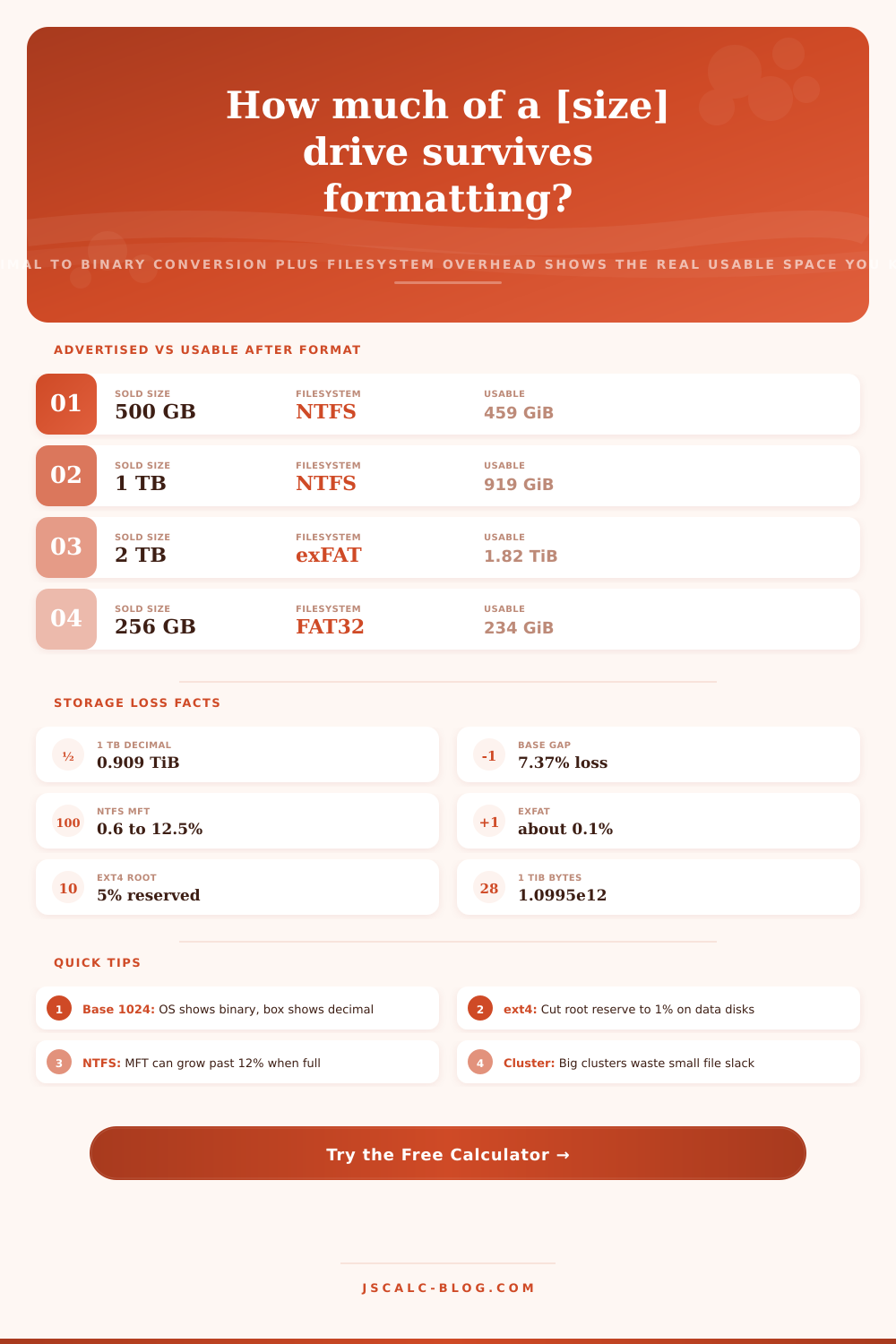
A 1 TB drive has 1 trillion bytes. That is 909 tebibytes, or roughly 931 gibibytes. And that’s the first bite out of the apple. This happens before you format anything. At the terabyte level, it’s around 7.37 percent. It’s not broken. You’re just using a different ruler to measure the drive.
But the decimal to binary gap is only the first cut, because there’s also filesystem overhead. Because drives are formatted, the filesystem put its own bookkeeping structures on the disk as part of the process. That uses actual space. Windows’ NTFS keeps space set aside for a Master File Table, a journal and an allocation bitmap. As the MFT grows, so does the disk usage. It will grow from under one percent on a fresh volume to more than ten percent when a drive is full of millions of little files.
Linux’s ext4 filesystem creates a journal and inode tables. By default, it reserves a whole five percent of the volume for the root user. Cards use Apple’s exFAT, or a macOS drive may use new APFS. Both are a lot leaner. Often, they cost less than one percent. For example, both ZFS and Btrfs include checksums and copy-on-write metadata at a cost of only low single digits percent.
Plug those into the calculator above and it does all the conversion/calculation work for you in terms of coefficients and whatnot. No guessing required for you.
One other hidden price (which few realize) is cluster slack. Files are stored on a filesystem in fixed-size blocks known as “clusters”. A single-byte file take up an entire cluster. On typical filesystems with 4 KB clusters, the average wasted bytes per file is around 2 KB. Format your drive at 64 KB clusters for faster access during your big video projects. Every little file is now wasting up to 32 KB. That adds up, quietly burning through a few gigs across a hundred-thousand little files. The tool models it as additional overhead that increases with cluster size so you can weigh it against the benefit. When you have piles of tiny photos/documents, cluster size really does matter more then most people believe.
The entire process ends with four result cards. One shows usable space after formatting. One shows the binary size of your file system before any filesystem overhead. One shows total capacity lost to both formatting and base conversion. The last one shows the final output as a percentage of what was advertised. You know, just in case you want a quick sanity check. (Most healthy drives fall between 88 and 93 percent usable.)
Underneath the cards is more detailed breakdown listing the raw bytes. It includes all components of overhead, listed in both real units and percent. It even lists cost of the partition table itself, turning abstract percentages into tangible gigabytes you can plan around.
All of the presets are drives that people actualy buy. These range from a 500 GB SSD using APFS to a 1 TB HDD formatted as NTFS. There’s a 256 GB FAT32 microSD card and a 2 TB exFAT external drive. There is also a 4 TB ext4 volume on a NAS and an 8 TB ZFS pool. You can load up any of these presets and it will fill out the form and immediately recalculate. In seconds, you can compare a Linux NAS against a Windows drive or a Mac drive. Not only does the raw size matter but also the filesystem and how much is reserved. That matters when you’re shopping for storage for certain tasks.
How do you plan for a boot drive? It’s different than a media server. The first step toward making the most of each and every gigabyte is knowing what lurks beneath. A tune2fs command lowers your root reserve from five percent to one percent on an ext4 file system on a data disk that doesn’t boot the OS. Bam! That returns about 160 GB on a 4 TB drive. That’s free space you were paying for but not using.
Selecting a 4 KB cluster for mixed data rather than a giant 64 KB block conserves slack on thousands of little files. And leaving a bit of breathing room on a drive pays off because NTFS overhead increase as a volume nears capacity. Don’t cram it full to the last byte. When you do, performance will suffer … and you’ll know better next time.
It’s not that advertised capacity is some kind of scam, it’s legitimately confusing! Rounding down by seven percent (or other vague rules of thumb) misses half the equation: the part about the actual filesystem. This calculator combines all of that into one place, handling the math for filesystem overhead and reserved space based on your choice and then converting to the proper binary/decimal scale.
Enter your capacity. Select your filesystem. Get the real number so you can plan your file purchases, partitioning, and backups without surprises. This gives you the truth about your files instead of what the box claims.