Storage Capacity Calculator
Find the raw capacity of a drive array or NAS pool as number of drives times drive size, view the total in TB, TiB, GB and PB, add mixed drive sizes together, and see how far the system can expand by filling every empty bay with the largest supported drive. This tool reports raw capacity only, before any format loss or parity overhead.
💾Choose a Mode
🎯Real Array Presets
📝Array Inputs
How many identical drives are currently populated.
Capacity printed on one drive, in the unit at right.
Manufacturers rate drives in decimal TB or GB.
List each drive, e.g. 8, 8, 12, 14 for four different disks.
All drive slots in the chassis, filled or empty.
Biggest single disk the enclosure allows per bay.
Sets which value leads; all four are always shown.
Controls rounding on every result card.
🔢Capacity Snapshot
📋Common Drive Sizes and Counts
| Drive Size | Number of Drives | Raw Total (TB) | Raw Total (TiB) |
|---|---|---|---|
| 4 TB | 2 | 8 TB | 7.28 TiB |
| 8 TB | 4 | 32 TB | 29.10 TiB |
| 12 TB | 5 | 60 TB | 54.57 TiB |
| 14 TB | 6 | 84 TB | 76.40 TiB |
| 16 TB | 8 | 128 TB | 116.42 TiB |
| 18 TB | 12 | 216 TB | 196.46 TiB |
| 20 TB | 24 | 480 TB | 436.56 TiB |
| 22 TB | 36 | 792 TB | 720.32 TiB |
📊TB to TiB Conversion Factors
| Decimal Unit | Bytes | Binary Unit | Binary Value | Factor |
|---|---|---|---|---|
| 1 GB | 1,000,000,000 | GiB | 0.9313 GiB | x 0.9313 |
| 1 TB | 1e12 | TiB | 0.9095 TiB | x 0.9095 |
| 4 TB | 4e12 | TiB | 3.638 TiB | x 0.9095 |
| 10 TB | 1e13 | TiB | 9.095 TiB | x 0.9095 |
| 1 PB | 1e15 | PiB | 0.8882 PiB | x 0.8882 |
| 1000 TB | 1e15 | TiB | 909.49 TiB | x 0.9095 |
🧰Enclosure and Bay Configurations
| Form Factor | Bays | Typical Max Drive | Max Raw (Full) | Common Use |
|---|---|---|---|---|
| Desktop 2-bay | 2 | 24 TB | 48 TB | Backups, mirror |
| Home 4-bay | 4 | 24 TB | 96 TB | Files, photos |
| Media 6-bay | 6 | 24 TB | 144 TB | Video library |
| Prosumer 8-bay | 8 | 24 TB | 192 TB | Small studio |
| Tower 12-bay | 12 | 24 TB | 288 TB | Workgroup NAS |
| 2U rack 24-bay | 24 | 24 TB | 576 TB | Server room |
| 4U JBOD 36-bay | 36 | 24 TB | 864 TB | Archive, cold |
| 4U dense 60-bay | 60 | 24 TB | 1440 TB | Data center |
🗃Drive Configuration Comparison Grid
| Drives | Drive Size | Raw TB | Raw TiB | Raw GB | Use Case |
|---|---|---|---|---|---|
| 2 | 4 TB | 8 TB | 7.28 TiB | 8000 GB | Desktop backup |
| 4 | 8 TB | 32 TB | 29.10 TiB | 32000 GB | Home media |
| 5 | 12 TB | 60 TB | 54.57 TiB | 60000 GB | Photo archive |
| 6 | 16 TB | 96 TB | 87.31 TiB | 96000 GB | 4K video pool |
| 8 | 16 TB | 128 TB | 116.42 TiB | 128000 GB | Studio storage |
| 12 | 18 TB | 216 TB | 196.46 TiB | 216000 GB | Workgroup NAS |
| 24 | 20 TB | 480 TB | 436.56 TiB | 480000 GB | Rack server |
| 36 | 22 TB | 792 TB | 720.32 TiB | 792000 GB | Cold archive |
| 60 | 24 TB | 1440 TB | 1309.66 TiB | 1.44e6 GB | Data center |
⚙Formula Breakdown
💡Storage Planning Tips
How much space does a set of disks actualy have? That’s the initial question any builder has when thinking about building a disk pool (a collection of drives), a RAID enclosure, or a NAS box. The answer is the most fundamental thing about storage, the simplest but also the most important: multiply the number of drives by their size. This tool calculates it for you.
It converts to all units you’ll ever encounter in an OS or product listing. It also shows how large the array would be if filled and upgraded as it runs out of room in each bay.
How to Calculate Your Disk Space
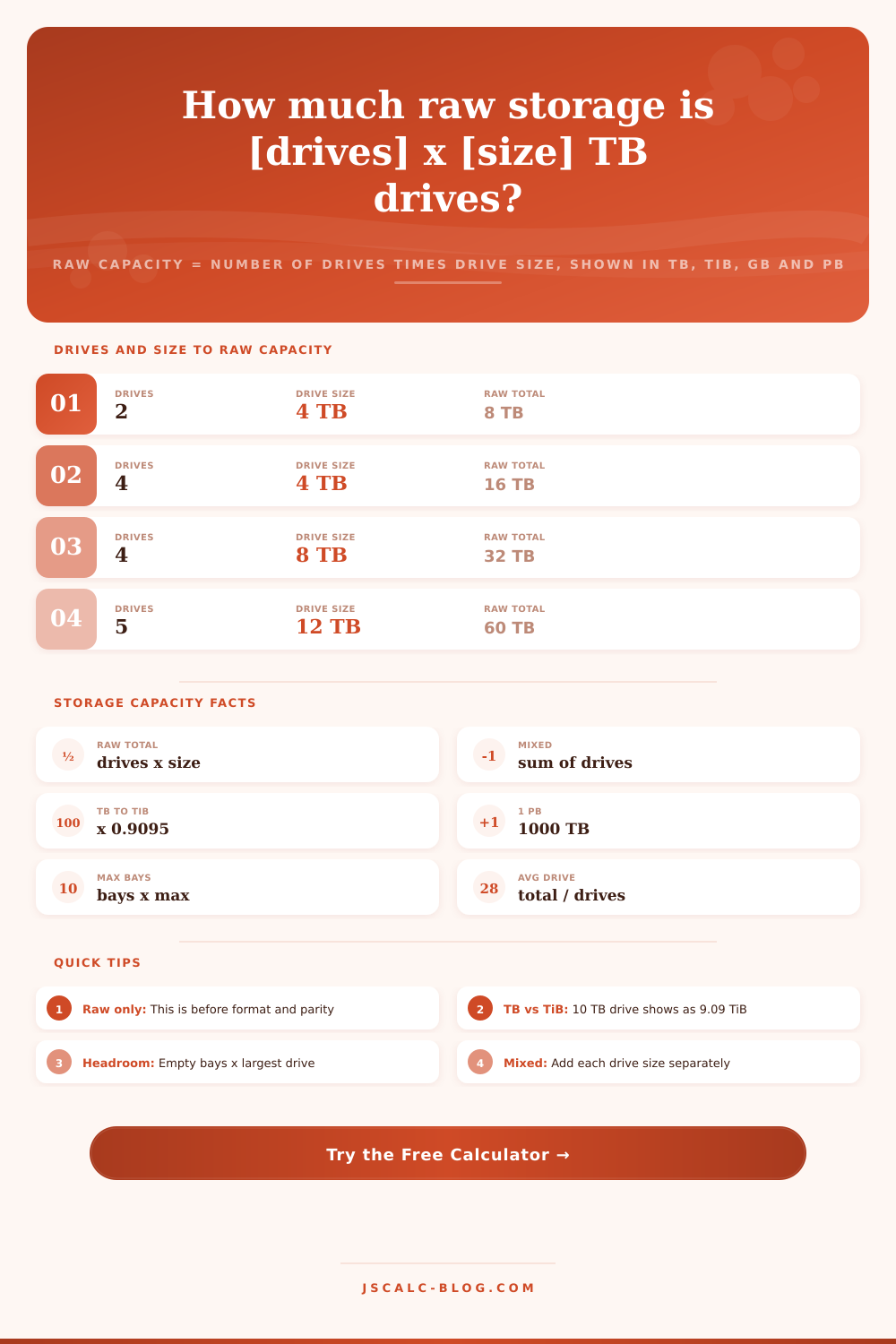
It reports only the raw capacity, specifically not factoring in redundancy overhead or loss due to formatting so that you know what the honest ceiling of hardware is without having anything taken away. Raw capacity is simply the sum of manufacturer’s rated capacities of each drive, before anything has been subtracted. For example, if you have four 8 TB drives installed, the raw capacity is 8 + 8 + 8 + 8 = 32 TB (four times 8).
Raw capacity is the amount of storage available on actual hardware itself. A file system needs to reserve some structures. A redundancy scheme like parity or mirroring must also set aside some storage for fault tolerance. Because of this, that isn’t the amount you’ll actually be writing files to. But raw capacity is what all the other numbers are calculated from so it has its own calculation.
You plug in how many drives there are, and how large they are individually, and the tool spits out the raw capacity number immediately by applying that simple formula. One note: Not all arrays are created equal. This is especially true if you’re building a home server. They tend to be pieced out over time; one drive at a time, so you’ll have a grab bag of different capacities.
The calculator will just take each one and add them up; that’s mixed mode. Four 8, 8, 12 and 14 TB drives adds up to a raw total of 42 TB, which it also shows. But it can tell you the average drive size, too, by dividing the raw total by the number of drives. That’s a handy check to see if there’s some small old drive bringing down your pool. It also gives you a hint on how much space you’d save swapping out the littlest one for something bigger.
That’s the difference between what the computer reports and what the box says… The biggest cause of confusion in all of storage. In decimal terms, that’s a terabyte, exactly one trillion bytes. In binary units, which operating systems typically use, a tebibyte is defined using powers of two. Divide one into the other and you get a conversion factor of approximately 0.9095. A 10 TB drive will show up as around 9.09 TiB and a 32 TB array will report to the OS as something like 29.10 TiB. You’ll always see the corresponding decimal TB and binary TiB values side-by-side on the calculator.
Since no space is actually lost, the same bytes are just shown using a different sized unit, it shouldn’t be a surprise when your drives seem to shrink. The natural units for small arrays are still in gigabytes; for large builds they cross into petabytes. These are all decimal units so the conversion is nice round powers of a thousand. A 32 TB pool is 32000 GB (since a terabyte is 1000 GB). A big data-center chassis could be 1.44 PB (since a petabyte is 1000 TB). As the total grows, the tool automatically shows the petabyte figure, but it shows the gigabyte figure for smaller systems. At whatever scale you’re working at, it’s just the headline number and it’ll read out in some sensible unit instead of an unwieldy string of digits.
A chassis’ empty bays are just as important to defining an enclosure as the filled ones. If a chassis can hold eight bays at most and each one supports up to a 24 TB drive, then the fully expanded capacity is 192 TB (eight times 24). With four 8 TB drives installed, it’s 32 TB of raw storage. So there’s about 160 TB of expansion potential… Just from upgrading and populating over time.
The calculator displays that ceiling along with your total right now and how far away you are from it. This is just what you want to know if you are wondering if you’ll have room in the chassis for several more years of data growth or if you might need to buy a bigger model initially.
Each of these calculations is represented by four cards. One shows the decimal TB raw capacity as it appears on the drives’ labels. Another shows the TiB equivalent in binary format, which is the number your OS will show you. A third shows the maximum expandable capacity assuming all bays are full of the biggest supported drive. The last displays average drive size of the pool.
Below the cards, the breakdown panel details the substitution’s math line-by-line, including the petabyte total, gigabyte total, and growth headroom. It also serves as a transparent way to double-check your own planning math.
Real world: The presets range from a small two-bay desktop backup unit to a massive sixty-bay data-center setup. Load one as a realistic starting place, and tweak the numbers accordingly for your hardware. Beyond that, the reference tables give some of the details behind all this. They show the most commonly found drive sizes and counts with raw totals and the precise TB to TiB factor. They also cover popular enclosure form factors, their bay counts, and full-population ceilings. Finally, a broad comparison grid compares drives and sizes in raw TB/TiB/GB alongside a recommended use case. All together, they not only allow browsing through options without having to enter anything but also sanity check the calculator itself.
The calculator avoids the question of how much data will fit on a disk. That is a question for file system and RAID math later. Instead, it provides the cleanest starting point: How many bytes can my hardware hold? Set your drives and their sizes, add in any uneven mixing of disk types if it applies to your pool, pick a config preset, and get the raw number of TB, TiB, GB and PB that your hardware will hold.
The ceiling of what your hardware will expand to is also calculated so you can see at a glance what options exist. It takes less than a second to enter drives and make sense of how many you have. It’ll help you check out a rack of archive storage or size your first home NAS.