Screen Tearing Threshold Calculator
See exactly how the mismatch between your game frame rate and monitor refresh rate produces screen tearing. With VSync off, tear seams appear at the beat frequency of |fps − refresh| per second. This tool computes tears per second, the percentage of whole clean frames, a sync verdict for VRR / G-Sync / FreeSync, and the safe fps cap that keeps a tearless image.
🎯Real Display Presets
🖥Frame Rate and Refresh Inputs
Frames the GPU renders per second, VSync off.
How many times the panel redraws per second.
Determines whether tearing is possible at all.
Panel height in pixels, used to place the tear line.
Lowest refresh the adaptive sync window covers.
Highest refresh the panel and cable can drive.
Buffer under the VRR ceiling for a tear-free cap.
Controls how result cards display numbers.
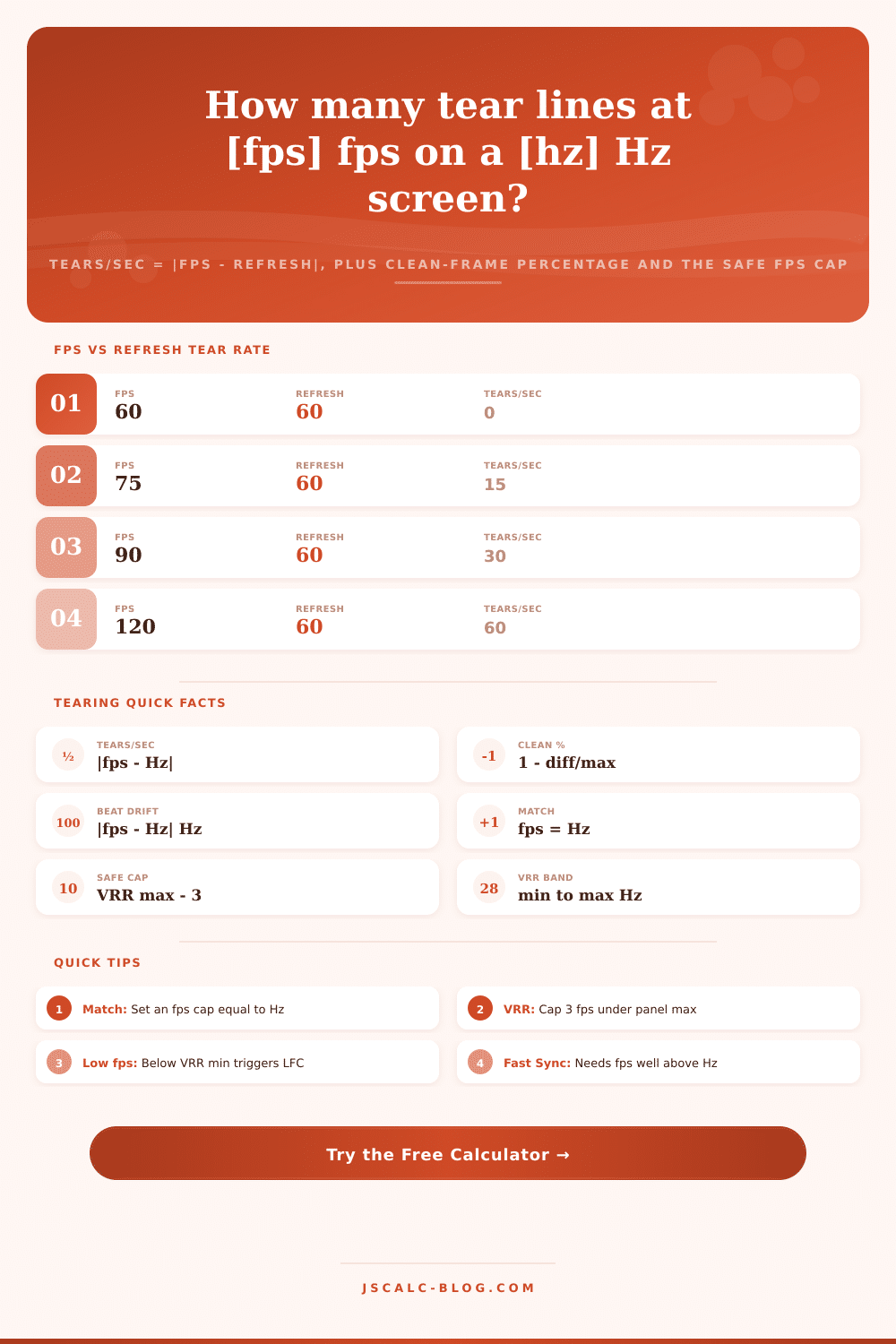
🔢Formula Snapshot
📊FPS vs 60 Hz Tear Rate
| Frame Rate | Refresh | Tears / Second | Clean Frames | Reads As |
|---|---|---|---|---|
| 60 fps | 60 Hz | 0 | 100% | Perfect match |
| 65 fps | 60 Hz | 5 | 92.3% | Slow drift |
| 72 fps | 60 Hz | 12 | 83.3% | Visible band |
| 75 fps | 60 Hz | 15 | 80.0% | Noticeable |
| 90 fps | 60 Hz | 30 | 66.7% | Fast tearing |
| 100 fps | 60 Hz | 40 | 60.0% | Heavy tearing |
| 120 fps | 60 Hz | 60 | 50.0% | Severe |
| 144 fps | 60 Hz | 84 | 41.7% | Constant |
📋FPS vs High Refresh Panels
| Frame Rate | Refresh | Mismatch | Tears / Second | Clean Frames |
|---|---|---|---|---|
| 100 fps | 144 Hz | 44 Hz | 44 | 69.4% |
| 120 fps | 144 Hz | 24 Hz | 24 | 83.3% |
| 144 fps | 144 Hz | 0 Hz | 0 | 100% |
| 165 fps | 144 Hz | 21 Hz | 21 | 87.3% |
| 200 fps | 144 Hz | 56 Hz | 56 | 72.0% |
| 200 fps | 240 Hz | 40 Hz | 40 | 83.3% |
| 240 fps | 240 Hz | 0 Hz | 0 | 100% |
| 300 fps | 240 Hz | 60 Hz | 60 | 80.0% |
🗃Sync Mode Comparison Grid
| Sync Mode | Tearing | Added Lag | Stutter Risk | Best FPS vs Hz | Verdict |
|---|---|---|---|---|---|
| VSync Off | Always | None | Low | Any | Fastest, tears |
| VSync On | None | High | High | fps ≥ Hz | Smooth, laggy |
| Adaptive VSync | Below Hz | Medium | Medium | fps ≥ Hz | Tears when low |
| Fast Sync | Rare | Low | Medium | fps ≫ Hz | Needs big fps |
| G-Sync / FreeSync | None in band | Very low | Very low | min to max | Best all round |
| VRR + VSync cap | None | Very low | Very low | cap under max | Ideal setup |
| VRR above max | Returns | None | Low | capped only | Cap the fps |
| VRR below min | LFC frames | Low | High | use LFC | Raise the fps |
⏱Refresh Rate to Frame Budget
| Refresh | Frame Time | Scanout Window | Match FPS Cap |
|---|---|---|---|
| 60 Hz | 16.67 ms | 16.67 ms | 60 fps |
| 75 Hz | 13.33 ms | 13.33 ms | 75 fps |
| 120 Hz | 8.33 ms | 8.33 ms | 120 fps |
| 144 Hz | 6.94 ms | 6.94 ms | 144 fps |
| 165 Hz | 6.06 ms | 6.06 ms | 165 fps |
| 240 Hz | 4.17 ms | 4.17 ms | 240 fps |
| 360 Hz | 2.78 ms | 2.78 ms | 360 fps |
⚙Formula Breakdown
💡Tearing Control Tips
Screen Tearing Threshold Calculator eliminates guesswork when trying to identify visual glitches in PC games, because now it displays for you exactly how frequently your image will fracture depending on what connection exists between your monitor’s refresh rate and frame rate. A very subjective annoyance becomes an explicit number you can address. Most folks figure screen tearing is some sort of failing graphics card or just plain bad luck. Nope, its physics. Why? Because of timing.
Youve got your monitor drawing an image from top-to-bottom at a constant rate… Say, sixty times per second. Whenever your graphics card has a frame ready to go, it puts it up onscreen. But what if these rates doesn’t match? What if, for instance, your monitor is midway through drawing its current frame when the card suddenly replaces it with a fresh one? You’ll get a horizontal seam: Half your screen displays one moment’s worth, while the rest displays another. That’s a tear.
What Causes Screen Tearing
Plug your settings into the calculator and see just how many tears per second that mismatch create. This leads us into our core metric: beat frequency. When two waves collide, they create a new wave with a frequency equal to difference between the original two,” physics explains. And screen tearing? Same thing. At sixty hertz with ninety frames per second, what’s the difference? Thirty. That means thirty tear seams every second, and you’ll see them. This tool spits out absolute difference for you.
So doubling your frame rate to one hundred twenty on that monitor doubles the tearing, sixty seams a second. It happens twice as often. And it looks worse because it happens more frequent than before. But it’s not just the frequency that’s important (it’s the coverage). Even if there’s a lot of tearing, most of your frames will be completely clean. The calculator tells you what percentage of your frame are completely unseamed. On sixty hertz running at ninety fps, around two thirds of your frames will be perfect. Everything else is going to be torn.
Why does that matter? Because we’re sensitive to changes in motion when we watch things. Having a tear line slowly roll across your screen in a fast camera pan is much worse than having an entire still image go wrong. How quickly that tear line moves over your screen is called the beat frequency. The speed also change between a slow and a frantic flicker. That’s where variable refresh rate technologies such as FreeSync and G-Sync comes into play.
By adjusting their refresh rates in real time to align with what the graphics card is sending, those systems eliminate that issue entirely, provided your framerate remains within the panel’s supported limits. That’s what it measures: your input relative to those VRR bands. When it’s within range, the number of tears drops to zero. However, once you go outside the max, you are back to tearing. This happens because the monitor has no more room to extend itself to keep pace with your frame.
That’s the most useful part of all of this, the recommended fps cap. While many of us game with unlimited frame rates, doing so on a fixed refresh screen is to seek nothing but more tearing. If you’re running with VRR, the calculator recommends capping slightly lower than the max your panel can handle. Otherwise, it recommends setting your cap equal to the refresh rate. Either way, this little tweak removes the entire beat frequency completely. You lose a tiny bit of peak performance for a huge boost in visual stability. A few frames smoother here and there versus an image that never tears itself apart.
In the end, it’s all about clocks. The monitor you’re using ticks at one rate, while the graphics card ticks along at another. The calculator will get those two in sync. Whether you’re trying to make your single-player campaign look right, or you’re tweaking some driver setting in a competitive shooter, when you know what that number is, you don’t have to guess anymore. You can just see right where the seam is, then yank it back into place. And finally, the game looks the way it should of. The horizon remains whole again.