Response Time Calculator
Turn a monitor's rated GtG response time, refresh rate, and on-screen object speed into the real numbers that matter for clarity: persistence blur, pixel response smear, the response-to-frame ghost ratio, and total perceived motion blur in pixels, with a panel-type baseline for TN, IPS, VA, and OLED.
🎯Real Monitor Presets
🖥Display and Motion Inputs
Picking a panel loads a realistic GtG baseline; Custom keeps your value.
Grey-to-grey pixel transition time from the spec sheet.
Frames drawn per second; sets frame time = 1000 / Hz.
960 px/s is the standard UFO motion test panning speed.
Higher overdrive shortens GtG but can add inverse ghosting.
MPRT mode assumes backlight strobing removes hold-type blur.
Used to express blur as a percent of horizontal resolution.
Controls rounding on every result card.
🔢Formula Snapshot
📏Frame Time by Refresh Rate
| Refresh Rate | Frame Time | Persistence Blur at 960 px/s | Feels Like |
|---|---|---|---|
| 60 Hz | 16.67 ms | 16.0 px | Clear smearing |
| 75 Hz | 13.33 ms | 12.8 px | Slightly smoother |
| 120 Hz | 8.33 ms | 8.0 px | Noticeably crisp |
| 144 Hz | 6.94 ms | 6.7 px | Sharp motion |
| 165 Hz | 6.06 ms | 5.8 px | Very sharp |
| 240 Hz | 4.17 ms | 4.0 px | Fast and clean |
| 360 Hz | 2.78 ms | 2.7 px | Elite clarity |
| 480 Hz | 2.08 ms | 2.0 px | Near CRT-like |
📊Total Blur by GtG and Refresh
| GtG Response | Refresh | Persistence px | Smear px | Total px |
|---|---|---|---|---|
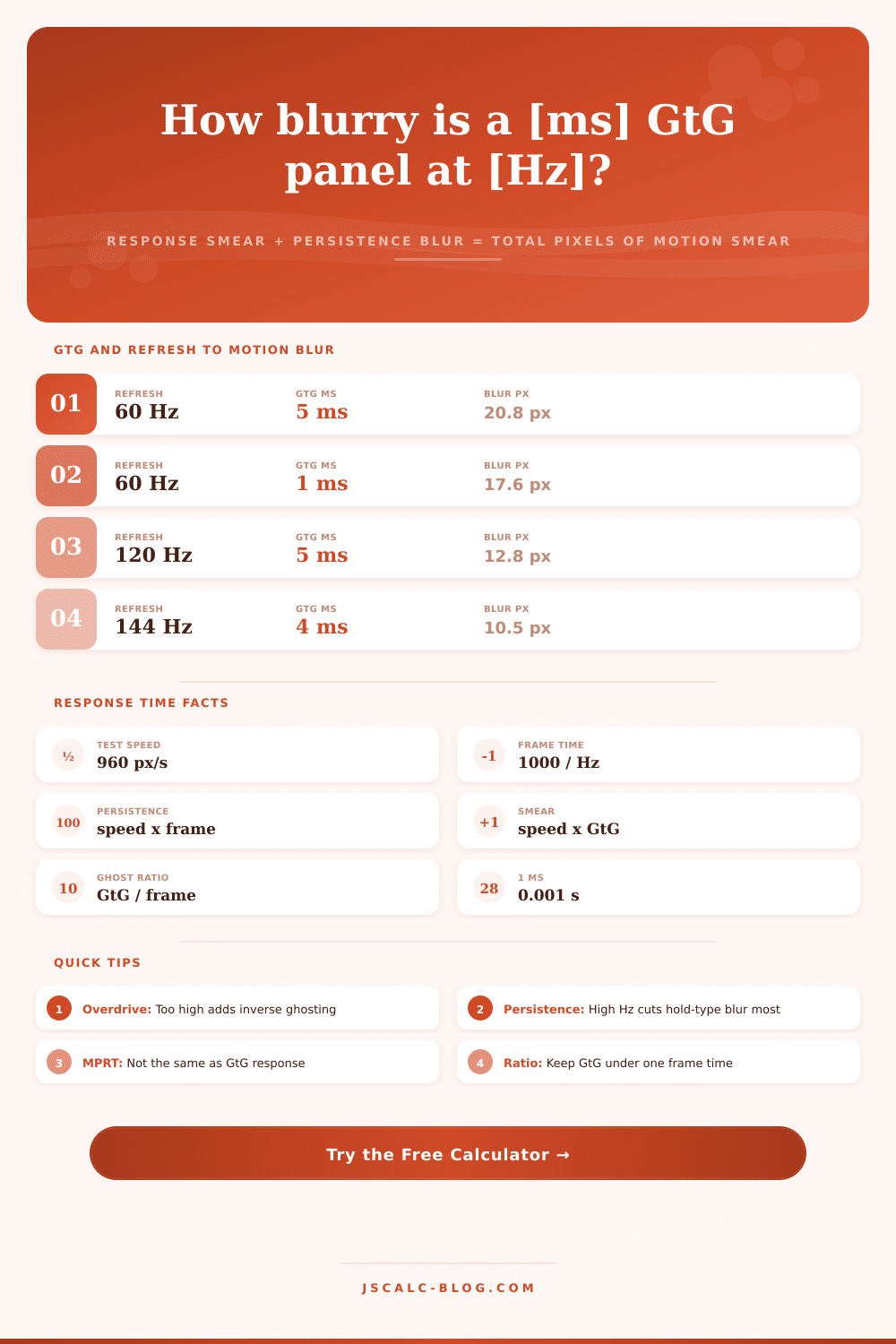
| 5 ms | 60 Hz | 16.0 px | 4.8 px | 20.8 px |
| 1 ms | 60 Hz | 16.0 px | 1.0 px | 17.0 px |
| 4 ms | 144 Hz | 6.7 px | 3.8 px | 10.5 px |
| 1 ms | 144 Hz | 6.7 px | 1.0 px | 7.7 px |
| 2 ms | 165 Hz | 5.8 px | 1.9 px | 7.7 px |
| 1 ms | 240 Hz | 4.0 px | 1.0 px | 5.0 px |
| 0.5 ms | 240 Hz | 4.0 px | 0.5 px | 4.5 px |
| 0.5 ms | 360 Hz | 2.7 px | 0.5 px | 3.2 px |
| 0.3 ms | 480 Hz | 2.0 px | 0.3 px | 2.3 px |
🗄Panel Type Response Comparison Grid
| Panel Type | Typical GtG | MPRT | Overshoot Risk | Best Refresh | Verdict |
|---|---|---|---|---|---|
| TN 60-75Hz | 3-5 ms | 8-10 ms | Low | 144 Hz | Fast, pale color |
| TN 240Hz | 1-2 ms | 2-3 ms | Medium | 240-360 Hz | Esports speed |
| Fast IPS | 1-3 ms | 4-6 ms | Medium | 144-240 Hz | Best all-round |
| Standard IPS | 4-8 ms | 8-12 ms | Low | 60-120 Hz | Color over speed |
| VA | 4-10 ms | 10-16 ms | High (dark) | 120-165 Hz | Contrast, ghosts |
| Fast VA | 2-5 ms | 6-10 ms | High | 165-240 Hz | Deep blacks |
| OLED | 0.1-0.5 ms | 2-4 ms | None | 240-480 Hz | Instant pixels |
| CRT (ref) | Near 0 ms | 1-2 ms | None | Impulsed | Motion benchmark |
👁Motion Clarity Rating Scale
| Total Blur | Clarity Rating | What You See | Typical Setup |
|---|---|---|---|
| Under 3 px | Elite | Text readable while panning | OLED / 360Hz+ |
| 3-5 px | Excellent | Very crisp, tiny trail | 240Hz fast panel |
| 5-8 px | Very Good | Sharp, minor softness | 144-165Hz |
| 8-12 px | Good | Slight blur in fast pans | 120-144Hz |
| 12-18 px | Fair | Visible smear on motion | 60-75Hz good GtG |
| Over 18 px | Poor | Strong smear and ghosting | 60Hz slow VA |
⚙Formula Breakdown
💡Response Time and Clarity Tips
Motion clarity on your monitor? That’s what the calculator is for. Plug in your panel specs and learn how much blur you’ll see on screen. It converts marketing claims into something you can measure. Use it to help visualize what your eyes will be seeing when there’s fast action on-screen.
Motion clarity depend on object movement, refresh rate and speed of pixel transitions. Often, a single millisecond response time is listed on the spec sheet. But it doesn’t tell the full story. It suggests sharp motion that might not actualy happen in real life.
What Causes Motion Blur on Your Monitor?
Blur happens in two ways. One way is response smear, which happens when a pixel are slow to switch colors. This is measured by the grey-to-grey rating. If you move an object across pixels that haven’t fully updated, they will leave a ghostly trail, a sort of slowness.
Then there’s persistence blur. Moddern monitors are mostly sample-and-hold displays. Meaning, they draw a frame and don’t update again until next one arrives. You see smooth motion because your eyes follow it, but each frame appear only in discrete steps. That means the longer the frame lasts, the more smeared it becomes. Even if the panel itself change color instantly (as in a one-millisecond panel), the fact that it’s stuck there for almost seventeen milliseconds when running at sixty hertz still results in blurriness. So even though pixels themselves are fast, the hold time dominate what you actually perceive.
It boils it down to four results. For example, there’s persistence blur, which illustrates the smear resulting only from frame rate. Then there’s response smear, which isolate the delay of pixel itself. Then there’s a ghost ratio. That measures how many times your effective response time exceed the frame duration. When that figure gets higher than one, pixels won’t have time to complete their transition before being overwritten with next frame. This will result in visible overshoot artifacts and gives you an idea if what you’re doing is making things better or worse for yourself.
That’s when most folks stumble into Overdrive land. That’s where they push pixels beyond their rated voltage, forcing them to change colors more quickly. That reduces their transition time. The calculator allow you to dial up the boost for this effect. If the rating was four milliseconds, a fast setting may reduce that to two milliseconds. But there are diminishing returns, because it becomes a balancing act. Pumping overdrive too much causes the pixel to overshoot its target shade. Result: bright inverse ghost known as a corona or perhaps an inverse blur. It is worse then the original blur. You’re looking for the sweet spot, where the transition end just before start of the next frame. Typically, that occurs with a normal or fast preset.
The baseline of clarity comes down to panel tech. Historically, TN panels were fast. They had poor viewing angles and washed out colors. Today’s standard is Fast IPS. Excellent color accuracy with millisecond level response. Deep contrast come from a VA panel. The downside is bad ghosting in dark scenes as well as black-to-black transition. OLED is a whole different beast. Pixels responds near-instantly. Your clarity is really limited by refresh rate when using an OLED.
Knowing this gives you insight into which direction to pursue, higher milliseconds or hertz? You can’t chase a fraction-of-a-millisecond rating on a slow panel. Doubling your refresh rate from 60 to 144Hz halves your frame time. That is much better at reducing motion blur than shaving a millisecond off your response time. How big is the difference between faster pixels and faster refresh? The calculator gives you the details. First get rid of hold-type blur (persistence) with a high refresh rate. Next tune your overdrive setting for the last bit of smearing. You’ll know when it’s gone because you can still read the text while panning quickly.