RAM Requirement Calculator
Size how much memory to buy for any build. Add the operating system baseline, your main workload, browser tabs, virtual machines and background apps, then apply a headroom buffer and round the total up to a real 8, 16, 32, 64 or 128 GB memory kit.
🖥Quick Build Presets
📝Your Machine Profile
Idle memory the OS holds before you open anything.
Peak memory the main task itself demands.
Each modern tab averages about 0.1 GB (100 MB).
Number of guest VMs or containers active at once.
Memory assigned to each guest, multiplied by the count.
Chat, antivirus, sync, launchers and system tray tools.
Free memory kept for spikes, cache and future growth.
Multiplier on the base load for the long haul.
🔢Sizing Snapshot
📊Workload Sizing Guide
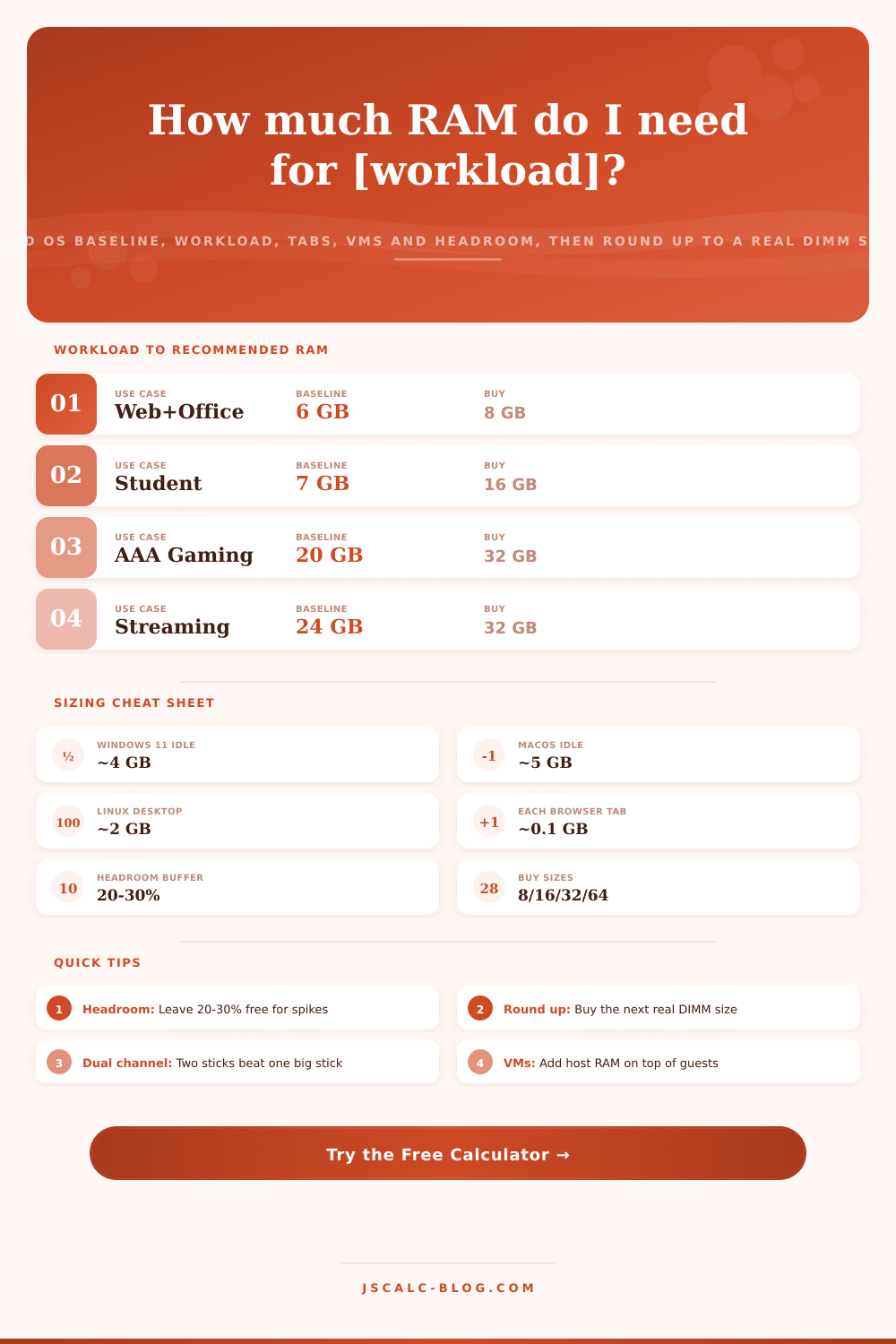
| Use Case | Typical Base Load | Recommended Buy | What Drives It |
|---|---|---|---|
| Web, email, office | 5 to 6 GB | 8 GB | OS plus a few docs and tabs |
| Student laptop | 7 to 9 GB | 16 GB | Many tabs plus notes and video calls |
| AAA gaming | 18 to 22 GB | 32 GB | Game engine plus overlays and chat |
| Game plus streaming | 22 to 26 GB | 32 GB | Game plus encoder and browser scenes |
| Photo editing | 16 to 20 GB | 32 GB | Large layered images and caches |
| 4K video editing | 36 to 48 GB | 64 GB | Timeline caches and preview buffers |
| 3D and CAD | 40 to 56 GB | 64 GB | Big assemblies and render scenes |
| Home lab host | 32 to 44 GB | 64 GB | Host plus several stacked VMs |
🗄OS Baseline and Tab Cost
| Component | Idle or Unit Cost | x10 Units | Note |
|---|---|---|---|
| Windows 11 desktop | 4 GB idle | - | Widgets and services add up |
| macOS | 5 GB idle | - | Aggressive caching by design |
| Linux desktop | 2 GB idle | - | Lean GNOME or KDE session |
| Windows Server | 3 GB idle | - | Core roles before workloads |
| Linux server | 1 GB idle | - | Headless, no desktop |
| Browser tab | 0.1 GB each | 1 GB | Heavy sites use much more |
| Background app | 0.2 GB each | 2 GB | Chat, sync and antivirus |
🗄Full Build Comparison Grid
| Use Case | Minimum | Recommended | Ideal | Notes |
|---|---|---|---|---|
| Casual web + office | 8 GB | 8 GB | 16 GB | 16 GB gives smoother many-tab days |
| Student laptop | 8 GB | 16 GB | 16 GB | 16 GB is the modern sweet spot |
| AAA gaming rig | 16 GB | 32 GB | 32 GB | 32 GB dual channel for new titles |
| Game + stream PC | 16 GB | 32 GB | 64 GB | Encoder plus scenes eat memory |
| Photo editing | 16 GB | 32 GB | 32 GB | Large layered files love headroom |
| 4K video editing | 32 GB | 64 GB | 128 GB | 128 GB for long 4K and 8K timelines |
| 3D and CAD | 32 GB | 64 GB | 128 GB | Big assemblies and GPU render prep |
| Home lab 3 VMs | 32 GB | 64 GB | 128 GB | Sum of guests plus host overhead |
| Web server + DB | 16 GB | 32 GB | 64 GB | Cache and connections scale hard |
| Dev build box | 16 GB | 32 GB | 64 GB | Compilers and containers stack up |
⚙Formula Breakdown
💡Buying Tips That Save Money
How do you know how much memory is right for your computer? Guessing doesn’t work. Too much memory mean wasting money on capacity you don’t use. Too little memory lead to bad performance when exporting videos or doing updates.
Here’s an easy way to calculate it: Add up certain usage categories, your OS baseline, your main workload, browser tabs, background apps, and virtual machines, add a headroom buffer, then round it up to the next available memory kit size. Instead of getting a vague range, you get a clear number.
How to Calculate Your Computer’s Memory Needs
RAM isn’t one setting; it’s additive. Each program gets its own chunk of RAM that gets stacked on top of other programs chunks. There’s some base amount for your operating system itself to work with. Then you have a larger chunk for whatever your primary task is (a video editor, maybe, or a game). You also has more for browser tabs, more for virtual machines, and more for whatever background utilities need to be running. That’s why the total pressure is represented by the sum of all those pieces, because that’s exactly how the system works when it hands out resources. And that’s what this calculator does: mimics that exact process.
Operating System: How much will your OS eat when idling? Windows 11 usually eats ~4GB. MacOS is more aggressive with its data caching and uses ~5GB. If you’re running a headless server, that may use only one gigabyte. Leaner Linux desktops might hit two. Whatever OS you choose, this establishes the right floor for our calculation. It also determines how big a kit you’ll end up buying.
Memory consumption from any one workload depends most heavily off that workload’s size. Browsing the web and working in Office applications consumes just a handful of gigabytes. Gaming use about eight to sixteen gigabytes depending on the game. Editing four kilometers of video will use approximately thirty-two gigabytes for preview and cache. If you do heavy CAD or 3D work, then you’ll need additional memory to keep large assemblies open. Running machines consume a reasonable base amount plus an increment for every guest machine.
Prioritize the workload size profile, then look at smaller pieces. What does this mean? The baseline comes from selecting the right workload profile, then we tack on smaller items. Little things can have surprising impacts on memory use. On average, a moddern browser takes up around a hundred megabytes per tab. Four gigs is nothing when you consider forty tabs running alongside your primary app. To calculate virtual machine memory, multiply the number of guests by amount of RAM allocated to each. That’s on top of what it takes from the underlying host system. Users frequently overlook a few gigs taken up by background apps, antivirus software, cloud sync tools, chat clients, etc. Make sure to use real-world values for these if you want your build to run without problems.
After adding the base load, the calculator adds a headroom buffer. That’s because you want the system to remain responsive. If it hits max capacity, then the operating system swaps memory to disk which freezes things. You’ll want a buffer in place for both future growth and for cache, so twenty or thirty percent is a good range. The tool will multiply the base load times one plus the number you select. So if the base load was twenty-four gigs and your buffer is twenty-five percent, the target would be thirty gigabytes.
Memory does not come in random amounts. Memory kits are standardized to fit into certain quantities, i.e. There’s not just “I want 30 gigs.” There are standard sizes: usually eight, sixteen, thirty-two, sixty-four and one-hundred-and-twenty-eight gigabyte. So if you want to get thirty gigs, you round up and get the next thing. In this case, it’s thirty-two. That is what you buy, and it rounds out on this calculator.
It gives you a complete view through four result cards. Minimum is just base + no buffering at all. Recommended is the main number. It is your base plus headroom, and this is what most people should of look at. Preparing for the future multiplies the base by 1.5-2 to give an idea of how much it will cost you down the road if you want to be able to do something in the distant future. Buy is a round-up of the recommendation so that you can actualy get a kit size off-the-shelf. You’ll see all four readings and have the option to invest for the future or spend for today.
Memory is allocated quickly using presets. The forms calculate on the fly and each preset populates the rest of the form with reasonable defaults. With a couple of taps, you can tweak headroom percentages, change tab amounts, or VM count. It will immediately recalculate and let you know if your changes adds up. Additive math gives you confidence in the numbers. Are you sizing a home lab? Are you building a new PC? It shouldn’t have to be guesswork when buying memory.