Print Size From Pixels Calculator
Turn pixel dimensions into a real print size. Print inches equal pixels divided by DPI, so this tool reports the physical width and height at your chosen resolution, the largest crisp size at 300 DPI, and, in reverse mode, exactly how many pixels a target print needs plus the highest DPI your image can reach at that size.
🖼Choose a Mode
🎯Real Print Presets
📝Image and Print Inputs
Longest horizontal pixel count of the image file.
Vertical pixel count of the image file.
Higher DPI packs more dots per inch, so a smaller sharper print.
Used only when Custom DPI is selected above.
Applies to every reported print dimension. 1 in = 2.54 cm.
Checks if your pixels reach that paper at the chosen DPI.
Reverse mode: target physical width of the print in inches.
Reverse mode: target physical height of the print in inches.
Reverse mode: pixels needed equal print inches times this DPI.
🔢Formula Snapshot
📋DPI Print Quality Guide
| DPI | Quality Tier | Best For | Viewing Distance |
|---|---|---|---|
| 300+ | Photo / lab | Prints held in hand, albums | Arm's length |
| 240 | Very good | Framed photos, fine art | Arm's length |
| 200 | Good | Larger framed enlargements | 1 - 2 ft |
| 150 | Acceptable | Posters, canvas, signage | 3 - 6 ft |
| 100 | Large format | Trade show and wall posters | 6 - 10 ft |
| 72 | Distant | Big banners and murals | 10 ft plus |
| 30 | Billboard | Highway and rooftop boards | 50 ft plus |
📏Print Sizes to Pixels at 300 DPI
| Print Size | Inches | Pixels at 300 DPI | Megapixels |
|---|---|---|---|
| Wallet | 2 x 3 | 600 x 900 | 0.5 MP |
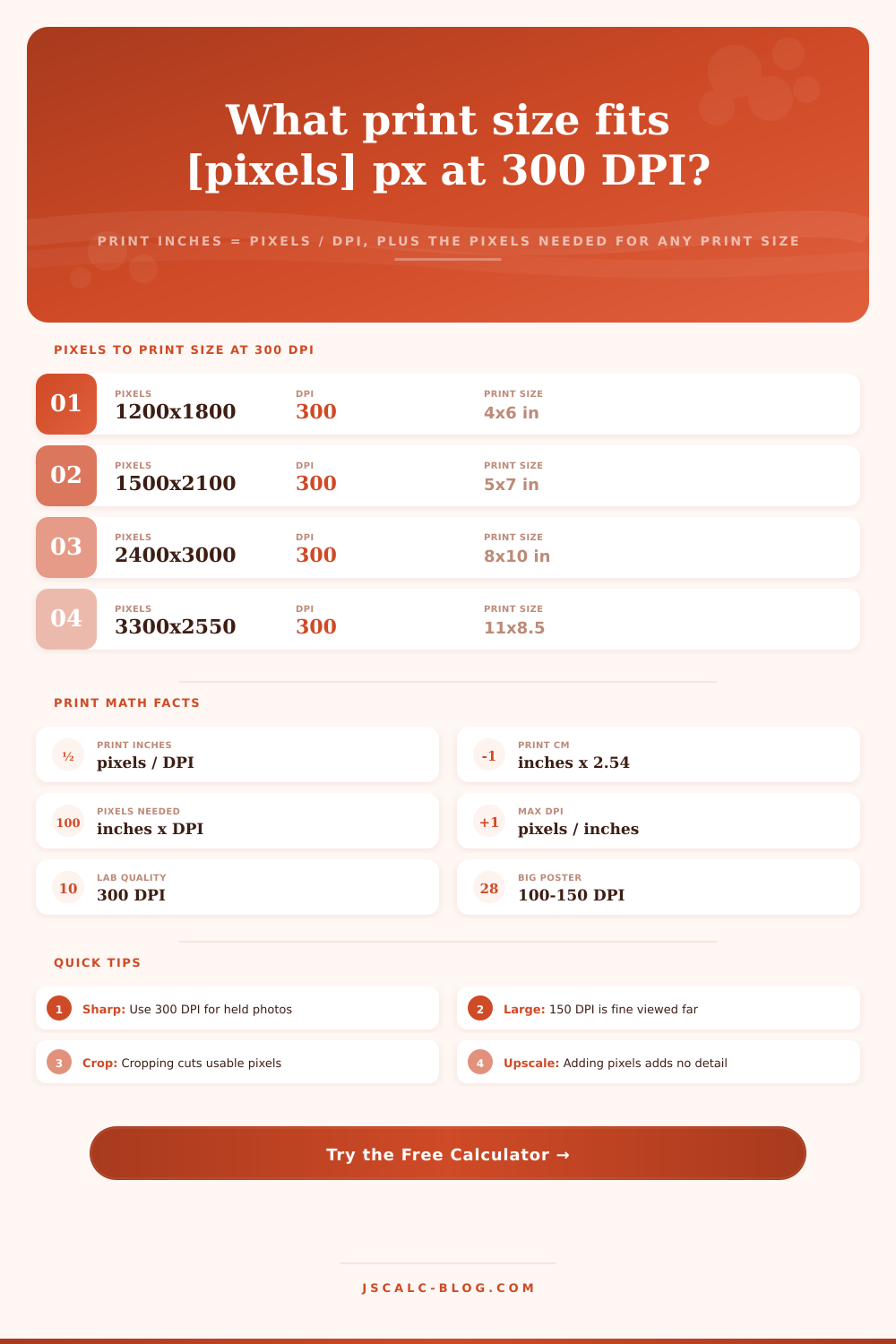
| 4 x 6 photo | 4 x 6 | 1200 x 1800 | 2.2 MP |
| 5 x 7 photo | 5 x 7 | 1500 x 2100 | 3.2 MP |
| 8 x 10 print | 8 x 10 | 2400 x 3000 | 7.2 MP |
| Letter 8.5 x 11 | 8.5 x 11 | 2550 x 3300 | 8.4 MP |
| A4 page | 8.27 x 11.69 | 2481 x 3507 | 8.7 MP |
| 11 x 14 print | 11 x 14 | 3300 x 4200 | 13.9 MP |
| 16 x 20 poster | 16 x 20 | 4800 x 6000 | 28.8 MP |
| 24 x 36 poster | 24 x 36 | 7200 x 10800 | 77.8 MP |
📸Camera Resolution to Max Print Size
| Megapixels | Typical Pixels | Max at 300 DPI | Max at 150 DPI |
|---|---|---|---|
| 2 MP | 1600 x 1200 | 5.3 x 4 in | 10.7 x 8 in |
| 6 MP | 3000 x 2000 | 10 x 6.7 in | 20 x 13.3 in |
| 12 MP | 4256 x 2832 | 14.2 x 9.4 in | 28.4 x 18.9 in |
| 16 MP | 4920 x 3264 | 16.4 x 10.9 in | 32.8 x 21.8 in |
| 24 MP | 6000 x 4000 | 20 x 13.3 in | 40 x 26.7 in |
| 36 MP | 7360 x 4912 | 24.5 x 16.4 in | 49.1 x 32.7 in |
| 45 MP | 8256 x 5504 | 27.5 x 18.3 in | 55 x 36.7 in |
| 61 MP | 9504 x 6336 | 31.7 x 21.1 in | 63.4 x 42.2 in |
🗃Pixels vs DPI Print Size Comparison Grid
| Pixel Dimensions | At 300 DPI | At 240 DPI | At 150 DPI | At 100 DPI | At 72 DPI |
|---|---|---|---|---|---|
| 1024 x 768 | 3.4 x 2.6 | 4.3 x 3.2 | 6.8 x 5.1 | 10.2 x 7.7 | 14.2 x 10.7 |
| 1920 x 1080 | 6.4 x 3.6 | 8 x 4.5 | 12.8 x 7.2 | 19.2 x 10.8 | 26.7 x 15 |
| 2400 x 1600 | 8 x 5.3 | 10 x 6.7 | 16 x 10.7 | 24 x 16 | 33.3 x 22.2 |
| 3000 x 2000 | 10 x 6.7 | 12.5 x 8.3 | 20 x 13.3 | 30 x 20 | 41.7 x 27.8 |
| 4000 x 3000 | 13.3 x 10 | 16.7 x 12.5 | 26.7 x 20 | 40 x 30 | 55.6 x 41.7 |
| 6000 x 4000 | 20 x 13.3 | 25 x 16.7 | 40 x 26.7 | 60 x 40 | 83.3 x 55.6 |
| 8000 x 6000 | 26.7 x 20 | 33.3 x 25 | 53.3 x 40 | 80 x 60 | 111.1 x 83.3 |
| 10000 x 8000 | 33.3 x 26.7 | 41.7 x 33.3 | 66.7 x 53.3 | 100 x 80 | 138.9 x 111.1 |
⚙Formula Breakdown
💡Print Resolution Tips
When it comes time to get your image printed at the lab, there’s one essential question to answer first: how big will my picture be? That’s what the pixels to print size calculator does for you.
Each digital image is made of a grid of pixels; each printed photo has a resolution (in terms of dots per inch, or DPI). These two numbers is connected via a simple formula: divide the number of pixels by DPI to find out maximum print size. The calculator uses this relationship to go both ways: either to convert any pair of pixel sizes to physical width and height, or to reverse it, starting with a desired print and working back to determine needed pixels.
How to Use the Pixels to Print Size Calculator
The width of the print (in inches) equals the number of horizontal pixels divided by the DPI. So if we want a 6000 pixel wide image and are printing at 300 DPI, that image would span 20 inches since 6000 ÷ 300 = 20. Repeat this with the other side (vertical). If you have 4000 pixels high and are printing at 300 DPI, then that would give you 13.33 inches. This means a 24 megapixel camera file comfortabley fills a 20 by 13.3 inch enlargement at top quality. In case you prefer metric, just multiply any inch value by 2.54. 20 inches becomes 50.8 centimeters.
The calculator above does all that math for you, so you don’t have to lug out a physical calculator when checking your camera specs. This is where most folks get tripped up with one idea. DPI determines the tightness of packing pixels onto paper. If I choose 300 DPI, the dots are packed close for crisp detail, which makes my print small. If I choose a lower DPI like 150 then each pixel spans twice as much linear distance which means my print doubles in size while fine detail softens. There is no new information added to the file. You’re simply spreading the same pixels over a larger area.
And this is where folks go astray. They believe that lowering their DPI will improve quality, when actualy it doesn’t. It simply makes their image bigger and softer. The biggest one of those result cards reports how large a print your image can produce while remaining true 300 DPI sharpness. That’s nothing more than the pixel count divided by 300. If you have a photo with a pixel count of 6000 by 4000 pixels, the largest lab quality print it can make is 20 by 13.33 inches. Any larger and you’re effectively pushing past 300 DPI and below where it looks good on a wall but won’t stand up to close inspection. This ceiling helps you avoid ordering something that turns out disappointing because it was too large to print well. It also lets you tell quickly if your file will be up to the task.
There are times when you already know what size print you’d like and now just need to see if your image can produce it. For those times, click the calculator back to reverse mode and it will flip the formula. To figure how many pixels you’ll need for a print, simply multiply the print inches based off the desired DPI. So an 8 by 10 inch print @ 300 DPI would be: (2400 x 3000) = 7.2 megapixels. Now take that requirement and feed it into the tool. Does your image match? Has it got more than enough pixels? Nope! That’s clear from the answer the tool gives you. It will even tell you highest DPI your image can be at the same size. Just divide your pixels by the print inches. At 6000 pixels spread over a 24 inch print, it calculates out to a nice 250 DPI which is plenty good for all but the pickiest of eyes.
Four cards build up the results panel so that you can see everything about your image all at once. Forward mode shows Print Width, Print Height, Maximum 300 DPI Size, and Total Megapixels of File. In reverse mode, the cards switches to: Pixels Required for Width, Pixels Required for Height, Megapixels Required, and Top DPI Achievable at Your Chosen Dimensions. There is also a status line explaining what the result means in plain language, and below that a breakdown of the formulas with each number being substituted on its own line. It’s a small thing, but it matters to have the logic clearly laid out.
There’s also a pretty handy paper comparison dropdown, which compares your pixels to common formats like posters (16 by 20), letter, A4, A3, 4 by 6, 5 by 7, and 8 by 10. You select your DPI, and it will tell you if you’ve got the pixels to make that size happen. The preset buttons are designed to represent actual jobs; a 4 by 6 print of a 24 megapixel file, an 8 by 10 of a phone photo, a poster at 300 DPI, a 12 megapixel image on A4, or a billboard at 30 DPI visible from fifty feet away. They load sensible dimensions so you can get an idea how they did it, and then you can adjust the numbers for your image.
To complete the tool are three reference tables: one correlates print sizes (from a wallet to a poster as big as 24 by 36) to the corresponding number of pixels required for 300 DPI printing; another relates camera megapixels to the largest possible print size (at 150 and 300 DPI); and finally, a large comparison grid that compares print sizes based on a fixed number of pixels at five different DPI settings, making it hard not to see the trade off between sharpness and size.
It is always tempting to print it all out as big as we can go, but it is wiser to use DPI to match the view distance. 300 DPI for an album photo; 100 or so on a banner stretched along a hallway is no problem. Fight the impulse to make a little file look better by forcing up a higher number in software, pixels invented that way create new detail that doesn’t exist.
You should of tried some of these other more moddern practical pixel-size calculators here, such as this one. Pick a preset, read the four cards, catch the breakdown, and presto: you’ll know precisely how big those pixels can go.