Image File Size Calculator
Work out how many megabytes an image takes by multiplying width x height by the bytes per pixel from its bit depth, then apply real JPEG, PNG, WEBP, TIFF or RAW compression ratios to get the stored file size and the total disk space for a whole batch of photos.
📷Real Image Presets
📄Image Inputs
Horizontal pixel count of the image.
Vertical pixel count of the image.
Precision of each color channel.
RGB is 3 channels, RGBA adds transparency.
Maps the format to a typical compression ratio.
Used only when format is set to Custom.
Total shots to store at this compressed size.
Binary matches Windows, decimal matches drive labels.
🔢Formula Snapshot
📊Format Compression Ratios
| Format | Type | Typical Ratio | 24MP Result |
|---|---|---|---|
| BMP / Uncompressed | None | 1 : 1 | 68.7 MB |
| RAW (camera) | Lossless / packed | 1.5 : 1 | 45.8 MB |
| TIFF (LZW) | Lossless | 1.05 : 1 | 65.4 MB |
| PNG | Lossless | 2.5 : 1 | 27.5 MB |
| JPEG high quality | Lossy | 5 : 1 | 13.7 MB |
| JPEG quality 80 | Lossy | 10 : 1 | 6.9 MB |
| WEBP | Lossy | 18 : 1 | 3.8 MB |
| AVIF | Lossy | 30 : 1 | 2.3 MB |
🎨Bit Depth to Bytes Per Pixel
| Mode | Bits / Channel | Channels | Bits / Pixel | Bytes / Pixel |
|---|---|---|---|---|
| Grayscale 8-bit | 8 | 1 | 8 bpp | 1.0 |
| Grayscale 16-bit | 16 | 1 | 16 bpp | 2.0 |
| RGB 8-bit | 8 | 3 | 24 bpp | 3.0 |
| RGBA 8-bit | 8 | 4 | 32 bpp | 4.0 |
| RGB 10-bit HDR | 10 | 3 | 30 bpp | 3.75 |
| RGB 12-bit RAW | 12 | 3 | 36 bpp | 4.5 |
| RGB 16-bit | 16 | 3 | 48 bpp | 6.0 |
| RGBA 16-bit | 16 | 4 | 64 bpp | 8.0 |
📏Resolution to Uncompressed 24-bit Size
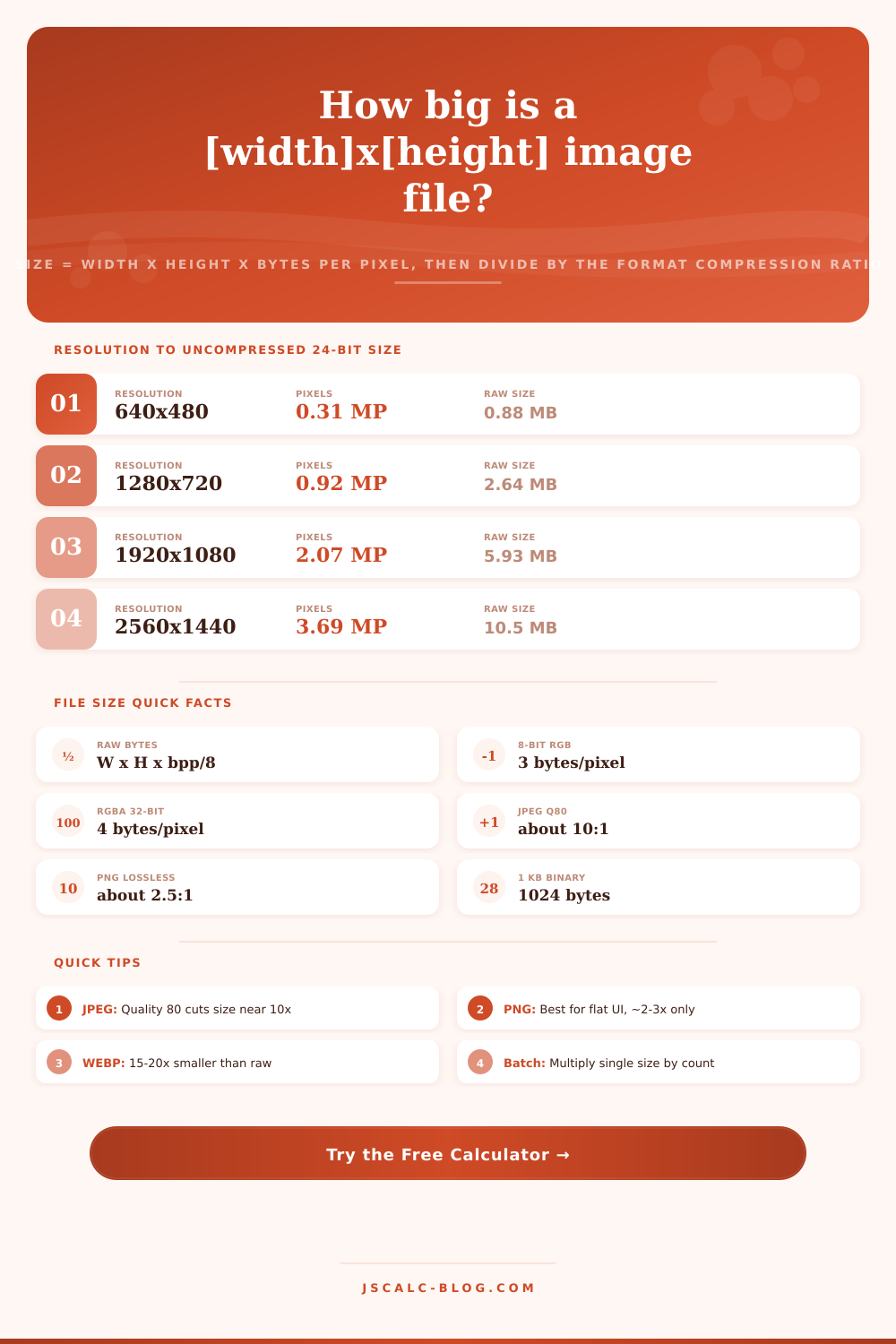
| Resolution | Megapixels | Raw Bytes | Raw Size (MB) |
|---|---|---|---|
| 640 x 480 | 0.31 MP | 921,600 | 0.88 MB |
| 1280 x 720 | 0.92 MP | 2,764,800 | 2.64 MB |
| 1920 x 1080 | 2.07 MP | 6,220,800 | 5.93 MB |
| 2560 x 1440 | 3.69 MP | 11,059,200 | 10.5 MB |
| 3840 x 2160 (4K) | 8.29 MP | 24,883,200 | 23.7 MB |
| 4000 x 3000 (12MP) | 12.0 MP | 36,000,000 | 34.3 MB |
| 6000 x 4000 (24MP) | 24.0 MP | 72,000,000 | 68.7 MB |
| 8256 x 5504 (45MP) | 45.4 MP | 136,323,072 | 130 MB |
🗃Format Size Comparison Grid
| Resolution | Uncompressed | PNG 2.5:1 | JPEG 10:1 | WEBP 18:1 | 500-Photo JPEG |
|---|---|---|---|---|---|
| 1280 x 720 | 2.64 MB | 1.06 MB | 0.26 MB | 0.15 MB | 0.13 GB |
| 1920 x 1080 | 5.93 MB | 2.37 MB | 0.59 MB | 0.33 MB | 0.29 GB |
| 2560 x 1440 | 10.5 MB | 4.22 MB | 1.05 MB | 0.59 MB | 0.51 GB |
| 3840 x 2160 | 23.7 MB | 9.49 MB | 2.37 MB | 1.32 MB | 1.16 GB |
| 4000 x 3000 | 34.3 MB | 13.7 MB | 3.43 MB | 1.91 MB | 1.68 GB |
| 6000 x 4000 | 68.7 MB | 27.5 MB | 6.87 MB | 3.81 MB | 3.35 GB |
| 8256 x 5504 | 130 MB | 52.0 MB | 13.0 MB | 7.22 MB | 6.35 GB |
⚙Formula Breakdown
💡Storage Saving Tips
When storage runs out, which tends to be at bad moments, knowing what that picture weigh will help. The last thing you want is to run out of space while shooting something memorable, such as a wedding. It might also be when the light is right. Instead, you stop taking pictures because you don’t have room for them; not because there wasn’t anything else left to photograph.
Storage anxiety becomes simple math once you know where file sizes goes: pixels, then color depth, then compression algorithm. All digital photos begin their life as a matrix of pixels, each one requiring information about what color they should be. The raw size of a picture is calculated by multiplying the width by the height by the bytes per pixel. For typical pictures, there are 8 bits (1 byte) for each of red, green, and blue channels, so each pixel has 24 bits (3 bytes). So if you take a 6000 by 4000 shot, even before it’s touched by any file format, that is 72 million bytes of pure picture data. That sounds big…until you remember that the cost of disk space makes the raw version almost never used in the real world.
How to Calculate Photo File Size
File sizes also depends on how much data is included in them, such as bit depth. When shooting in RAW or working with files for editing, changing bit depth will alter your file size. For example, doubling from 8-bit to 16-bit per channel means that each pixel now contain twice as many bits; immediately doubling the file size of your raw file. It’s a tiny little tech thing that makes big difference in practice. For transparent graphics where RGBA is used, adding the alpha channel adds another byte per pixel. That multiplies up fast when dealing with hundreds of images.
This raw data is compressed in various file formats. Depending on your choice, the savings are different than. If you select lossless formats such as PNG, they retain each and every pixel exactly the same way. However, they also result in only modest savings (perhaps a 2.5 to 1 reduction for photo-based content). This results in a huge raw image being reduced down to roughly 40 percent of its original size, better than nothing, but you won’t be saving your hard drive from getting filled up quickly. Lossy formats, including JPEG and newer WEBP, throw away information that we hardly notice anyway. With JPEG at quality level 80, it typically reduces the amount of data by a factor of 10; with moddern WEBP, you can get closer to an 18 to 1 ratio. Always there is a trade-off: File size vs. Absolute fidelity.
After you plug in your desired format and dimension settings, the calculator does math for you, taking the guesswork out of guessing how much space you’ll need. You no longer need to memorize different compression coefficients depending on the codec. Instead, choose your image resolution, decide if it’s a photograph or something with nice sharp edges (PNG) vs soft edges (JPEG), and voila: there’s your answer. There’s even an option to batch calculate, allowing you to see what 500 images in a particular size equate to in terms of megabytes versus gigabytes. More often than not, it’s this overall batch number that ends up being most relevant when purchasing cloud subscriptions or memory cards.
You should of checked this before.
There is one final wrinkle: decimal vs binary units. Hard drive manufacturers sell their drives using powers of 1000, but computers count storage in powers of 1024. That terabyte drive marked by the manufacturer actualy appears as around 931 GB in your operating system. It’s a classic tech industry mismatch. One which confuses everybody at least once. The calculator has a toggle to help, allowing you to match the units used by whatever piece of hardware you’re dealing with. Binary will give you the number your computer shows; decimal matches what’s on the box.
These numbers change the way you plan and shoot. Before you even pack your bag you can estimate how much memory you need (a 7 mb jpeg; roughly 45 MB for a 24MP RAW file). Do you want to bring one big 256 GB card? Or two smaller 128 GB cards? You are simply managing your resources.
After breaking down an image into its component parts: compression ratio, bits, pixels. The math becomes simple. Every time you click you’ll know exactly what it costs and you can spend less time staring at that ever-ticking-down-storage-counter and more on the moment and the light.