Disk Overhead Calculator
Estimate how much of a formatted volume you actually get to use. This tool adds filesystem metadata, reserved-for-root space, snapshot reserve, and cluster slack from internal fragmentation to report total overhead percent, usable space, wasted slack, and effective efficiency for NTFS, ext4, APFS, exFAT, XFS, ZFS, Btrfs, and FAT32.
🎯Real Volume Presets
💾Volume and Format Inputs
Formatted partition size before any overhead.
Binary units so byte math is exact.
Sets the base metadata overhead percent.
Allocation unit; drives slack per file.
Mean file size; smaller means more slack.
Unit for the average file size above.
Percent held back for privileged use (ext family default 5).
Percent set aside for snapshots or copy-on-write.
Extra structural reserve on top of the filesystem.
Rounding for percent and space values.
🔢Overhead Snapshot
📋Filesystem Metadata and Reserve Defaults
| Filesystem | Metadata Overhead | Root Reserve Default | Typical Use |
|---|---|---|---|
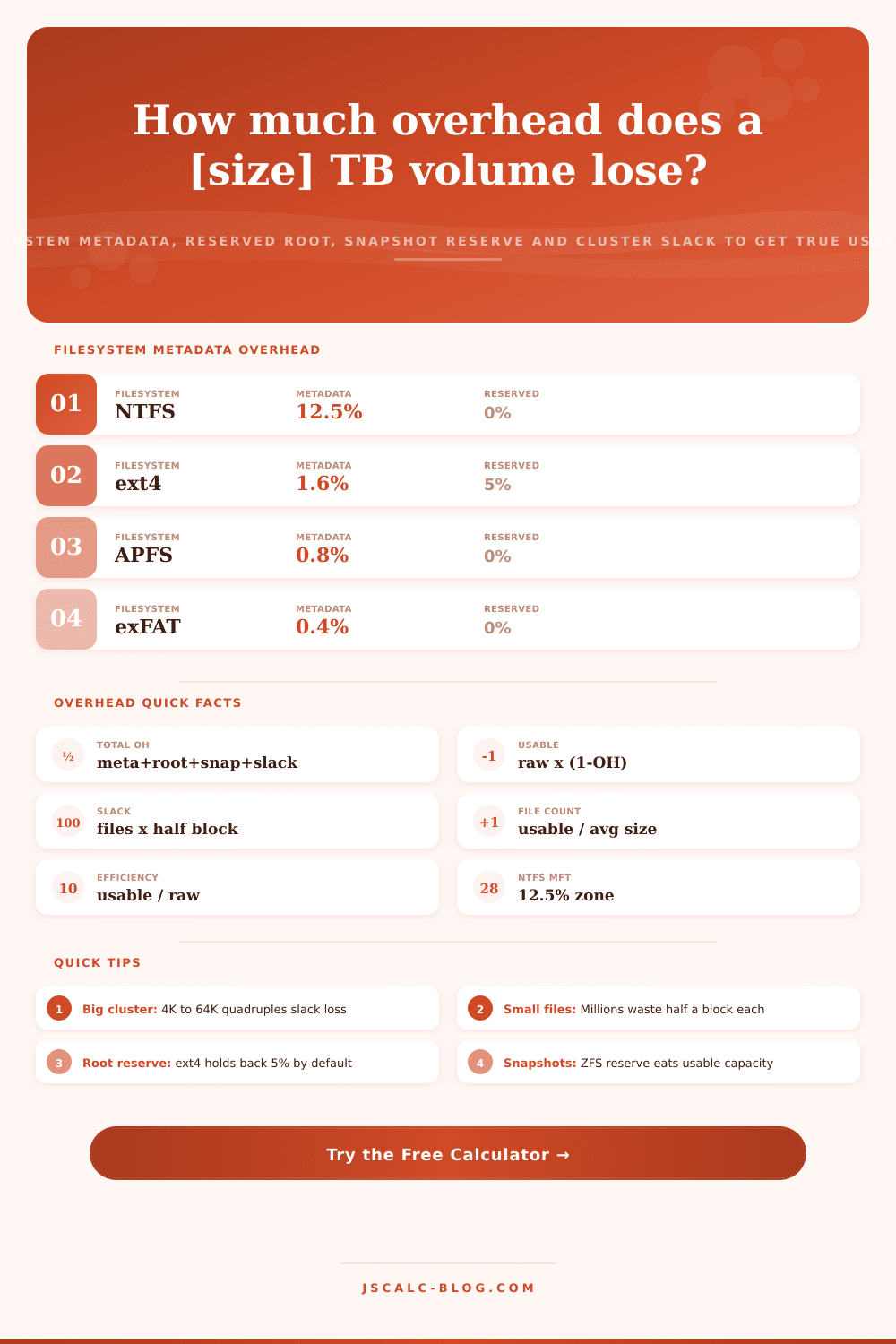
| NTFS | ~12.5% MFT zone | 0% | Windows system and data |
| ext4 | ~1.6% inodes | 5% | Linux root and home |
| APFS | ~0.8% container | 0% | macOS SSD volumes |
| exFAT | ~0.4% FAT | 0% | SD cards and flash |
| XFS | ~1.0% AG metadata | 0% | Large server volumes |
| ZFS | ~3.2% metadata + copies | 0% | NAS and storage pools |
| Btrfs | ~2.4% CoW trees | 0% | Linux snapshots |
| FAT32 | ~0.3% FAT tables | 0% | Legacy and firmware |
📊Cluster Size vs Slack per File
| Cluster Size | Avg Slack per File | 1 M Small Files | 10 M Small Files | Best For |
|---|---|---|---|---|
| 512 B | 256 B | 0.24 GB | 2.4 GB | Many tiny files |
| 4 KB | 2 KB | 1.9 GB | 19 GB | General purpose |
| 8 KB | 4 KB | 3.8 GB | 38 GB | Mixed workloads |
| 16 KB | 8 KB | 7.6 GB | 76 GB | Databases |
| 32 KB | 16 KB | 15 GB | 153 GB | Media libraries |
| 64 KB | 32 KB | 31 GB | 305 GB | Large video files |
| 128 KB | 64 KB | 61 GB | 610 GB | Backup archives |
🗃Filesystem Comparison Grid
| Filesystem | Metadata Overhead | Default Cluster | Max Volume | Reserved Default | Journaling |
|---|---|---|---|---|---|
| NTFS | 12.5% | 4 KB | 256 TB | 0% | Yes, metadata |
| ext4 | 1.6% | 4 KB | 1 EB | 5% | Yes, ordered |
| APFS | 0.8% | 4 KB | 8 EB | 0% | No, copy-on-write |
| exFAT | 0.4% | 128 KB | 128 PB | 0% | No |
| XFS | 1.0% | 4 KB | 8 EB | 0% | Yes, metadata |
| ZFS | 3.2% | 128 KB | 256 ZB | 0% | No, CoW + ZIL |
| Btrfs | 2.4% | 16 KB | 16 EB | 0% | No, copy-on-write |
| FAT32 | 0.3% | 32 KB | 2 TB | 0% | No |
⚙Formula Breakdown
💡Overhead Reduction Tips
Suppose you buy a one-terabyte drive. Format it. Your operating system says something less than that. Some portion of that discrepancy is because your OS is converting from base-10 (decimal) to base-2 (binary). A significant portion are the disk overhead, which includes reserved space, slack space in partially-full allocation units, snapshot space, and filesystem metadata space.
That’s what Disk Overhead Calculator, located at JSCalc-Blog.com, is about. And it calculates it as a percent, showing you just how little of the volume will be usable.
Why Your Hard Drive Has Less Space
There are different types of reserved spaces above. First, there’s just plain old bookkeeping: the volume has to have some filesystem metadata to be functional at all. NTFS reserves an area up to 12.5 percent (on smaller volumes) called the Master File Table. Ext4 pre-allocates inode tables. ZFS reserves space for metadata as well as redundant copies. Copy-on-write filesystems such as APFS and Btrfs use trees to store their data for similar purposes.
Then there’s explicit reserve space. To avoid situations where admins can’t log in because the disk is full, many Linux filesystems reserves 5 percent for the root user. And snapshotting filesystems reserve space for point-in-time copies.
Lastly, there’s cluster slack, meaning the leftover space when a file doesn’t quite fit into its final allocation block. These four components, metadata, reserves, snapshots, and slack, is combined into one overall overhead number by the calculator.
You can predict reserve and metadata; they’re visible and predictable. You can see them too. Cluster slack, however, comes as a surprise and varies with the number of files stored, not their total size. Files take up whole clusters (or “blocks”) even when only part of one is used. These clusters is typically 4 KB in size. So a 5 KB file takes two full 4 KB clusters, wasting 3 KB in the second. On average, the last cluster is half empty, that’s why the waste is about half a cluster per file across an entire volume.
To figure out how many slack bytes, multiply half a cluster (the average waste) by the number of files. The number of files is equal to the total size of the volume divided by the average file size. For example, if you have a handful of large videos, you’ll hardly notice the slack. But if you have tens of millions of little emails, thumbnails, or configuration files, then the slack will occupy hundreds of gigabytes.
To use it, you select a binary unit to ensure your byte arithmetic is exact, then enter the raw partition size. Next, select the filesystem, which establishes the base amount of metadata, and the block/cluster size, which will be used to calculate slack. You also input the average file size so the slack estimate is realistic, as this describes how many half-empty clusters are on the disk. Add two more fields for any deliberate hold-backs: reserved-for-root percent and snapshot reserve percent. Finally, add an optional scheme factor if there is extra structural reserve due to things like deduplication tables or parity.
The tool outputs effective efficiency (usable space/raw space) and total overhead percent. It also outputs wasted slack space and usable space expressed in a natural unit. Most importantly, this calculator gives you the top number on the first card: the total overhead (in percent) of your raw volume. This is followed by the usable space in the second card, useful if you’re considering whether your media library/backup fits. Card three breaks out just the cluster slack so you can see what’s inefficient about your file mix and cluster size (it’ll also tell you roughly how many files are causing that loss). And finally, card four tells you your effective efficiency, one number indicating how much of the drive contains your actual data. Below that is a breakdown panel showing each part of the calculation. Nothing is obscured in any way, from metadata to reserves to slack.
Each filesystem has made some kind of trade-off. Some have almost no metadata overhead, so exFAT and FAT32 are good for USB sticks and SD cards. Others put off most metadata to the end. NTFS is good for large numbers of files because it puts a large part of its Master File Table zone upfront. Some have big default clusters (so lots of slack when you have many small files) and others has a pretty lean metadata footprint (ext4/XFS), although ext4 adds a 5 percent root reserve. Others have really large metadata footprints (ZFS/Btrfs). They put more data into copy-on-write snapshots, redundant copies, and checksums. Those come with the price of being less efficient from a raw storage perspective but giving you things like instant snapshots and integrity.
The tool’s comparison grid lays out all those options next to each other. It covers metadata, default cluster, max volume, reserved default, and journaling, so you can easily see the trade-offs.
When you’ve got enough perspective on how it will play out, look for two ways: one is matching your workload to the cluster size. With a 64 KB cluster, you waste an average of 32 KB per file; with ten million small files on a volume, that’s roughly 305 GB wasted to slack. Drop down to a 4 KB cluster and that same loss shrinks to about 19 GB. Big clusters are good if your very large media files barely notice, but they pay for themselves by performing fewer allocation operations.
The other lever is taking back intentional reserves you don’t actualy use. For example, on a data-only ext4 volume you can reduce the root reserve (which is set to 5 percent by default) to about 1 percent, gaining approximately 80 GB on a 2 TB disk. You’ll get back even more space by trimming an oversized snapshot reserve.
The tool includes sensible defaults as presets, all the way up to an 8 TB ZFS pool or a 1 TB NTFS 4K cluster that you can tweak. Let’s distinguish these concepts because they are different. A terabyte is defined by manufacturers to be a trillion bytes, but the OS use powers of 1024 (binary) for counts. That’s not a function of the filesystem; it’s a baked-in label change that won’t go away. What I’m talking about here is disk overhead: How much is consumed every day by formatting, separate from that conversion loss? This includes cluster slack, reserved space, snapshots, and metadata.
The calculator explicitly assumes that you already know the unformatted binary size of the partition. It’s answering the “next” question: After the filesystem gets its cut, how much of the partition is left over?
Anyone planning storage capacity gains can use a clear overhead estimate. NAS system administrators can size for the actual usable terabytes they’ll get with snapshots in a ZFS pool. Videographers and photographers can size a cluster so that they don’t waste space at either extreme. People developing container images with millions of tiny files can understand why disk is filling up faster then it should based off the sizes of those files. The Disk Overhead Calculator makes this guesswork go away. It replaces it with two numbers you can plan against: an honest percentage for overhead (based on all the slacks, reserves, and metadata) and a matching usable-space number.
You’ve bought a one-terabyte drive. Now you know just how much of it you really have.