CPU Bottleneck Percentage Calculator
Compare the frames your CPU can feed against the frames your GPU can draw to find your CPU bottleneck percentage, your effective in-game FPS, the wasted GPU headroom, and whether the pairing is balanced or held back at your chosen resolution and refresh rate.
🎮Real CPU + GPU Pairing Presets
📝Your System and Game Inputs
FPS method estimates from raw potential; telemetry uses live load.
Max FPS your CPU can prepare, from a CPU-limited benchmark.
Max FPS the GPU can render at 1080p ultra, before resolution scaling.
Used in telemetry mode: read from an in-game overlay while playing.
Higher resolution lowers GPU FPS, shrinking any CPU bottleneck.
Frames above this are not shown, so it caps perceived smoothness.
Sets how strongly the CPU share of the workload is weighted.
Games using fewer threads lean harder on single-core speed.
🔢Formula Snapshot
📊Bottleneck Severity Bands
| Bottleneck % | Severity | What It Means | Action |
|---|---|---|---|
| 0% - 4% | Negligible | Well matched pair | Do nothing |
| 5% - 10% | Minor | Slight CPU limit | Optional tuning |
| 10% - 20% | Moderate | Noticeable CPU cap | Raise resolution |
| 20% - 35% | Severe | CPU wastes the GPU | Upgrade CPU soon |
| Over 35% | Extreme | Badly mismatched | Upgrade CPU now |
| GPU-bound | None | GPU is the limiter | Lower settings |
🖥Typical CPU FPS Ceilings by Tier
| CPU Tier | Example Chip | Esports FPS | AAA FPS | Sim FPS |
|---|---|---|---|---|
| Entry | Ryzen 3 / i3 | 210 | 110 | 70 |
| Mainstream | Ryzen 5 / i5 | 320 | 160 | 105 |
| High-end | Ryzen 7 / i7 | 400 | 200 | 140 |
| Enthusiast | Ryzen 9 / i9 | 480 | 240 | 175 |
| X3D cache | Ryzen 7 X3D | 540 | 270 | 210 |
| Older 6-core | i5-10400 | 230 | 120 | 78 |
📉Resolution Load Distribution
| Resolution | Pixels | GPU FPS Factor | CPU Relative Load | Typical Bind |
|---|---|---|---|---|
| 1080p | 2.07 MP | 1.00x | Highest | Often CPU |
| 1440p | 3.69 MP | 0.66x | Medium | Balanced |
| 4K UHD | 8.29 MP | 0.42x | Lowest | Almost always GPU |
| 1080p + DLSS Q | 0.92 MP in | 1.35x | Very high | Strongly CPU |
| 4K + DLSS P | 2.07 MP in | 0.85x | Medium | Mixed |
| Ultrawide 1440p | 4.92 MP | 0.55x | Medium | Balanced |
🗄CPU vs GPU Pairing Comparison Grid
| CPU + GPU | Resolution | CPU FPS | GPU FPS | Effective FPS | Bottleneck % | Verdict |
|---|---|---|---|---|---|---|
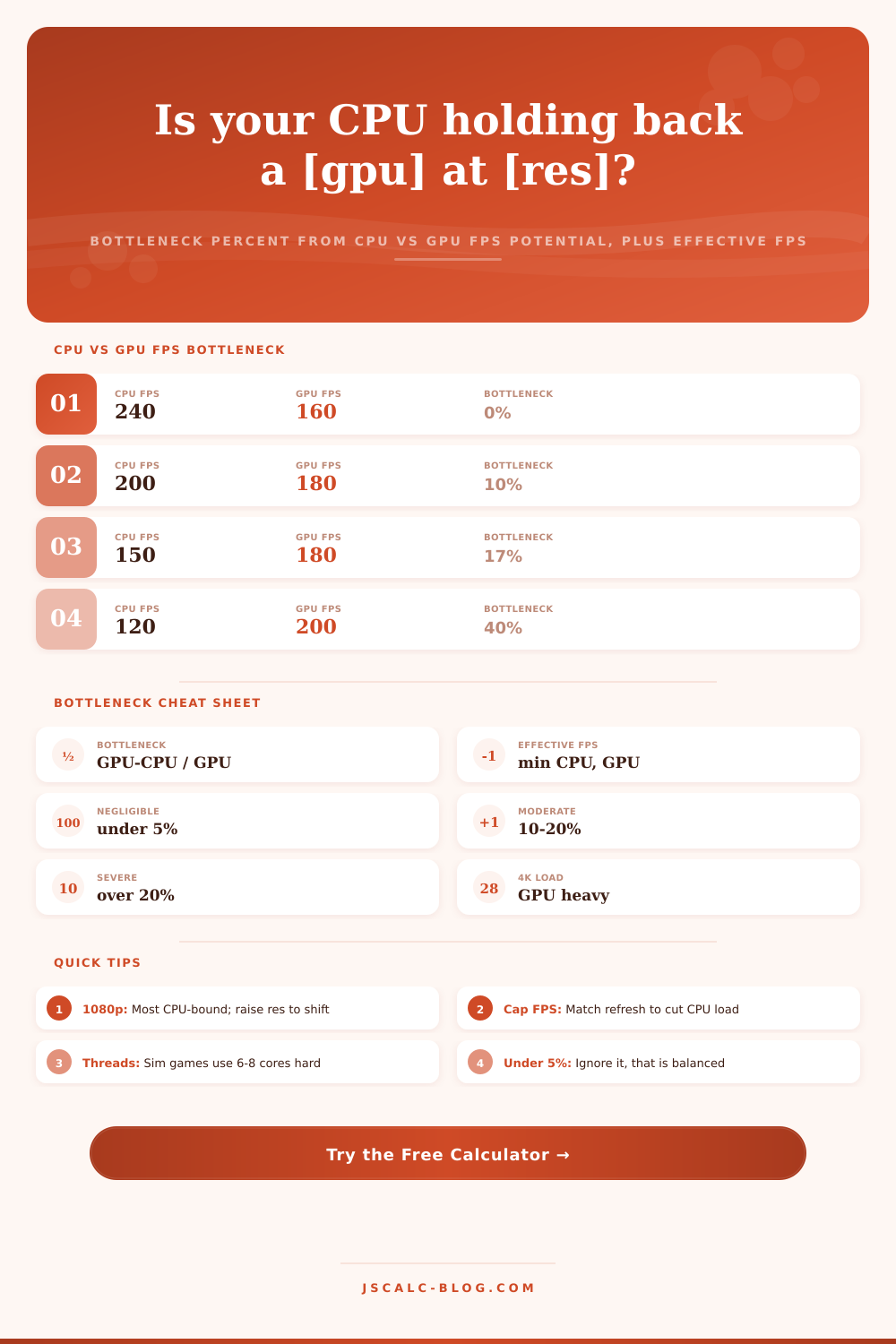
| i5 + RTX 4070 | 1080p | 200 | 180 | 180 | 0% | GPU-bound |
| i5 + RTX 4090 | 1080p | 200 | 340 | 200 | 41% | Severe CPU |
| Ryzen 7 + RTX 4070 Ti | 1440p | 210 | 190 | 190 | 0% | Balanced |
| Ryzen 5 + RX 7800 | 1440p | 165 | 150 | 150 | 0% | GPU-bound |
| i7 + RTX 4090 | 4K | 220 | 120 | 120 | 0% | GPU-bound |
| i5-10400 + RTX 4090 | 1080p | 120 | 340 | 120 | 65% | Extreme CPU |
| i9 + RTX 4080 sim | 1440p | 140 | 175 | 140 | 20% | Moderate |
| Ryzen 3 + RTX 4060 | 1080p | 110 | 130 | 110 | 15% | Moderate |
| i7 + RTX 4080 esports | 1080p | 400 | 300 | 300 | 0% | GPU-bound |
| Ryzen 5 + RX 7600 | 4K | 160 | 62 | 62 | 0% | GPU-bound |
⚙Formula Breakdown
💡Practical Bottleneck Tips
The game stutters as your graphics card sits idling at half load. Why? Because the renderer can’t wait on the processor to prepare new frames fast enough. It sits idle waiting, and the framerate caps below what either component could manage independently. You know how this works; it’s why you don’t buy the wrong upgrade. You thought maybe you needed a better GPU but you’re often CPU-limited.
Every rendered frame is essentially a relay race between two very different engines. Game logic, AI, physics and draw calls is for the CPU. It passes that information off to the GPU, which draws pixels and shades texture on them. Which side of that equation determines speed? The slow one. So if your CPU take longer than necessary, the renderer sits around waiting. That’s your bottleneck.
Fix Your Gaming Bottleneck
It also limits speed when your GPU is slowest part and is working at full capacity. If you don’t get caught up in marketing, it’s simple math: you match the frames that your GPU draws to your resolution to the max frames the CPU feeds it. Your resolution matters, it takes the graphics card longer to do more pixels. So while an 1080p game loads the GPU lightly (and it’s done quickly) it frequently has to wait on the processor. That reveals limitations of CPU which go away at 4K. More pixels (the number quadruples), more effort by the renderer.
The calculator figures all this out automatically. Does your game lean on the GPU or stress the processor? Are you playing a cinematic shooter or an esport title? The output will tell you what the percentage represents. Ideally it should of be less than five percent, that indicates a good balance between CPU and GPU. More than 20 percent is bad news because it means you are wasting a large part of your graphics card.
The tool will also provide an estimate on wasted GPU headroom. This refers to how much of your GPU’s rendering power is sitting around doing nothing because there isn’t any data coming down the pipeline. This helps you make decisions. Say your headroom is high but your effective FPS are being capped by the processor: upping your GPU isn’t going to add anything to your performance at all. It’d be like putting a bigger engine into a car without a transmission.
In most situations, it’s less about raw core counts and more about what type of game genre we’re talking about. Hundreds or even thousands of little draw calls per second creates huge demands on cache efficiency and single-core speed for fast-paced competitive genres. For example, they don’t necessarily require as much immediate frame prep speed than a grand strategy game does when using lots of threads for background calculations. So you can skew that accordingly on the calculator to represent real-world situations better then a pure benchmark score.
In esports, for example, a chip with fewer cores but higher clock speeds often perform better than one with more cores because it can clear the bottleneck quicker. When you discover a small to large bottleneck, replacing the part causing it isn’t necessarily urgent. By increasing your resolution, you redistribute the load to the graphics card. It gives the renderer something else to chew on, which hides the CPU’s deficiencies.
Alternatively, you might limit the framerate to be slightly less than the monitor’s refresh rate. That will lower heat output as well as lessen the amount of work your processors is doing unnecessarilly. You should also verify your RAM speed. The memory’s latency affects the CPU’s ability to retrieve data needed for each frame.
If tweaking settings and adjusting resolutions doesn’t help, then it’s time to consider swapping silicon. It’s all about balance; every penny should go toward making things smoother instead of collecting dust in an overheating circuit.