Color Depth File Size Calculator
Work out the exact uncompressed bitmap footprint of any image from its width, height, and color depth using raw bytes = width × height × bit depth / 8. See bits, bytes, KB and MB per image, scale it across a batch or an uncompressed video sequence, and compare how 8, 24, 32 and 48-bit depths multiply the size of the very same resolution.
🎯Real Format Presets
📝Image Setup
Pick a standard size or choose Custom to type your own.
Total bits for all channels combined, per pixel.
Horizontal pixel count of the image.
Vertical pixel count of the image.
Identical frames or files to total up, e.g. a photo set.
Set above 0 to treat each image as one raw video frame.
Used with fps to size an uncompressed video sequence.
Controls rounding on the KB and MB result cards.
🔢Formula Snapshot
📊Bytes Per Pixel by Color Depth
| Color Depth | Channels | Bytes / Pixel | Colors Possible | Typical Use |
|---|---|---|---|---|
| 1-bit | 1 (mono) | 0.125 | 2 | Fax, line art |
| 8-bit | 1 (gray/index) | 1 | 256 | Grayscale, GIF |
| 16-bit | 2 or packed | 2 | 65,536 | High color, 16-bit gray |
| 24-bit | 3 (R,G,B) | 3 | 16.7 million | True color photos |
| 32-bit | 4 (R,G,B,A) | 4 | 16.7M + alpha | Icons, layered art |
| 48-bit | 3 (16 each) | 6 | 281 trillion | Deep-color scans, RAW edit |
📏Data Size Unit Reference
| Unit | Equals | In Bytes | Note |
|---|---|---|---|
| 1 bit | 1/8 byte | 0.125 B | Smallest unit |
| 1 byte | 8 bits | 1 B | One 8-bit value |
| 1 KB | 1024 bytes | 1,024 B | Binary kilobyte (KiB) |
| 1 MB | 1024 KB | 1,048,576 B | Binary megabyte (MiB) |
| 1 GB | 1024 MB | 1,073,741,824 B | Binary gigabyte (GiB) |
| 1 megapixel | 1,000,000 px | varies | Width × height / 1e6 |
🗃Resolution vs Color Depth Size Grid
| Resolution | 8-bit Gray | 24-bit RGB | 32-bit RGBA | 48-bit Deep | Megapixels |
|---|---|---|---|---|---|
| 640 × 480 | 0.29 MB | 0.88 MB | 1.17 MB | 1.76 MB | 0.31 MP |
| 1280 × 720 | 0.88 MB | 2.64 MB | 3.52 MB | 5.27 MB | 0.92 MP |
| 1920 × 1080 | 1.98 MB | 5.93 MB | 7.91 MB | 11.87 MB | 2.07 MP |
| 2560 × 1440 | 3.52 MB | 10.55 MB | 14.06 MB | 21.09 MB | 3.69 MP |
| 3840 × 2160 | 7.91 MB | 23.73 MB | 31.64 MB | 47.46 MB | 8.29 MP |
| 6000 × 4000 | 22.89 MB | 68.66 MB | 91.55 MB | 137.33 MB | 24.0 MP |
| 8000 × 6000 | 45.78 MB | 137.33 MB | 183.11 MB | 274.66 MB | 48.0 MP |
🎬Uncompressed Video Sequence Size
| Format | Depth | Per Frame | Per Second (30 fps) | Per Minute |
|---|---|---|---|---|
| 720p | 24-bit | 2.64 MB | 79.1 MB | 4.64 GB |
| 1080p | 24-bit | 5.93 MB | 178 MB | 10.4 GB |
| 1080p | 32-bit | 7.91 MB | 237 MB | 13.9 GB |
| 1440p | 24-bit | 10.55 MB | 316 MB | 18.5 GB |
| 4K UHD | 24-bit | 23.73 MB | 712 MB | 41.7 GB |
| 4K UHD | 48-bit | 47.46 MB | 1.39 GB | 83.4 GB |
⚙Formula Breakdown
💡Storage Planning Tips
Think of images as richly detailed information grids, not just ideas. Your computer assigns a set of bits to every square in an image when it’s saved: those bits determines how much data each part of the grid holds. Plug all those measurements into the calculator, and voilà! It does math for you. You won’t have to guess about converting anymore; instead, understanding why those numbers occur will help you plan your workflow. Knowing how they affects one another will keep you from filling up your hard drive with picture.
So it’s a pretty straightforward formula. Width (in pixels) times height equal the total pixels. Multiply this amount by bit depth (the number of bits per pixel). Divide by 8 because there are eight bits in a standard byte. The result is raw uncompressed size. To convert from bytes to kilobytes, divide again by 1024. To get megabytes, divide once more by 1,048,576.
How to Calculate Image File Size
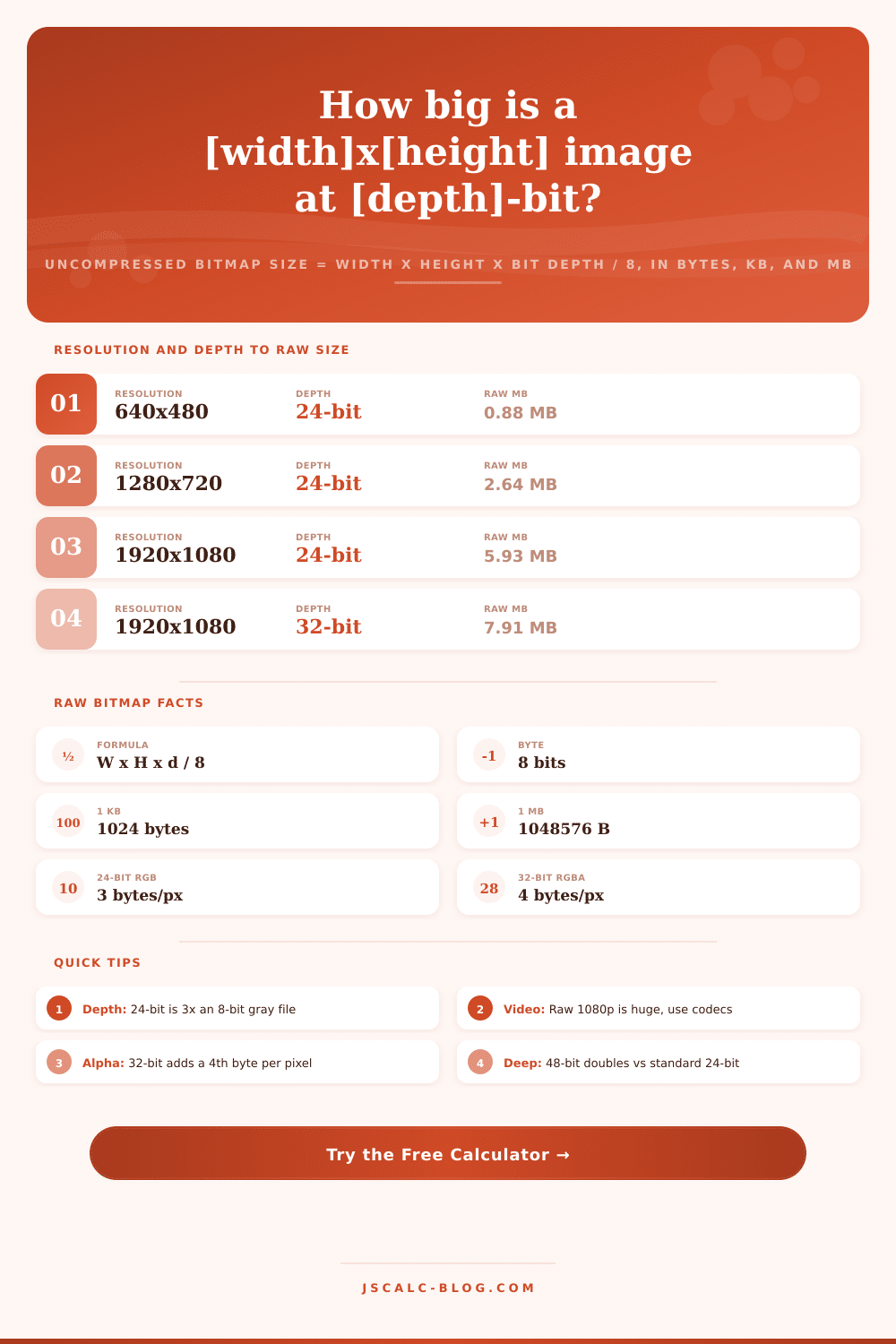
A 1920 by 1080 image at 24-bit color has nearly fifty million bits in it. Which is around 6 million bytes. Or approximately 5.93 MB. Sounds reasonable enough right? It is…until you remember that we’re only talking about one frame of video. Files gets big fast due to color depth.
A single byte per pixel is enough for grayscale images with two hundred and fifty-six shades of gray, but not for nature photos. For those, we need true color with 24 bits by dividing the eight bits into three channels: red, green, and blue. The resulting color palette has sixteen million colors, but it’s three times larger than grayscale. Add an alpha channel (for transparency) and you have a file with 32 bits of depth, another third larger. Some pros works in 48-bit depth, dedicating sixteen bits to each channel. Again that’s twice the size of plain old RGB files. No secret compression there; that’s raw data building up.
To put results in context, there are four key pieces of info the tool provides. Total bits shows the sheer volume of information being processed. This helps emphasize the volume. Memory buffer planning is another use case; this divides up the size into kilobytes and bytes. If you specify a batch count, it will multiply up based off your input. To make this even more flexible, it will calculate data rates per-second if you include a video frame rate. Finally, it shows how many times bigger the result is compared to an 8-bit baseline.
For example, 24-bit RGB is three times larger than 8-bit gray. So, the trade-off is obvious. You get better quality with higher depth, but higher bandwidth and storage costs as a result. As you can see in the reference table below, there’s a relationship between both depth and resolution. If we take an 8-bit gray version of a 4K image, it’ll be roughly 7.9 MB. The same image in 24-bit RGB would swell to close to 24 MB. In 48-bit deep color, that same image will push into almost 48 MB. So the same pixel grid contains more data per pixel.
This is why shooting photos raw requires serious hardware consideration when it comes to archiving. One minute of uncompressed 1080p video at 30 frames per second consume over ten gigabytes. Photographers deals with this by using formats like PNG or JPEG for compression. Cameras use codecs. It’s the uncompressed version in RAM, which is the theoretical max.
It doesn’t take into account how well any algorithm compresses it or how complex an image is, so it won’t give you the final compressed filesize. But keeping math rigorous provides a useful upper limit to anticipate. Compressed files should of been roughly proportional to this raw number. If they’re bigger, there’s a problem somewhere in your process. Smaller? Good compression ratio for ya!
The point is: if you grasp that there is a direct connection between bit depth and file size, then you can estimate without guesswork. You know what your storage costs will be once you factor in both resolution and bit depth. Actualy, it’s quite simple.