Bit Depth Color Count Calculator
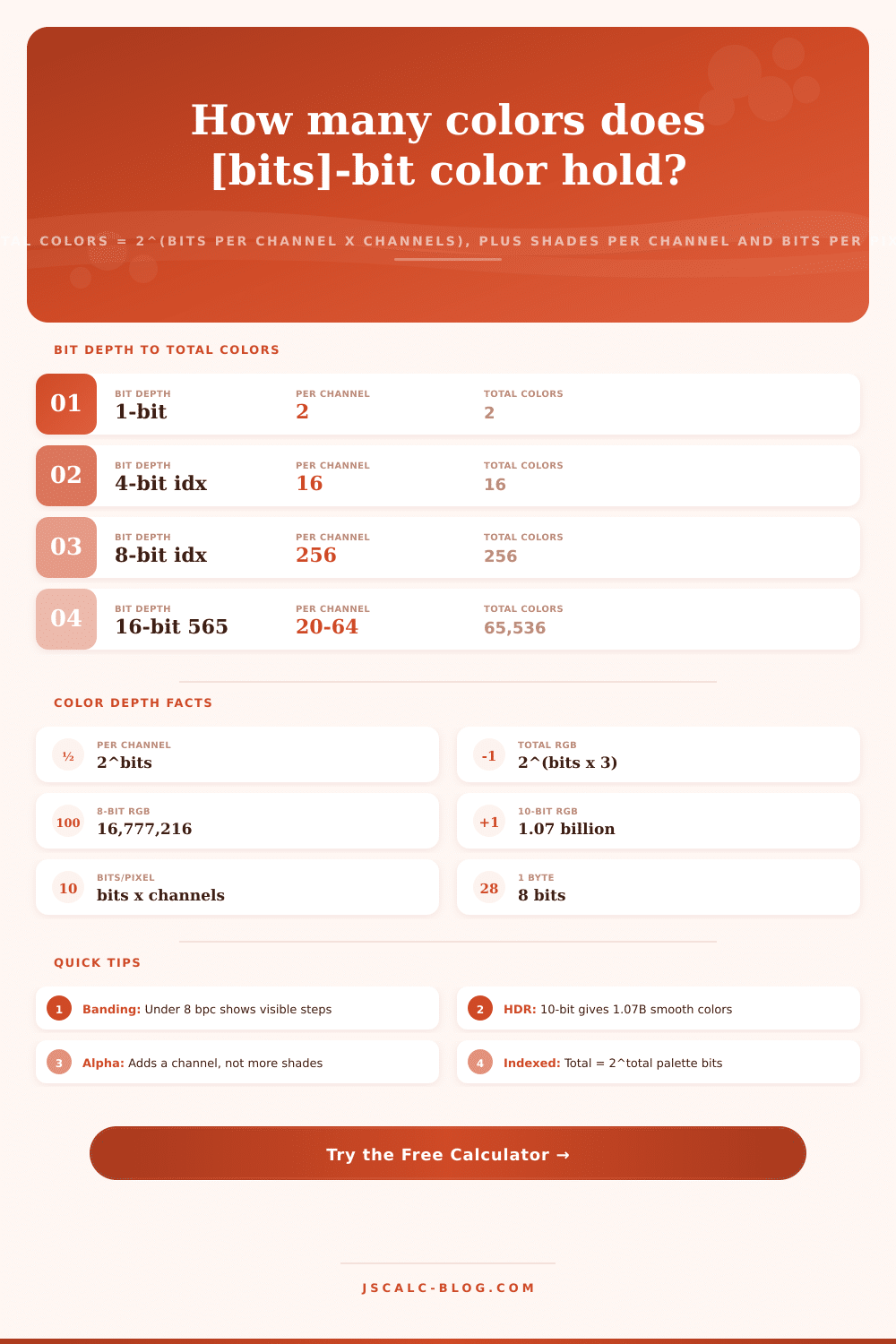
Work out how many distinct colors a bit depth can represent using total colors = 2 raised to the power of bits per channel times the number of channels. See shades per channel, bits and bytes per pixel, and how your depth compares to standard 8-bit sRGB, plus the banding risk of every common format.
🎨Common Bit Depth Presets
🖥Color Depth Inputs
Truecolor scales bits by channels; indexed treats total bits as the palette size.
Shades per channel = 2 to this power (8 bits = 256).
Alpha adds a channel for combos but is not a visible color.
Visible color count ignores the alpha channel by default.
Palette size = 2 to this power (8 bits = 256 colors).
Sets the reference for the times-more-colors card.
Controls the compact form beside the full count.
🔢Formula Snapshot
📊Bits Per Channel to Shades
| Bits per Channel | Shades = 2^b | RGB Colors = 2^(b×3) | Reads As |
|---|---|---|---|
| 1 bit | 2 | 8 | Eight colors |
| 2 bits | 4 | 64 | Sixty-four |
| 4 bits | 16 | 4,096 | 4K colors |
| 5 bits | 32 | 32,768 | 32K high color |
| 6 bits | 64 | 262,144 | Quarter million |
| 8 bits | 256 | 16,777,216 | 16.7 million |
| 10 bits | 1,024 | 1,073,741,824 | 1.07 billion |
| 12 bits | 4,096 | 68,719,476,736 | 68.7 billion |
| 16 bits | 65,536 | 281 trillion | 281.5 trillion |
🗄Bit Depth Comparison Grid
| Bit Depth | Per Channel | Total Colors | BPP | Common Use | Banding Risk |
|---|---|---|---|---|---|
| 1-bit mono | 2 | 2 | 1 | Fax, line art | Extreme |
| 8-bit indexed | N/A | 256 | 8 | GIF, icons | High |
| 16-bit 565 | 32-64 | 65,536 | 16 | Old mobile, LCD | Moderate |
| 24-bit truecolor | 256 | 16.7M | 24 | Web, sRGB, JPEG | Low |
| 30-bit 10bpc | 1,024 | 1.07B | 30 | HDR, wide gamut | Very Low |
| 36-bit 12bpc | 4,096 | 68.7B | 36 | Cinema, HDMI | Negligible |
| 48-bit 16bpc | 65,536 | 281T | 48 | RAW, editing | None |
| 32-bit RGBA | 256 | 16.7M + alpha | 32 | PNG, UI layers | Low |
🖼Channels and Modes Explained
| Mode | Channels | Formula | 8-bit Result |
|---|---|---|---|
| Grayscale | 1 (gray) | 2^(b×1) | 256 grays |
| RGB truecolor | 3 (R,G,B) | 2^(b×3) | 16,777,216 |
| RGBA visible | 3 shown + A | 2^(b×3) | 16,777,216 |
| RGBA combos | 4 (R,G,B,A) | 2^(b×4) | 4,294,967,296 |
| Indexed 4-bit | palette | 2^total | 16 colors |
| Indexed 8-bit | palette | 2^total | 256 colors |
📏Short-Form Number Reference
| Full Count | Short Form | Power of 2 | Scientific |
|---|---|---|---|
| 256 | 256 | 2^8 | 2.56 x 10^2 |
| 65,536 | 65.5K | 2^16 | 6.55 x 10^4 |
| 16,777,216 | 16.78M | 2^24 | 1.68 x 10^7 |
| 1,073,741,824 | 1.07B | 2^30 | 1.07 x 10^9 |
| 68,719,476,736 | 68.72B | 2^36 | 6.87 x 10^10 |
| 281.47 trillion | 281.47T | 2^48 | 2.81 x 10^14 |
⚙Formula Breakdown
💡Color Depth Practical Tips
A digital image is a grid of numbers representing light. How do they describe it? What level of detail can they carry? This tool will explain what all those numbers are doing. It’s called the Bit Depth Color Count Calculator.
It explains how many different colors can be represented with any given bit depth. This is because pixels store color using data (numbers). This means there is a limit to the range of shades a pixel can have, depending on how many bits are given to that pixel. In other words, this tool turns that abstract limit into concrete results by computing shades per channel, total distinct colors, bits and bytes per pixel, and how your chosen depth stacks up against the standard 8-bit sRGB most screens use. And it helps you compare your selection against typical 8-bit sRGB (the standard for most screens). Use it if you’re wondering why you see banding in some gradients or want to understand more about the right export format choice.
How Bit Depth Works
Each bit represent an on/off switch. These bits are called “binary” for that reason: there are only two possibilities. One or zero. Each color channel contains multiple such bits, and since they’re independent switches, the totals multiplies. So if a single channel has b bits, it will have 2^b different possible values. With 8 bits, it’s 256 shades from 0-255.
If you pile up independent channels then the numbers get multiplied together. You’ll be able to express c independent channels of b bits each as 2 raised to the power of (b times c) different colors. In regular RGB, you’ve got three channel of 8 bits apiece; so 2^(8 times 3), which is 16,777,216 colors. All the results of the calculator follow from this one equation.
Understanding what you’re measuring is where most of the work lies. There are two related numbers. How many different colors can each of the three primaries become? Answer: that’s called the “shades per channel.” It’s also equal to 2 raised to the bth power, or 2^b. And how many total different colors can all three channels combine into? Answer: that’s called the “total distinct colors.” You get it by multiplying all the individual ones together. So, 256 shades of red x 256 shades of green x 256 shades of blue = 256 cubed. This is the same as 2 raised to the 24th power, for a grand total of 16.7 million, which is the number the headline talks about.
The reason we include both in the calculator is that they’re closely related: the headline color count comes from the full combination, while the banding depends on the shades per channel. If you know what shade range your image has, then you’ll know whether it’s likely to look okay on a big screen.
Channels are where it gets interesting. A single channel provides grayscale with 8 bits per channel. This results in 256 tones ranging from black to white, also known as 8-bit gray. Three channels, red, green, blue, give us RGB. Four channels… Red, green, blue, plus another for alpha. Make up RGBA, which means the additional channel stores transparency, not color.
That’s an important detail: While 24-bit RGB pixels store 16.7 million visible colors, 32-bit RGBA pixels only show the same range of visible colors. The other 8 bits account for opacity (not new colors). So in fact there are 2^32 total pixel states, or approximately 4.29 billion different combinations. Decide whether or not to include alpha when counting colors, and use whichever number is useful for your work.
There are two ways bits describe a pixel: in truecolor mode, the bits are per-channel, but in indexed or palette mode, the bits describes the whole pixel. For instance, an 8-bit truecolor image has 3×8=24 bits, while an 8-bit indexed one has exactly 256 colors total (not 256 per channel; think of it like a classic GIF). A 4-bit palette has only 16 colors. When the palette size matters… Whether because you’re dealing with some legacy format or you want to fit something into a small amount of space, the calculator has a special indexed mode where you type in the number of bits per pixel directly and get back the palette size. That’s important if you’re making size-constrained graphics, or working with legacy formats. People often think that more bits means smoother gradients, but actualy in palette/indexed mode more bits just means a larger library of predefined swatches.
How many bytes does a single pixel cost without any compression? That’s bits per pixel. If we’re using RGB with 8 bits per channel (commonly called 24bpp), that means 3 bytes per pixel (since there are 8 bits in a byte) with one byte dedicated to each channel. Throw in an alpha channel and you’ll be dealing with 4-byte pixels, aka 32 bpp. Then, as the deep color formats scale up, they gets deeper: 10-bit RGB is 30 bpp, while 16-bit per channel tops out at 48 bpp. The calculator shows both bits and bytes per pixel so you know how much space this might take when thinking about bandwidth and memory requirements. It’s the uncompressed footprint of a single pixel, not a full file estimate, but it gives you a baseline for storage costs.
Stepping: You might have seen it across a gradient, or even a smooth sky; that’s what we call banding. That occurs where you don’t have enough shades of color in a given channel to smoothly blend from one to the next. A channel at 6 bits provides just 64 levels. Jumps between tones start becoming evident. 8 bits gets you 256 levels, plenty for most day-to-day images. 10-bit HDR takes each channel to 1,024 shades, multiplying the overall color possibilities by 64 (to 1.07 billion). That all but eliminates banding on pro video.
The comparison card makes that jump tangible: Divide your total by a baseline depth. Bit depth is a compromise between file size and color accuracy. The first part of that negotiation is to know what the color count will be. That’s where this calculator comes in… It’s all about the combinations of color: What shade per channel? How many distinct colors does a given depth allow for? And how does it compare to the sRGB standard? Begin with one of our presets, such as 24-bit truecolor or 30-bit HDR, flip between modes and you’ll see the results updated instently. You’ve got a clear picture of just how much color a bit depth can give you, a change from binary limitations into creative choices.