Render Time Calculator
Estimate how long a 3D or animation batch will take across a render farm. Enter your clip length and frame rate, or a raw frame count, plus the average time per frame and the number of render nodes. The tool returns total frames, single-machine time, farm wall-clock time with node scaling and efficiency, a finish ETA, and cloud render cost.
🎬Frame Source
🎯Real Render Job Presets
📝Render Job Inputs
Duration of the shot or sequence to render.
Frames rendered for every second of footage.
Exact number of frames to render in the batch.
How long one node takes for a single frame.
Applies to the per-frame time above.
Machines rendering frames in parallel.
Scaling loss from queue, I/O and overhead.
Cloud or in-house rate per machine per hour.
Controls rounding on the metric cards.
🔢Formula Snapshot
📋Length and FPS to Frame Count
| Clip Length | Frame Rate | Total Frames | Typical Use |
|---|---|---|---|
| 10 sec | 24 fps | 240 frames | Bumper / sting |
| 15 sec | 30 fps | 450 frames | Social ad |
| 30 sec | 24 fps | 720 frames | TV commercial |
| 60 sec | 25 fps | 1500 frames | Explainer |
| 90 sec | 24 fps | 2160 frames | Music video cut |
| 2.5 min | 24 fps | 3600 frames | Short film scene |
| 5 min | 24 fps | 7200 frames | Cinematic reel |
| 10 min | 30 fps | 18000 frames | Full short film |
📊Per-Frame Time by Render Style
| Render Style | Engine Example | Time / Frame | Notes |
|---|---|---|---|
| Real-time / EEVEE | Rasterizer | 2 - 20 sec | Preview and games |
| Stylized GPU | Redshift / Cycles | 0.5 - 3 min | Clean lighting |
| Broadcast CG | Arnold / V-Ray | 3 - 12 min | Ad and TV work |
| Feature lighting | RenderMan | 10 - 40 min | Full path tracing |
| Heavy volumes | Sim + GI | 30 - 120 min | Smoke, fluids |
| Hero VFX plate | Layered comp | 1 - 6 hr | Deep AOVs |
🖥Node Scaling Comparison Grid
| Project | Frames | Sec / Frame | 1 Node | 10 Nodes | 50 Nodes |
|---|---|---|---|---|---|
| 30s TV Spot | 720 | 360 | 72.0 h | 8.0 h | 1.6 h |
| Indie Short Film | 3600 | 300 | 300.0 h | 33.3 h | 6.7 h |
| Feature VFX Shot | 240 | 1800 | 120.0 h | 13.3 h | 2.7 h |
| Arch-Viz Flythrough | 1500 | 240 | 100.0 h | 11.1 h | 2.2 h |
| Heavy Sim Shot | 360 | 3600 | 360.0 h | 40.0 h | 8.0 h |
| Game Cinematic | 1800 | 90 | 45.0 h | 5.0 h | 1.0 h |
| Music Video | 4320 | 150 | 180.0 h | 20.0 h | 4.0 h |
| Product Still Set | 120 | 600 | 20.0 h | 2.2 h | 0.4 h |
| Explainer Loop | 1500 | 60 | 25.0 h | 2.8 h | 0.6 h |
| Feature Reel | 7200 | 720 | 1440.0 h | 160.0 h | 32.0 h |
💰Cloud Render Cost Reference
| Node Tier | Rate / Hour | 1000 Node-Hrs | Best For |
|---|---|---|---|
| CPU spot / low | $0.30 | $300 | Long CPU jobs |
| CPU standard | $0.60 | $600 | Broadcast CG |
| Single GPU | $1.20 | $1200 | GPU path trace |
| Dual GPU | $2.40 | $2400 | Fast turnaround |
| Quad GPU | $4.80 | $4800 | Hero shots |
| High-mem sim | $3.50 | $3500 | Volumes / FX |
⚙Formula Breakdown
💡Render Farm Planning Tips
How long before it’ll be done? The problem for 3D artists and studio producers everywhere is: when will my batch render? Exporting a video isn’t like rendering an animation. A single high-quality frame can take minutes to hours because each frame must be computed individually. Times that by thousands of frames, and you have the largest variable in your schedule.
The tool takes input parameters (render farm size, frame rate, per-frame time, and clip length) and gives back hard numbers: total frames, single-machine time, farm wall-clock time, ETA to finish, and cloud cost. No more guessing how to schedule it.
How to Calculate Your Render Time
It begins with the frame count: The clip’s length in seconds times the frame rate equals total frames. For example, a 30-second spot rendered at 24 fps is 720 frames. If you know this from your scene file, then input the frame range and it will be used.
Now add in the per-frame render time: This is the amount of time required for each frame to complete on average. Multiply by the number of frames. So you now have the total compute in seconds. Divide that by 3600. Hours. Now that’s a big number, because it’s how long it would take one workstation to do the batch.
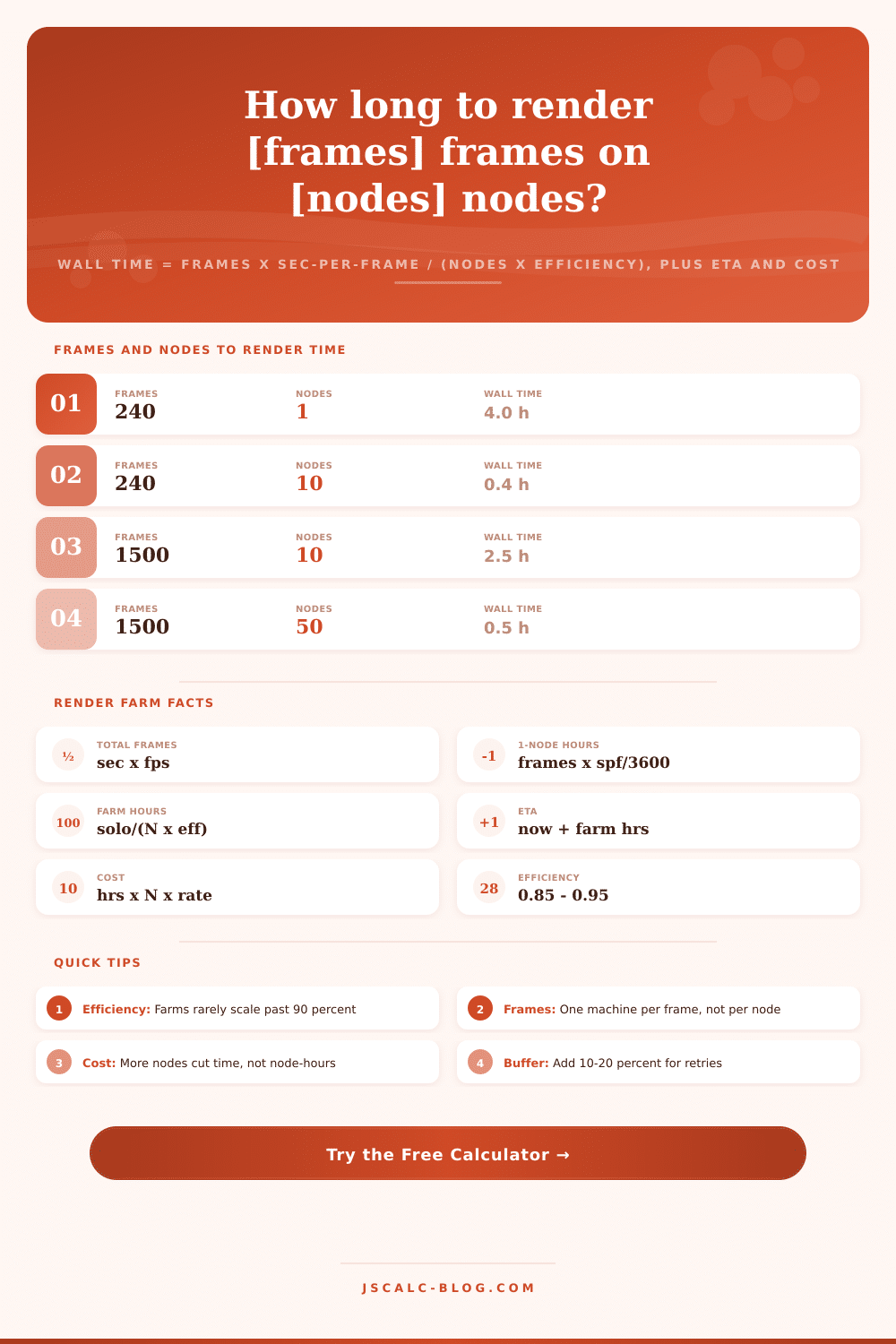
Then there is a render farm. Introducing parallel processing changes everything. Instead of using just one machine, a farm renders multiple frame simultaneously across many machines. Because each frame is independent, they parallelize nearly perfectly. In an ideal world, give the job ten nodes and it will run ten times as fast. To figure out wall-clock time, divide the solo time by number of nodes. For example, a 72-hour render on a single machine becomes about 7.2 hours on ten.
Render farms allows studios to meet tight deadlines without purchasing a single impossibly fast computer through linear scaling. This is why render farms have become the industry-standard way of doing things. But perfect linear scaling? That’s a fairy tale. Each node must render one pixel of the image after loading the scene, all its textures, and any caches. Because frames don’t complete simultaneously, slower machines holds up the whole system while other machines twiddle their thumbs. There are network overhead and queue wait times that drain throughput. The calculator accounts for these using an efficiency factor between.85,.95. With 90% efficiency, 10 nodes act as if there were only nine. Quoted as a ideal time of 8-hours, it creeps closer to 8.9 hours. That’s a tiny difference on paper but it makes you keep your promises honest.
That is what most people miss. What do these numbers mean? To read them, you need to know what they mean. The farm wall-clock time (with a predicted end date) is the thing you want most: How long will this take? The total frames tells you how big the job was. The cost card tells you how much your render spent on a cloud service.
This is where things get counter-intuitive, which is why first-timers fall flat here. If you add nodes, wall-clock time goes down…but the bill doesn’t. The number of nodes multiplied by the wall-clock hours equals the cost. That figure remains constant-ish no matter how many machines you spread over how much time. A thousand nodes working an hour cost just about as much as ten working five. Add nodes to hit your deadline; don’t add nodes to save money.
The tool also comes preloaded with presets based off actual workflows that allow for fast estimates. A hero VFX plate is not in the same ballpark as a broadcast ad frame. Load a similar preset and tweak the inputs until it matches your scene. Then check your estimate against the reference tables without having to run a test render. There’s one that can convert length of clips to frames; another has an at-a-glance list of average time-per-frame by render style. This turns a vague hope into a workable schedule.
Make a few representative frames and render them out as a starting point for the sharpest estimate. A title card and an action shot are wildly different, so average your time to determine the per frame input. Add a buffer for failed frames and keep everything realistic. If you’re planning an overnight batch or need to budget for a cloud burst, you’ll know exactly how long it’s going to take before you hit render. It’s not a variable anymore. It’s a plan. You should of used this sooner.