Bitrate to File Size Calculator
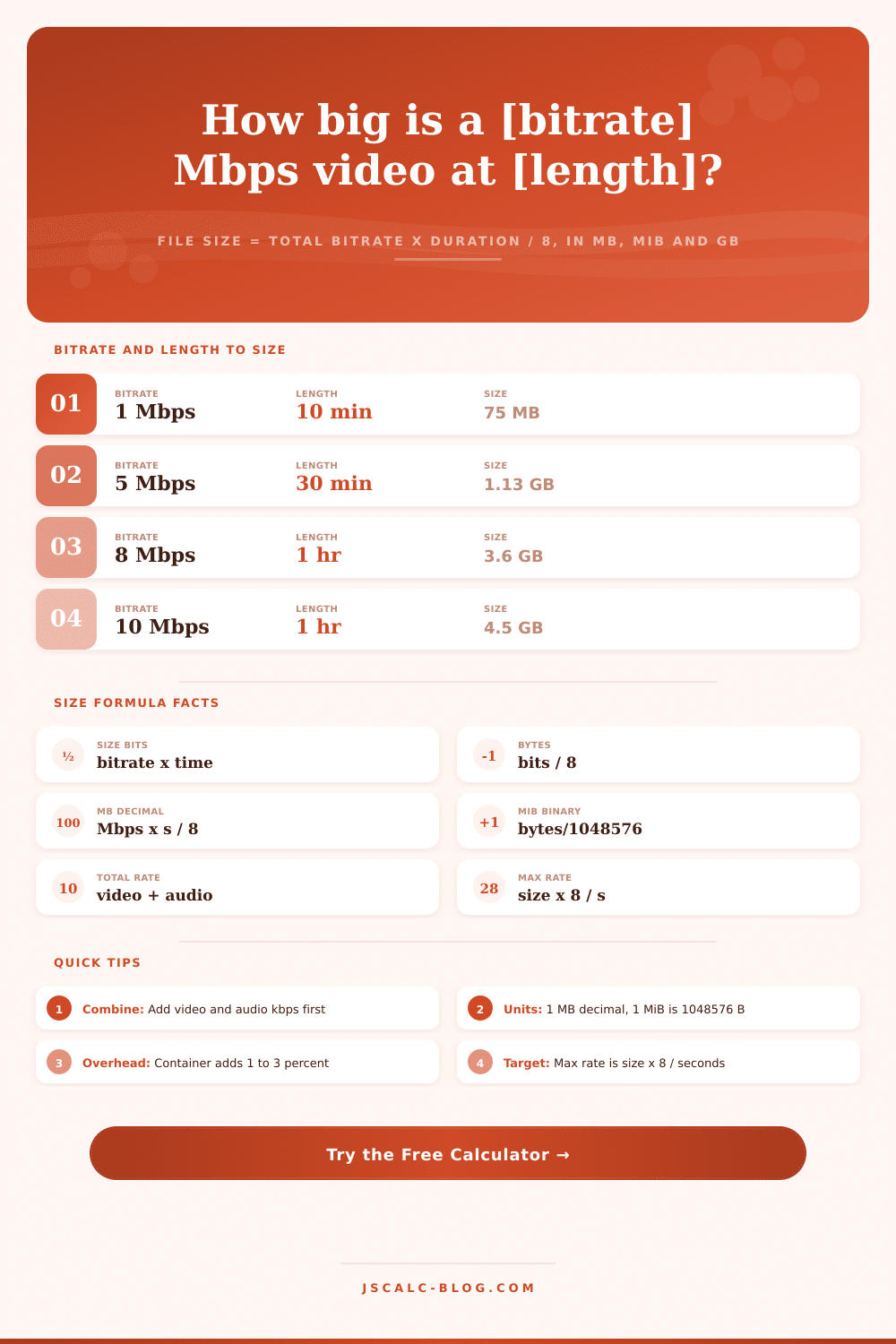
Combine a video bitrate and an audio bitrate over a set duration to get the finished file size in MB, MiB and GB, plus the size per minute and the combined bitrate. Flip to Target mode to reverse the math and find the highest bitrate that still fits inside a size limit, using size = bitrate x time / 8.
💾Choose a Mode
🎬Real Export & Streaming Presets
📝Media Inputs
The video stream data rate. Leave 0 for audio-only files.
1 Mbps equals 1000 kbps in these calculations.
Combined audio track rate, for example 128, 256 or 320 kbps.
Muxing overhead for MP4, MKV or MOV, usually 1 to 3 percent.
Choose how you want to type the length of the clip.
Hours, minutes and seconds of the finished media.
Total runtime in minutes, decimals allowed.
Target mode: the size limit your file must fit under.
Unit that the target size above is measured in.
Decimal is used by media tools; binary is what an OS shows.
🔢Formula Snapshot
📋Bitrate and Duration to Size Grid
| Total Bitrate | 10 min | 30 min | 1 hour | 2 hours |
|---|---|---|---|---|
| 1 Mbps | 75 MB | 225 MB | 450 MB | 900 MB |
| 2 Mbps | 150 MB | 450 MB | 900 MB | 1.8 GB |
| 5 Mbps | 375 MB | 1.13 GB | 2.25 GB | 4.5 GB |
| 8 Mbps | 600 MB | 1.8 GB | 3.6 GB | 7.2 GB |
| 10 Mbps | 750 MB | 2.25 GB | 4.5 GB | 9 GB |
| 16 Mbps | 1.2 GB | 3.6 GB | 7.2 GB | 14.4 GB |
| 25 Mbps | 1.88 GB | 5.63 GB | 11.25 GB | 22.5 GB |
| 50 Mbps | 3.75 GB | 11.25 GB | 22.5 GB | 45 GB |
📦Container Overhead by Format
| Container | Typical Overhead | Best For | Note |
|---|---|---|---|
| MP4 / M4V | 1 - 2% | Web and mobile | Compact, widely supported |
| MKV | 1 - 2% | Archival, subtitles | Flexible track support |
| MOV | 1 - 3% | Editing, Apple | Common with ProRes |
| WebM | 1 - 2% | HTML5 video | VP9 or AV1 payload |
| TS / MPEG-TS | 4 - 6% | Broadcast, HLS | Extra packet headers |
| AVI | 2 - 5% | Legacy files | Higher per-frame index |
| MP3 / AAC | < 1% | Audio only | Tiny tag overhead |
🎥Common Export Preset Sizes (per hour)
| Preset | Video | Audio | Total Rate | Size / Hour |
|---|---|---|---|---|
| YouTube 1080p SDR | 8 Mbps | 256 kbps | 8.26 Mbps | 3.7 GB |
| YouTube 4K SDR | 45 Mbps | 384 kbps | 45.4 Mbps | 20.4 GB |
| Blu-ray 1080p | 25 Mbps | 640 kbps | 25.6 Mbps | 11.5 GB |
| H.264 web clip | 5 Mbps | 128 kbps | 5.13 Mbps | 2.3 GB |
| H.265 movie | 12 Mbps | 384 kbps | 12.4 Mbps | 5.6 GB |
| ProRes 422 HQ 1080p | 880 Mbps | 1536 kbps | 881 Mbps | 397 GB |
| Podcast MP3 | 0 Mbps | 128 kbps | 128 kbps | 57.6 MB |
| FLAC stereo | 0 Mbps | 900 kbps | 900 kbps | 405 MB |
📺Streaming Platform Bitrate to Hourly Size
| Platform / Quality | Video Mbps | Audio kbps | Total Mbps | GB / Hour | Notes |
|---|---|---|---|---|---|
| YouTube 720p | 5 | 128 | 5.13 | 2.3 | H.264 SDR |
| YouTube 1080p | 8 | 256 | 8.26 | 3.7 | Standard HD |
| YouTube 1440p | 16 | 256 | 16.3 | 7.3 | 2K upload |
| YouTube 4K | 45 | 384 | 45.4 | 20.4 | 2160p SDR |
| Netflix HD | 5.8 | 192 | 6.0 | 2.7 | Adaptive stream |
| Netflix 4K | 15.3 | 640 | 15.9 | 7.2 | HDR capable |
| Twitch 1080p60 | 6 | 160 | 6.16 | 2.8 | Live cap 6 Mbps |
| Zoom HD call | 3 | 96 | 3.1 | 1.4 | Video meeting |
| Spotify Very High | 0 | 320 | 0.32 | 0.14 | Audio only |
⚙Formula Breakdown
💡Sizing Tips With Real Numbers
It’s just math. File sizes aren’t magic, they’re just bits. When you encode video, you create a file full of a certain number of bit per second, for a given period of time. And there’s one simple equation that determines how heavy that file will weigh on your computer’s hard drive. Multiply the bitrate by the number of seconds, then turn the result into bytes. This will be size of the encoded file.
This calculator work out this math in two ways. You can get the resulting file size from a bitrate and a length, or vice versa by calculating what bitrate will fit within a tight storage constraint. The latter is a feature that has already saved content creators hours of wasted disk space and failed uploads.
How Video File Size Works
It sounds like a trick: just multiply the duration (in seconds) by the bitrate (in bits per second). The result is size (also in bits), but what’s a bit? Well, there are eight bits in a single byte so we can simply divide our bit count by eight to get bytes. In terms of units humans actualy use, this means that when you say “1.5Mbps,” that’s really saying “1.5 million bits per second.” Multiply the duration (seconds) times the total bitrate (megabits per second) then divide by eight, and voila, you have your decimal megabyte size. So 8 Mbps for an hour would yield a file of 8 × 3600 / 8, or roughly 3600 MB, before taking into account overhead.
It’s all the tool does. It stops being mysterious after you understand it and becomes a budget instead. Except most media files contains multiple streams. A standard export contains both an audio track and a video track, and it will be as large as those two put together. The calculator ask about each independently, the bitrate of the audio and the bitrate of the video, and adds those into a total combined rate. So if you have an 8 Mbps video track and 256 kbps of audio, that’s actualy 8256 kbps of data being pushed around per second. Separating out the fields reflects how pros think when they encode. You can quickly see how much of your storage budget the audio use. Since it is usually higher-fidelity audio, it eats up more than you might guess.
Most folks don’t know why their operating system says a certain file size while a media tool claims it’s something else entirely. The reason? One number throws off everyone: the difference between how your operating system shows a size and what an encoder gives you. While your encoder counts in decimals (e.g. 1 megabyte = 1,000,000 bytes), many mobile apps and Windows-based file managers counts in binary (e.g. 1 mebibyte = 1,048,576 bytes). So whereas the encoder labels a file as 4500 MB, your real-world disk shows maybe 4.39 GiB. For every gigabyte, you’re losing about 4.6 percent. Most folks aren’t catching that part. Why didn’t that file download to be EXACTLY the size I thought? You guessed it; that’s the switch. Toggle between the two types of units to see what your computer is going to tell you.
The entire file is not the raw stream. There are extra bits included with wrapping audio and video files into something called a container (MOV, MKV, MP4). Containers include things like index, timing info, and packet headers which is generally 1-3 percent of the overall file size for typical web containers. Broadcast containers (called transport streams) have larger muxing overhead, sometimes 4-6 percent due to inclusion of many smaller packets. You can specify how much overhead to include. The calculator then multiplies the payload by that fraction, which makes its estimate closer to the actual output than theoretical minimum. Overhead doesn’t matter at all if the input is pure audio like an MP3, but does when dealing with complicated video projects.
Four important numbers are displayed in size mode. These include total file size in your selected units, the size in gigabytes for long recordings, how much space it uses per minute, and the total bitrate. Because each of those substituted number appears in the breakdown panel, the calculator serves double duty as an open look at your own math.
Flip to target mode and the math turns around. It will convert your size limit to bits and remove overhead. Then it will divide by length and subtract audio to find video budget. That’s crucial when dealing with platforms whose uploads has strict caps. Common workflows include heavy ProRes exports, Blu-ray masters, and YouTube 1080p uploads. These have presets loaded into the interface. You tweak whichever field is necessary for your project, and since presets auto-run, you can just click to compare results before making any changes. It’s all laid out on the page in reference tables for easy comparison among various resolutions and platforms.
Bandwidth is wasted if you’re guessing at file sizes. This tool combines container overhead, stream combination, unit systems, and size formula in one place. It turns a fuzzy estimate into a firm number before you even hit the encode button. Need to trim a clip down to fit a share limit? Fill a disc? Plan an upload? It’ll give you a dependable answer in seconds. The bits add up exactly as they should of.