Binary vs Decimal Storage Converter
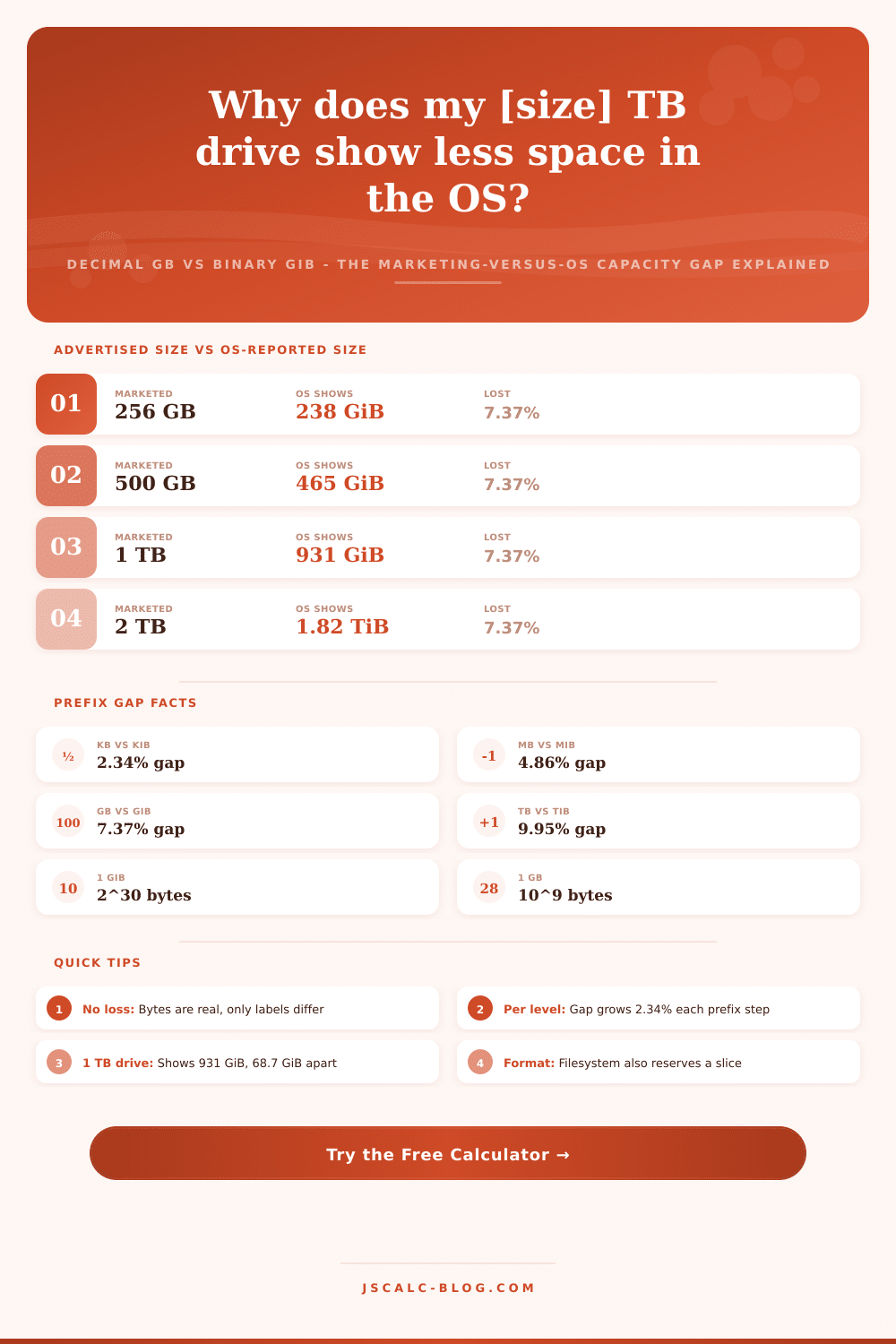
Drive makers count in decimal gigabytes (10^9 bytes) while your operating system counts in binary gibibytes (2^30 bytes). That mismatch is why a 1 TB drive shows about 931 GiB. Enter a capacity and this tool converts between decimal and binary units, reports the exact byte count, and reveals the percent and gigabytes of apparent capacity lost at every prefix level.
💾Real Drive Capacity Presets
📝Capacity Inputs
The number printed on the box or spec sheet.
Pick the unit that matches the value above.
Decimal is what marketers print; binary is what the OS shows.
Choose the prefix for the result cards.
Controls rounding on every result and table cell.
Toggles the apparent capacity shortfall summary.
🔢Prefix Snapshot
📊Advertised vs OS-Reported Comparison Grid
| Advertised Size | Exact Bytes | OS Binary Size | Difference | Percent Lost |
|---|---|---|---|---|
| 256 GB | 256,000,000,000 | 238.42 GiB | 17.58 GiB | 7.37% |
| 500 GB | 500,000,000,000 | 465.66 GiB | 34.34 GiB | 7.37% |
| 1 TB | 1,000,000,000,000 | 931.32 GiB | 68.68 GiB | 7.37% |
| 2 TB | 2,000,000,000,000 | 1.819 TiB | 0.181 TiB | 7.37% |
| 4 TB | 4,000,000,000,000 | 3.638 TiB | 0.362 TiB | 7.37% |
| 8 TB | 8,000,000,000,000 | 7.276 TiB | 0.724 TiB | 7.37% |
| 16 TB | 16,000,000,000,000 | 14.55 TiB | 1.449 TiB | 7.37% |
| 20 TB | 20,000,000,000,000 | 18.19 TiB | 1.811 TiB | 7.37% |
📏Decimal vs Binary Prefix Reference
| Level | Decimal (SI) | Binary (IEC) | Ratio Gap |
|---|---|---|---|
| Kilo | kB = 10^3 = 1,000 | KiB = 2^10 = 1,024 | 2.34% |
| Mega | MB = 10^6 | MiB = 2^20 | 4.86% |
| Giga | GB = 10^9 | GiB = 2^30 | 7.37% |
| Tera | TB = 10^12 | TiB = 2^40 | 9.95% |
| Peta | PB = 10^15 | PiB = 2^50 | 12.6% |
📈How the Gap Grows Per Prefix
| Prefix Step | Binary Factor | Decimal Factor | Cumulative Gap |
|---|---|---|---|
| 1 KiB vs 1 kB | 1,024 | 1,000 | 2.34% larger |
| 1 MiB vs 1 MB | 1,048,576 | 1,000,000 | 4.86% larger |
| 1 GiB vs 1 GB | 1,073,741,824 | 1,000,000,000 | 7.37% larger |
| 1 TiB vs 1 TB | 2^40 | 10^12 | 9.95% larger |
| 1 PiB vs 1 PB | 2^50 | 10^15 | 12.6% larger |
⚙Formula Breakdown
💡Storage Capacity Tips
Plug a drive marked as a terabyte into your PC. Watch it spin up. Wait for whole thing to show up in your file explorer. What you get is about nine hundred thirty gigabytes. You feel cheated. How could this be? It’s not. There’s nothing wrong here. No storage has been lost from the drive.
The drive really does hold a trillion bytes and the reason why you’re getting two different answers, on the box and on your operating system, all comes down to some simple math, and not deceptive marketing at all.
Why Your Drive Shows Less Space
Why does this matter? Storage companies publish their specs using decimal system because powers of ten are easy to write down and easy to read off a box in stores. One thousand bytes is a kilobyte, one million is a megabyte, a trillion is a terabyte. It’s the common SI system used by engineers and scientists throughout most of scientific and engineering worlds.
But computer operating systems counts in binary, since that’s how computers handle data, powers of two. Even though they’ll show the letters as GB or KB so it’s familiar, they actualy count in kibibytes, mebibytes and gibibytes. A kibibyte is one thousand twenty-four bytes instead of a thousand. At first glance, that may not sound like much but when you add them up at each step along the ladder, it becomes significant.
Once you know what these base numbers are and how they’re translated into gigabytes, the discrepancy is easy to figure out using simple math. One trillion bytes, as you might know, is number associated with a terabyte when it’s marketed that way. If your PC tells you there are a terabyte of space here, that means it has divided those bytes by two raised to the power of thirty. This equals 1,737,418,244. Dividing them like that will give you roughly nine hundred thirty-one gibibytes.
So where did the rest go? About sixty-nine gigabyte are still physically there on the flash chip or platter. They just have a smaller-looking label because they count in bigger chunks based off the binary system.
I find it handy because this converter tool translates any value for any capacity from one system into another and makes that invisible math visible. Simply type in the advertised size and pick if you’re looking at a binary OS report or decimal marketing numbers. The calculator will spit out exactly how many bytes that is, what it would be in the other system, and an exact percentage of its apparent capacity that appears to have gone missing. Before you even think about filesystem overhead, this gives you a clear idea of just where your “missing” space went.
And no, there’s not a magic number where they fill in the gap with a certain percentage. The reason is obvious: if you’re jumping around the prefix ladder the ratio between one thousand and one thousand twenty-four compounds at every jump which increases the difference each time. The gap between one thousand and one-thousand-twenty-four is tiny (2.34 percent). However, when you are at gigabytes, the gap is almost eight percent (7.37 percent). And when you’re talking about terabytes, it’s close to ten percent. That combined factor is what makes it feel like such a greater loss for larger drives versus smaller drives.
You don’t care about losing a fraction of a percent on a fifty gigabyte card. But an entire terabyte seems to be getting lost on a sixteen terabyte enterprise drive, all due to converting units.
This is a distinction that can help you shop more intelligently. It can also help you diagnose problems with confidence. If you compare two drives, the fair basis to compare them on is number of bytes they contain. The bare number. That’s what you’re paying for, so that’s how you ought to compare them. “Two terabyte” means “two trillion bytes”, no matter who makes it.
Similarly, it sheds light on why your available space is (as reported by the operating system) slightly less than two terabytes. Besides the conversion from decimal to binary, the file system also stores directory structures and other metadata. The reference tables that came with the calculator lay out these comparisons. They clearly show how much apparent space moves at each step across common drive sizes. As this illustrates, when your phone says it has two hundred fifty-six gigabytes, what you’re going to see in the settings is about two hundred thirty-eight gigabytes of that number, and there’s nothing wrong with your phone. It’s just doing the mathematics of twos rather than tens.
When you realize that the numbers here aren’t imaginary ones but bytes, and merely labeled differently, you’ll lose all of your angst over “missing” storage. You’ll quit worrying and looking for it and learn to appreciate precision of the underlying math. You should of seen this sooner.