Backup Window Time Calculator
Estimate how long a backup job runs from your transport speed, protocol efficiency, compression ratio, and parallel streams, then check whether the finished duration fits inside your maintenance window and see the largest data set that window can hold.
🎯Real Backup Scenarios
💾Backup Job Inputs
Full protected set size before compression.
Decimal units, 1 TB = 1000 GB = 1,000,000 MB.
Real sustained throughput, not the raw line rate.
Protocol and disk overhead; 80 to 90% is typical.
Shrinks bytes on the wire; 1 means none, 2 is 2:1.
Concurrent jobs that share the link bandwidth.
Maintenance time before production must resume.
Incremental transfers only the daily change.
Share of data changed since last run.
Snapshot, indexing, and mount setup time.
🔢Formula Snapshot
📡Transport Throughput Reference
| Transport | Raw Line Rate | Real MB/s | Best For |
|---|---|---|---|
| 1 GbE network | 1000 Mbps | 112 MB/s | Small NAS backups |
| 2.5 GbE network | 2500 Mbps | 280 MB/s | Prosumer servers |
| 10 GbE network | 10 Gbps | 1100 MB/s | Large VM estates |
| USB 3.0 drive | 5 Gbps | 450 MB/s | Portable cold copies |
| SATA III disk | 6 Gbps | 495 MB/s | Local disk clones |
| LTO-8 tape | 360 MB/s | 324 MB/s | Archive and offsite |
| Dual 10 GbE (2 streams) | 20 Gbps | 2200 MB/s | Bonded backup fabric |
⏳Backup Time by Data Set (1 GbE)
| Data Set | No Compression | 1.5:1 Ratio | 2:1 Ratio | Fits 8 h? |
|---|---|---|---|---|
| 500 GB | 1.2 h | 0.83 h | 0.62 h | Yes |
| 1 TB | 2.5 h | 1.65 h | 1.24 h | Yes |
| 2 TB | 5.0 h | 3.3 h | 2.5 h | Yes |
| 4 TB | 9.9 h | 6.6 h | 5.0 h | Tight |
| 6 TB | 14.9 h | 9.9 h | 7.4 h | No / Yes |
| 8 TB | 19.8 h | 13.2 h | 9.9 h | No |
| 10 TB | 24.8 h | 16.5 h | 12.4 h | No |
📊Efficiency and Stream Impact
| Setting | Effective MB/s (1 GbE) | 1 TB Time | Effect |
|---|---|---|---|
| 100% eff, 1 stream | 112 | 2.48 h | Theoretical best |
| 85% eff, 1 stream | 95.2 | 2.92 h | Typical single job |
| 70% eff, 1 stream | 78.4 | 3.54 h | Busy link overhead |
| 85% eff, 2 streams | 190 | 1.46 h | Two parallel jobs |
| 85% eff, 4 streams | 381 | 0.73 h | Wide parallelism |
| 85% eff, 8 streams | 762 | 0.36 h | Link becomes ceiling |
🗃Transport Speed Comparison Grid
| Transport | Raw Speed | Effective MB/s | Time for 1 TB | Time for 10 TB | 10 TB in 8 h? |
|---|---|---|---|---|---|
| 1 GbE | 125 MB/s | 112 MB/s | 2.48 h | 24.8 h | No |
| 2.5 GbE | 312 MB/s | 280 MB/s | 0.99 h | 9.92 h | Tight |
| USB 3.0 | 500 MB/s | 450 MB/s | 0.62 h | 6.17 h | Yes |
| SATA III | 550 MB/s | 495 MB/s | 0.56 h | 5.61 h | Yes |
| LTO-8 tape | 360 MB/s | 324 MB/s | 0.86 h | 8.57 h | Tight |
| 10 GbE | 1250 MB/s | 1100 MB/s | 0.25 h | 2.53 h | Yes |
| Dual 10 GbE | 2500 MB/s | 2200 MB/s | 0.13 h | 1.26 h | Yes |
⚙Formula Breakdown
💡Window Planning Tips
Having a plan but failing to follow through is even worse than not planning at all. You end up with half-finished data and a bad feeling because you think you are backed up when you are not.
How long until your backup job finishes? That’s what the Backup Window Time Calculator asks and it’s the answer storage admins don’t want to hear. It considers how much data you need to protect. It looks at how fast the transport channel realy is. It considers how much overhead there is for the protocol. It looks at what kind of compression ratio you get. It also considers how many jobs you run in parallel. And then it converts that into an actual amount of time. Compare that against the amount of time you’re given during your maintenance window. Why? Because it changes the conversation from hope-based estimation to hard constraints.
Why Your Backup Plan Might Fail
The backup window is the period of time each night or weekend where copying data doesn’t interrupt someone working. It involves taking snapshots, quiescing databases, and briefly pausing virtual machines. In short, it has hard edges that mustn’t be crossed. If the copy spills past its end, users hit slow storage and applications time out, and the backup itself may be aborted mid-stream. The way to size the window isn’t optional, it’s whether you’re betting your business or protecting it.
By displaying the expected completion time alongside the size of the window, the tool makes that boundary clear. It tells you how close, in plain minutes and hours. But when it comes time to put it into practice, your raw speed (what is printed on your tape drive/network card) will be different than your effective throughput. For example a 1 Gigabit Ethernet link has an approximate raw rate of ~125 megabytes per second; after subtracting acknowledgement and framing, this drops down to about ~112 in real life. After adding disk and other protocol overhead, the tool shows the efficiency of this path. It’s usually somewhere between 80-90% for a good path.
Take the link speed, multiply by the efficiency, add another multiplier for parallel streams. When you run multiple copies of a job simultaneously, you can use bandwidth otherwise left unused while waiting for a single serial copy to complete. Link speed x efficiency x streams = effective throughput. This single number becomes everything that follows, because the effective throughput, not the listed speed, represents the width of the actual pipe.
In fact most backup software will compress data as it’s leaving the source system. That means they’ll have smaller volume crossing the link than the one on disk. Common ratios are 1.5 to 1 for a mix of file server data. A 1.5 to 1 ratio, common for mixed file servers, cuts them by a third. To calculate the real transfer volume the tool takes your data size divided by its compression ratio. Then divide that by its effective throughput in bits/second to arrive at the number of seconds required. Convert those into minutes and hours. Finally, add a bit of job start overhead because there’s usually some time between when the snapshot/indexing/mount starts and when the first byte of data moves. So what you see is not just the time for the copy, but the entire run. A little can push an already-tight schedule over the edge.
For clarity, it comes up with four result cards for every calculation. The Effective Throughput card shows what you really get, in megabytes per second, after considering streams and other efficiency factors. Is it enough? The Fits the Window card says yes or no, with margin. That way you’ll always know if you’re running early (hours to spare) or running late. What’s the ceiling? How much can I expect to fit in my window? The Max Data in Window card tells you the largest raw data set that can finish within your given time at your current compression and link speed. This is priceless if you need to decide how much to protect on any particular night. Then the breakdown panel breaks down each substituted figure so the estimate also serves as a check on your own calculations.
Copying everything is the single largest factor in backup time. To do a full, it transfers all the blocks in the protected set. To do an incremental, it transfers just the ones that have changed since the last job. On a six terabyte estate with five percent changing per day, that’s three hundred gigabytes instead of six terabytes. That collapse from a fifteen-hour run to under an hour. The calculator models this directly by asking how much you want to change (a percentage), and which type of backup you prefer. Compare full versus incrementals, make a schedule that has runs clear their windows comfortabley, and you’re off to the races. Most data doesn’t change every day, which is why it works.
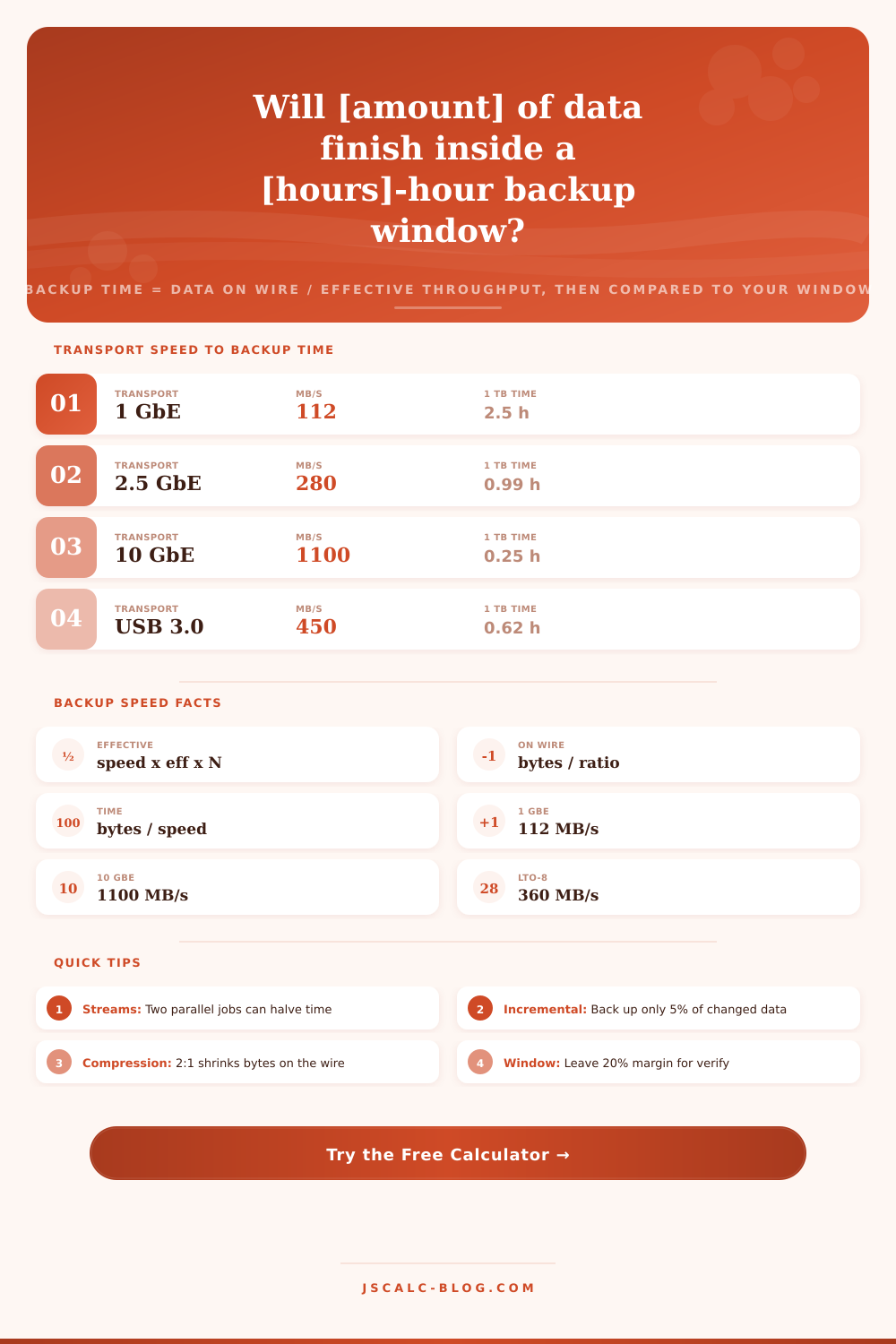
The other deciding factor in your planning is transport. SATA III at 495; LTO-8 tape at 324; USB 3.0 at 450. Ten gigabit ethernet means that what took a full day to copy now takes just a couple of hours. We put them side by side on the comparison grid. We show how much time it takes to copy one terabyte and ten terabytes. We also show whether ten terabytes fits within an eight hour window. Tape remains a strong offsite archive choice because its streaming speed is steady and its media is cheap per terabyte. That makes tape a strong option still as an offsite archive solution.
Ten presets load full scenarios that you can begin with something similar to what you have. A couple are for five hundred gigabytes of data per night copied onto a USB drive. Another covers ten terabytes on 10 GbE, and one is a one terabyte backup on a gigabit connection. There is a five terabyte archive to LTO-8 tape. Others use multiple stream fabrics to cover databases or virtual machines. Some move two terabytes incrementally, but only when data has changed by five percent. And each populates the form and does the math in an instant. You can then tweak a number and see the margin in the window and total time adjust accordingly. It’s clear and laid out quickly for comparison purposes, on the page as a reference table.
But when you can see how long it takes, then the solutions are clear. Add some parallel streams if a job’s taking longer than expected, and use more of the link. Shorten the set with incrementals if there’s enough room in the data. Raise compression where possible. Use a faster transport. Leave yourself about a twenty-percent cushion so that something can go wrong (and usually does) and still get verification, cataloging, and the occasional retry done within the window. Read the cards, enter your actual numbers, and adjust things until Fits the Window says yes and there’s plenty of time left. Then you’ll have a backup that always finishes before the day even starts. That’s the difference between a panic and a plan.